How to Transfer a CD to iPhone with Brand New Ways
Applies to: iPhone 13, iPhone 12, and iPhone 11 series
To enrich your iPhone music library, you have several options. You can import music from your computer, add songs from the iTunes Store, or use a music streaming service like Apple Music.
- Download music to iPhone from Apple Music directly
- Transfer music from iPhone to iPhone
- Put music on iPhone from the computer
Transferring music from CDs to an iPhone is the most difficult method compared to the other ways listed.
To access music from a CD, you need to "rip" it, which involves separating the songs from the compact disc and converting them to a playable format, such as MP3. This process allows you to play the songs freely and transfer them to devices like an iPhone without using iTunes.
To transfer music from a CD to an iPhone, you can use a professional iPhone data transfer tool or iTunes. These tools allow you to rip the music from the CD and transfer it to your iPhone, making it easy to access your favorite songs on the go. With a professional tool, you can also manage your music library and transfer other types of files to your iPhone.
How to Transfer a CD to iPhone Without iTunes
To download CDs to your iPhone, you'll need to follow two main steps. First, you'll need to rip the music from the CD, which involves transferring the audio tracks to your computer. Once you have the music on your computer, you can then transfer it to your iPhone.
Part 1. Rip Music from the CD
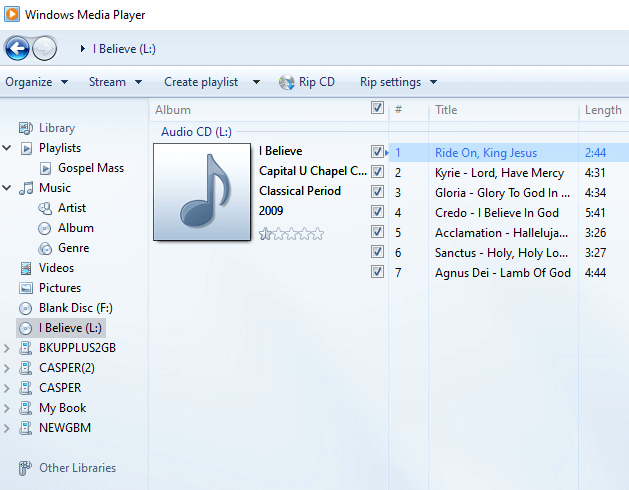
To copy and convert audio files from a CD, you can use the CD ripping feature in Windows Media Player, which is a pre-installed app on Windows, eliminating the need for software installation.
If you're looking to rip a CD, there are alternative methods to consider. For a more detailed exploration of these options, you can refer to the related guide, which provides additional workable ways to achieve your goal.
To rip music from the CD:
Step 1. Launch Windows Media Player and go to "Organize" > "Options."
Step 2. To rip music, go to "Rip Music" and then select "Rip Settings" from the dropdown menu. Choose "MP3" as the output format, or select another format according to your preference.
Step 3. Insert the CD into the CD drive on your computer.
Step 4. To copy a CD to your computer using Windows Media Player, select the "Rip CD" option. This will initiate the process of copying the CD's music to your computer.
Step 5. To check the MP3 files, go to the "Music" folder on your PC.
Part 2. Transfer Music from the CD to iPhone
Transferring music from a CD to your iPhone is now a breeze. After obtaining the songs from the CD, you can easily put music onto your iPhone. To transfer music from a computer to an iPhone, iPad, or iPod touch, the iPhone data transfer tool, Qiling MobiMover, can be of great help.
Whether you want to put music to an iOS or iPadOS device from a computer or transfer music from iPhone to computer, it will do it for you, and it also works to transfer music from iPhone to iPhone, which could be helpful when switching from one iPhone to another.
Qiling MobiMover allows users to transfer various types of content, including music, photos, videos, ringtones, audiobooks, contacts, and more, between devices. This makes it a versatile tool for managing iPhone content.
To transfer music from the CD to your iPhone:
Step 1. Connect your iPhone to your computer and run Qiling MobiMover. Tap the "Trust" button on the iPhone screen and click "Allow" on the Qiling MobiMover program. Select "PC to Phone" and click "Select Files" to continue.
Step 2. Select the Music folder or songs that are saved on your PC and click "Open" to confirm.
Step 3. Select the songs you want to transfer from the Audio category, and click "Transfer" to complete the process. When the process is complete, open the "Music" app on your iPhone to check the transferred songs.
To transfer CDs onto your iPhone, start by ripping the music from the CDs using a computer or a digital music player. Then, import the ripped music into the iTunes library on your computer.
How to Download CD onto iPhone with iTunes
iTunes can play music, rip CDs, and transfer music to iOS devices, making it a convenient tool for managing media.
To put CDs onto iPhone:
Step 1. To start the process, launch iTunes and insert the CD into the CD drive on your computer.
Step 2. When a prompt appears asking you whether to import the CD, select "Yes."
Step 3. In the "Import Settings" window, select a format you prefer, such as "MP3 Encoder" or "AAC Encoder."
Step 4. To rip a CD, insert the disc into the computer's CD drive, open the CD ripping software, select the tracks you want to rip, choose the desired format, and click "Rip" to begin the process. The software will then extract the audio data from the CD and save it as a digital file on the computer.
Step 5. To connect your iPhone to your computer, start by plugging the iPhone into the computer using a USB cable. Make sure the cable is securely connected to both the iPhone and the computer.
Step 6. To transfer music from a CD to your iPhone, go to the iTunes library, select the music from the CD, and then drag and drop them to your iPhone.
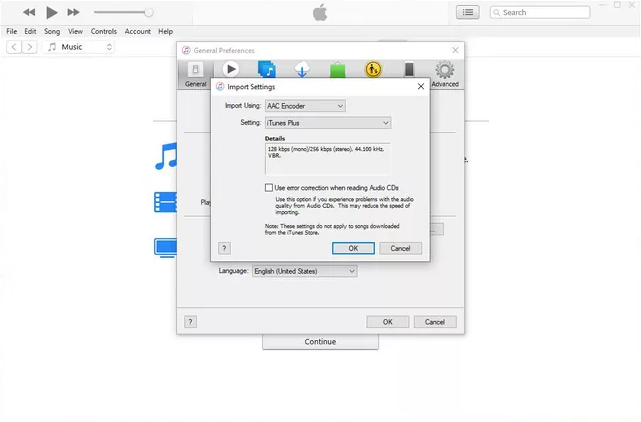
If you can't see the popup window, you can go to iTunes and click the CD icon. Select the songs you want to transfer, click "Import CD", and then follow the import settings. Wait for the music to be ripped from the CD.
FAQs
To help you transfer CDs to an iPhone with ease, there are common questions you may have and their corresponding answers.
How to transfer CD to iPhone with iTunes?
You can transfer music from a CD to your iPhone using iTunes. First, import the songs from the CD into iTunes, then transfer the music to your iPhone. This process allows you to easily add songs from a CD to your iPhone's music library.
How to transfer CDs to an iPhone without iTunes?
You can put CDs onto your iPhone without iTunes by first ripping the music from the CD with a free CD ripper like Windows Media Player, and then transferring the music to your iPhone using a reliable data transfer tool like Qiling MobiMover.
How to transfer CD to an iPhone without a computer?
You can't transfer CDs to an iPhone directly, but you can transfer music to an iPhone without a computer by other means. You need a computer to rip a CD and transfer it to an iPhone.
The Bottom Line
You can transfer a CD to your iPhone, including iPhone 13, 12, 11, and earlier models, as well as an iPad or iPod touch, using the methods mentioned above.
To burn a CD using songs from your iPhone, you can transfer music from your iPhone to your computer, then use Windows Media Player or a CD ripper to convert the MP3 files to a format that can be burned onto a CD.
Related Articles
- 3 Methods to Transfer Ringtones from iPhone to iPad with/without iTunes
- Download Facebook Videos to MP3 in 2 Way [100% Work]
- How to Turn HEIC to JPG on Mac & PC
- How to Transfer Photos from iPhone to PC in Windows 7
Products
Articles & Tutorials
- Data Recovery
- Data Backup
- File Recovery
- File Backup
- System Backup and Restore
- Disk and Partition Clone
- Technical articles
- Mobile articles
- Disk Master Help
- Windows Data Recovery Tutorials
- Windows Secure Delete Tutorials
- Windows Partition Management Tutorials
- Windows File Backup and Restore Tutorials
- Windows System Backup and Restore Tutorials
- Windows Disk Backup and Restore Tutorials
- Windows Clone Tutorials