How to Transfer Music from Laptop to iPhone
Transferring music from a laptop to an iPhone is often done using iTunes, which is free and maintains Apple's ecosystem. However, many users have turned to third-party tools for this task, partly due to iTunes' poor performance and partly because Apple has decided to discontinue the service.
Using some iTunes alternatives to transfer music is advisable, but you can also transfer songs from laptop to iPhone with or without iTunes, depending on your preference. Whether you choose to use iTunes or not, you can still learn how to transfer music between devices.
- Part 1. Transfer music from laptop to iPhone without iTunes
- Part 2. Transfer music from laptop to iPhone with iTunes
Part 1. How to transfer music from laptop to iPhone without iTunes
If you're looking for an alternative to iTunes, Qiling MobiMover is a handy tool that allows you to easily and quickly transfer music and other iOS files from your laptop to your iPhone with just a few clicks. In addition to music, it also supports transferring photos, contacts, videos, and messages, making it a great choice for transferring downloaded songs from your PC to your iPhone.
Transferring music from your laptop to your iPhone without using iTunes is straightforward with Qiling MobiMover, which allows you to transfer music, videos, and other files between your devices.
Step 1. Connect your iPhone/iPad to the laptop and run Qiling MobiMover. Click on the "PC to Phone" transfer mode on the application.
Step 2. Select the Music files saved on your laptop, click "Open" to confirm the transfer to your iDevice.
Step 3. The selected music files will be classified in Audio, then click "Transfer" to initiate the transfer process. To add more items, simply drag and drop them on the window before clicking the transfer button. Once the process is complete, you can open the Music app on your iPhone or iPad to verify that the transferred items are available for playback.
As an iPhone user, you'll likely find Qiling MobiMover a useful tool in various situations. Whether you're upgrading to a new iPhone and need to transfer contacts, photos, text messages, or ringtones, Qiling MobiMover makes it easy to get your new device set up with your important data from your previous one.
Part 2. How to transfer music from laptop to iPhone with iTunes
While iTunes can be a bit cumbersome to use, it does meet most of the demands for handling iOS data. However, its complexity can be a drawback, and users need to be careful to avoid accidentally wiping existing data like songs, videos, or podcasts.
To transfer music from your laptop to your iPhone using iTunes, follow these steps: first, connect your iPhone to your laptop using a USB cable, then open iTunes on your laptop and select your iPhone from the top left corner; next, click on "Music" and select the songs you want to transfer to your iPhone by checking the boxes next to them; finally, click on the "Sync" button to transfer the selected songs to your iPhone. Alternatively, you can also use the "Add to Library" feature in iTunes to add music from your laptop to your iPhone's music library.
Step 1. To update iTunes on your PC, simply launch the application, then click on the "Help" menu and select "Check for Updates". If an update is available, follow the on-screen instructions to download and install the latest version. Ensure that your PC is connected to the internet for this process.
Step 2. To add music from your PC to iTunes Library, click the "File" option and select "Add File to Library...". Then, select the music or songs you want to transfer and click "Open" to add them to iTunes.
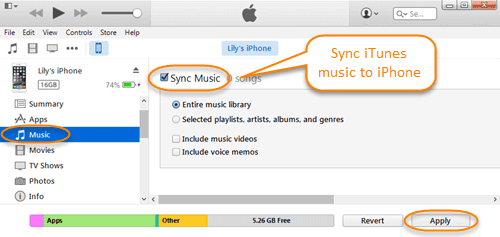
Step 3. Connect your iPhone to your laptop with a USB cable, click on your iPhone icon, select the "Music" tab, then choose the "Sync Music" option, and select either "Entire music library" or "Selected playlists, artists, albums, and genres" to sync all or some music to your iPhone.
Step 4. After clicking "Apply" and "Done", iTunes will start to transfer songs from laptop to iPhone via syncing.
The Bottom Line
With Qiling MobiMover installed on your laptop, you can easily transfer music, photos, messages, videos, contacts, and other iOS data from your computer to your iPhone, or back up your iPhone data, manage WhatsApp messages, and download videos from streaming websites.
Related Articles
- Two Methods to Transfer Music from iPhone to iPhone 8
- How to Sync Notes from iPhone to iPad with/Without iCloud
- How to Export WhatsApp Chat on iPhone
- How to Fix iPhone/iPad Calendar Not Syncing
Products
Articles & Tutorials
- Data Recovery
- Data Backup
- File Recovery
- File Backup
- System Backup and Restore
- Disk and Partition Clone
- Technical articles
- Mobile articles
- Disk Master Help
- Windows Data Recovery Tutorials
- Windows Secure Delete Tutorials
- Windows Partition Management Tutorials
- Windows File Backup and Restore Tutorials
- Windows System Backup and Restore Tutorials
- Windows Disk Backup and Restore Tutorials
- Windows Clone Tutorials