[Guide] How to Upload Photos/Videos to iCloud from PC
With the help of iCloud, you can upload photos and videos from your Windows PC, Mac, iPhone, or iPad to iCloud and access them across all your devices. For instance, by enabling iCloud Photo Library on your Windows 10/8/7 PC, you can store all your photos and videos on your computer in iCloud and view them on all your iCloud devices. This convenient syncing feature makes it necessary to learn how to upload photos and videos to iCloud from your PC.
Part 1: How to upload photos/videos to iCloud from PC
To upload photos and videos to iCloud from your Windows PC, you first need to download iCloud for Windows from https://support.apple.com/en-hk/HT204283, then sign in to iCloud on your PC with your Apple ID, and follow the steps to complete the upload.
- Tips
- When using iCloud, you might encounter issues syncing photos across your devices, such as the iCloud photos not syncing on Windows 10 problem. If you're experiencing difficulties, you can try syncing photos from your PC to your iPhone or iPad, or vice versa, using the tips found in Part 2.
Step 1: Open iCloud for Windows on your computer. Right-click the iCloud icon on your taskbar, and choose Open iCloud Settings.
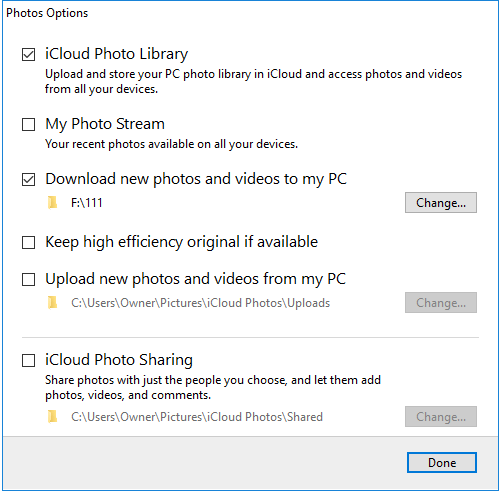
Step 2: Click Options next to Photos.
Step 3: Select iCloud Photo Library, click Done, then choose Apply.
Step 4: To access iCloud Photos on your Windows PC, go to "This PC" and navigate to the "iCloud Photos" folder, specifically the "Uploads" section.
Step 5: To upload photos and videos to iCloud from your PC, simply drag and drop them into the designated Uploads folder. This will initiate the upload process, allowing your content to be synced with your iCloud account.
Step 6: To access your photos and videos from your Windows PC, turn on iCloud Photo Library on your other devices, allowing you to view them across all your devices. Alternatively, you can also access your iCloud Photos through the iCloud.com website.
- On iPhone (or iPad), go to Settings > [your name] > iCloud > Photos, then turn on iCloud Photo Library.
- To enable iCloud Photo Library on a Mac, go to System Preferences, click on iCloud, select Options next to Photos, and then check the box next to iCloud Photo Library.
You can also download iCloud photos to your PC if you need to, in addition to uploading photos from PC to iCloud.
Part 2: How to transfer photos from PC to iPhone without using iCloud
You can sync photos from your PC to your iPhone or iPad using iCloud, but an alternative way is to use Qiling MobiMover, a professional software for iOS data transfer and file management. With MobiMover, you can easily transfer files between an iOS device and a computer, or between two iOS devices.
- What can MobiMover transfer or manage for you:
-
Photos: Camera Roll, Photo Library, Photo Stream, Photo Videos
Videos: Movies, TV shows, Music Videos
Audios: Music, Ringtones, Voice Memos, Audiobooks, Playlists
Others: Contacts, Notes, Messages, Voice Mails, Books, and Safari Bookmarks
You can transfer photos from your PC to your iPhone and vice versa without storage limitations, as long as you have enough space on both devices. Unlike iCloud, which has space constraints, this method allows you to transfer photos freely. To do this, follow the steps below and you'll be able to transfer photos from your PC to your iPhone within minutes.
Notes: MobiMover is compatible with PC running Windows 7 and later or Mac running macOS 10.12 (Sierra), 10.13 (High Sierra), Mac OS X 10.7 (Lion), 10.8 (Mountain Lion), 10.9 (Mavericks) and 10.11 (El Capitan).
Step 1. To transfer files from your PC to your iPhone, connect your iPhone to your PC running Windows 7 or later. Launch Qiling MobiMover, select "PC to Phone" on the main interface, and then choose "Select Files" to continue the process.
Step 2. With MobiMover, you can transfer photos from your PC to your iPhone by choosing the files, clicking "Open" to load them, and then transferring them.
Step 3. MobiMover will display the selected files on the screen. If any files are missed, click "Add Contents" to import more. Once you're ready, click the "Transfer" button to initiate the transfer process.
Related Articles
- iTunes backup location on Windows 7/8/10 and Mac
- 3 Ways to Delete Text Messages on iPhone X
- [Solved]Fixes to iBooks Not Syncing Between Devices
- Samsung Data Recovery: Recover Deleted Files from Samsung SD Card
Do you know how to recover deleted files from Samsung SD cards? In this essay, you will learn two methods of how to recover deleted files from Samsung SD cards in Android phones or cameras on Windows.
Products
Articles & Tutorials
- Data Recovery
- Data Backup
- File Recovery
- File Backup
- System Backup and Restore
- Disk and Partition Clone
- Technical articles
- Mobile articles
- Disk Master Help
- Windows Data Recovery Tutorials
- Windows Secure Delete Tutorials
- Windows Partition Management Tutorials
- Windows File Backup and Restore Tutorials
- Windows System Backup and Restore Tutorials
- Windows Disk Backup and Restore Tutorials
- Windows Clone Tutorials