iTunes backup location on Windows 7/8/10 and Mac
Quick Navigation:
- Find iTunesbackup location on Windows
- Find iTunesbackuplocation on Mac OS
- How to delete iTunes backup
- How to back up iPhone with an iTunesalternative tool
When you back up an iPhone to Windows with iTunes, the data is stored in a default location on Windows 7/8/10, XP, and Vista, as well as Mac, but users typically don't need to know the specific location unless they want to customize the backup data, such as changing the backup location or deleting the backup. To find the location, we'll cover where to find it on Windows 7/8/10, XP, and Vista, Mac OS, how to delete it, and how to change the location. We'll also introduce an alternative to iTunes, Qiling MobiMover Free, for easier iPhone backup.
Find iTunesbackup location on Windows
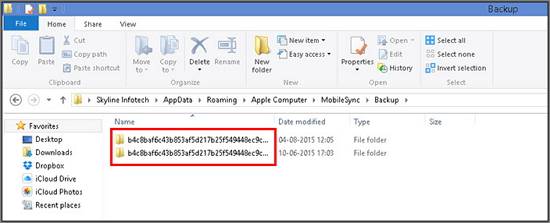
Windows systems store iTunes backups in different locations depending on the version, and they are treated as "Hidden" files. To find the backup location, you need to enable "Show Hidden Files" in Windows Explorer, regardless of whether you're using Windows 7, 8, 10, XP, or Vista.
iTunes backup location on Windows 7 and Vista
C:/Users/AppData/Roaming/Apple Computer/MobileSync/Backup/
iTunes backup location on Windows 8/10
C:/Users/YOURUSERNAME/AppData/Roaming/Apple Computer/MobileSync/Backup/
iTunes backup location on Windows XP
C:/Documents and Settings/Users/Application Data/Apple Computer/MobileSync/Backup/
One screenshot of theiTunes backup location on Windows.
Find iTunesbackuplocation on Mac OS
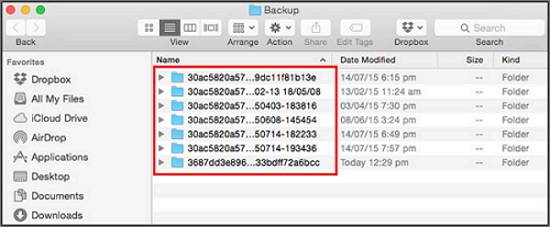
On Windows, the location of the backup folder varies, but on Mac, iTunes stores its backup data in the same location.
~/Library/Application Support/MobileSync/Backup/
To quickly navigate to a specific location in your code, you can use the Go To Fold feature in your IDE. Press Command+Shift+G on your keyboard to open the Go To Fold interface.
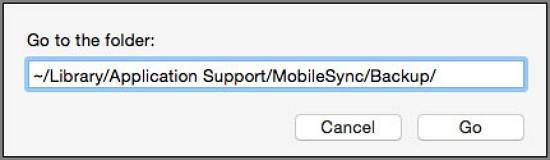
The screenshot of the backup locationon a Mac.
How to delete iTunes backup
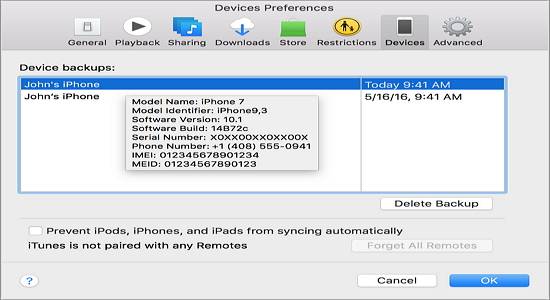
The customization of iTunes backup files is not permitted, as any incorrect operation may damage the files. However, you can delete all backup files if you want to free up computer space or for any other reason.
For Window users: Choose Edit > Preferences.
For Mac users: Choose iTunes>Preference.
Choose the backup that you want to delete as below.
How to back up iPhone with an iTunesalternative tool
If you're an Apple newbie or find iTunes too complicated, I recommend using Qiling MobiMover, an integrated iPhone backup software, to quickly and easily backup your iPhone or iPad data to your Windows PC. With MobiMover, you can backup all compatible files, including contacts, notes, messages, audios, photos, and Safari bookmarks, with just one click. If your iPhone or iPad isn't showing up on your Windows PC, fix the issue and launch MobiMover to start transferring your data.
Step 1. Run Qiling MobiMover, connect your device, select Backup Manager, and then choose Backup.
Step 2. Qiling MobiMover will display all available iPhone files for backup. Select all files by ticking the box next to "Select All" and then click on "One-Click Backup" to proceed.
Step 3. QilingMobiMover will start to back up iPhone files to your computer immediately. Do not suspend the USB connection while backing up.
Once you've made a backup, you can restore this backup to your device when you need it. This will erase your device and replace everything with what's in the backup, so be aware of that. If you prefer, you can use the "Phone to PC" feature to back up your device instead.
Qiling allows you to not only back up iPhone data to your computer, but also transfer data from your PC to your iPhone or iPad, and vice versa. This includes transferring photos from PC to iPhone, putting music from PC to iPad, and adding ringtones to iPhone, all with impressive transfer speed and a simple one-click feature.
Related Articles
- How to Reset iPhone 8/iPhone X to Factory Settings in 2 Ways
- How to Wipe an iPhone Completely
- How to Copy Files without Booting Windows (Step by Step)
This article illustrates a simple way to copy files on hard disk without booting Windows 10, 8, 7. Thus, you can rescue files even when Windows won't start. - Best Free Folder Sync Software in Windows 7/8/10
Qiling Disk Master Standard is the best folder sync software for Windows 10, you can use it to perform folder sync on a regular basis or in real-time. Learn more about it below and the detailed steps!
Products
Articles & Tutorials
- Data Recovery
- Data Backup
- File Recovery
- File Backup
- System Backup and Restore
- Disk and Partition Clone
- Technical articles
- Mobile articles
- Disk Master Help
- Windows Data Recovery Tutorials
- Windows Secure Delete Tutorials
- Windows Partition Management Tutorials
- Windows File Backup and Restore Tutorials
- Windows System Backup and Restore Tutorials
- Windows Disk Backup and Restore Tutorials
- Windows Clone Tutorials