3 Ways to Delete Text Messages on iPhone X
With the release of iOS 11 and the introduction of iPhone X, messages have become more engaging with the addition of new effects, enabling users to share videos, photos, music, and voice messages with friends and family. This feature has brought a lot of fun to iOS users, but it also consumes more space on iPhone X.
To free up space on your iPhone X, deleting text messages regularly is a good choice. There are three reliable methods for deleting text messages on iPhone X, which can help you get a faster and more available space.
Just follow either one to free up your iPhone space now:
To free up space on your iPhone X by deleting text messages, go to the Messages app, tap on "Details" at the top right corner, and swipe left on a conversation to delete it. You can also delete individual messages by tapping and holding on them, then selecting "More" and "Delete Message.
Method 1. Delete multiple text messages on iPhone X at one time
To delete multiple text messages on iPhone X, you can use the iMessage app to quickly remove all unwanted messages at once. This feature allows you to select and delete multiple messages simultaneously, saving you time and effort.
Step 1. Go to iMessages app from the home screen and tap "Edit" button on the top-left.
Step 2. Select the messages you want to delete.
Step 3. Click the Trash Can icon on the bottom-right to delete multiple selected text messages.
Method 2. Delete specific messages of one person on iPhone X
If you want to delete specific messages sent by someone, you can just follow below tips to delete a message of one person now:
Step 1. Find the conversation that includes the messages you want to delete.
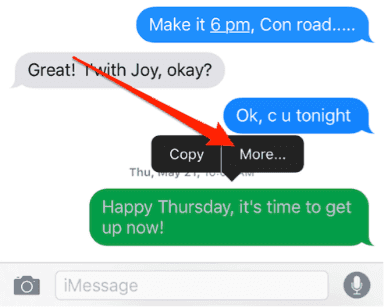
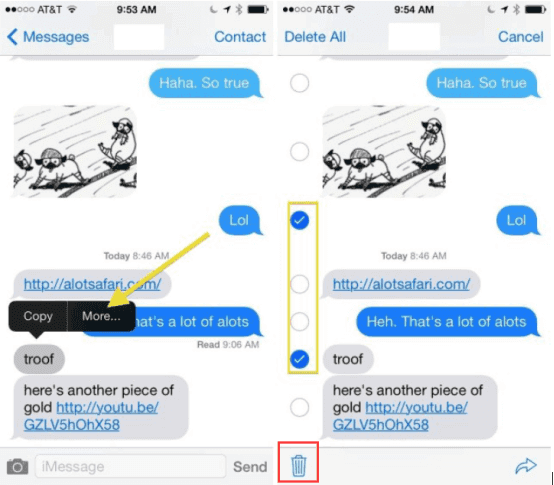
Step 2. Tap and hold on a message until the menu pops up and then tap More.
Step 3. To delete messages, tap the circle next to each message, then tap the bottom-left Trash Can icon to delete the selected messages.
Method 3. Permanently delete text messages on iPhone X
To permanently remove unwanted text messages from your iPhone X, you can try the following guide tips. Firstly, open the Messages app and select the conversation containing the unwanted messages.
Step 1. Go to "Settings" app from the homepage > Go to "Messages".
Step 2. Scroll down and tap "Keep Messages" under MESSAGE HISTORY.
There are three options: 30 Days, 1 Year, and Forever.
You can choose to delete all messages older than 30 days, or all messages older than a year old.
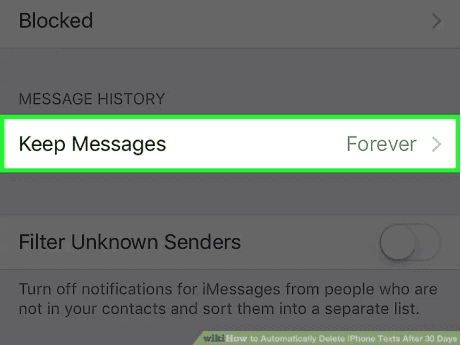
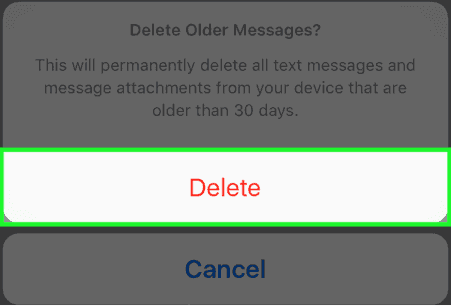
Step 3. To delete messages and attachments older than 30 days, select 30 Days and click "Delete" to confirm the deletion.
Related Articles
- iPhone Not Saving Photos to Camera Roll in iOS 11? Fixed Here!
- Control Center Not Working in iOS 11 on iPhone 8/iPhone X? Fixes Here!
- How to Delete Multiple or All Photos from iCloud on PC
- The Most Simple Way to Browse Files on iPad for Well File Management
Products
Articles & Tutorials
- Data Recovery
- Data Backup
- File Recovery
- File Backup
- System Backup and Restore
- Disk and Partition Clone
- Technical articles
- Mobile articles
- Disk Master Help
- Windows Data Recovery Tutorials
- Windows Secure Delete Tutorials
- Windows Partition Management Tutorials
- Windows File Backup and Restore Tutorials
- Windows System Backup and Restore Tutorials
- Windows Disk Backup and Restore Tutorials
- Windows Clone Tutorials