How to View & Get iPhone Text Messages on Computer
Quick Navigation:
- How to View iPhone Text Messages on Computer (Mac or PC)
- Method 1. View iPhone Messages via an iOS Content Manager
- Method 2. See iPhone Messages via iCloud
- Part 2. How to Download Text Messages from iPhone to Computer
- Part 3. How to Print iPhone Text Messages
- The Bottom Line
You can view, save, and print iPhone text messages on a computer. This involves connecting your iPhone to your PC or Mac using a cable, and then using software like iTunes or a third-party app to access and save your messages for data backup purposes.
To manage and access your iPhone messages more conveniently, you may want to view them on a Windows PC or Mac. You can also use a computer to make a backup of important information or print your iPhone text messages. To do this, follow the guide below to learn how to get your iPhone messages on PC or print them from a computer.
How to View iPhone Text Messages on Computer (Mac or PC)
You can save iPhone messages to a computer, but viewing them in detail requires a different approach. iTunes can save messages in a backup, but accessing them requires restoring the device, which isn't ideal.
Method 1. View iPhone Messages via an iOS Content Manager
To view iPhone messages on a PC or Mac, you can use the iPhone transfer software Qiling MobiMover, a reliable tool that allows you to easily access and view your iPhone messages on your computer.
- You can access and view iPhone files, such as photos, videos, contacts, messages, and more, on a PC or Mac by using a third-party app or service that allows for file transfer and sharing between devices. Some popular options include iTunes, iCloud, and third-party apps like AnyTrans, PhoneCopy, and iExplorer.
- Transfer files between an iOS device and a computer
- Transfer data from one iPhone/iPad to another
With Qiling MobiMover, you can easily transfer and view your iPhone messages on your computer, whether you're using a Mac or PC, making it a convenient tool for managing your messages across devices.
To view iPhone Messages on a PC or Mac:
Step 1.To transfer messages from your iPhone to your computer, connect your iPhone to your computer (Mac or PC) and run Qiling MobiMover. Then, navigate to the "Content Management > Messages" section.
Step 2.To view your iPhone messages, just click the conversation you want to check and you will see the details shown on the right side of the MobiMover window. It's highly recommended to save your iPhone text messages to the computer to make a backup by clicking the "Transfer to PC" button. This way, you can see all your iPhone messages listed in MobiMover.
You can easily view iPhone messages on PC using Qiling MobiMover, an iOS content manager. This tool is also useful in other situations, such as managing various types of files and data between your iPhone and PC.
- Transfer music from one iPad to another
- Send large videos from an iPhone to a computer
- Transfer photos from an iPhone to a PC
- Transfer files from a Mac to iPad
If you want to manage your iPhone data well, it is advisable to let a tool help.
Method 2. SeeiPhone Messages via iCloud
If you're a Mac user, you can also sync messages from your iPhone to your computer using iCloud, allowing you to view your iPhone messages on your Mac.
To get iPhone text messages on Mac:
Step 1. Make sure you are using the same Apple ID on your iPhone and the Mac. This will allow you to use the same iCloud account to back up and sync your data across both devices.
Step 2. To set up text message forwarding on your Mac, go to the Settings app, select "Messages", then choose "Text Message Forwarding" and select your Mac's name from the list.
Step 3. Turn on iCloud Messages on your devices.
- To enable iMessage on your iPhone, go to the "Settings" app, select your name at the top, and then tap on "iCloud". From there, turn on the switch next to "Messages" to activate iMessage.
- To enable Messages in iCloud on your Mac, open the Messages app, go to Messages > Preferences from the menu bar, switch to the iMessages tab, and click the checkbox next to Enable Messages in iCloud.
By syncing your iPhone and Mac, you can keep your message history up-to-date on both devices, allowing you to view messages from your iPhone on your Mac.
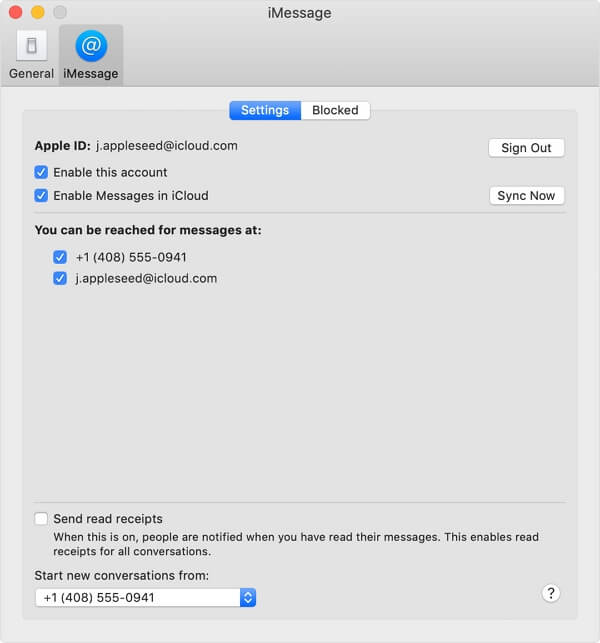
Unfortunately, there is no iMessage for Windows PC, making this method exclusive to Mac users.
Part 2. How to Download Text Messages from iPhone to Computer
To back up important messages on your iPhone, you can use Qiling MobiMover to download iMessages, text messages, and multimedia messages from your iPhone to a PC or Mac.
To save iPhone text messages on PC or Mac:
Step 1.To get started, connect your iPhone to your computer (either a Mac or PC) and click "Trust" on your iPhone to authorize the computer. Next, launch Qiling MobiMover and navigate to the "Content Management" section, where you can select "Messages" to manage and transfer your iPhone messages.
Step 2.To transfer items, go to the "Settings" and select a folder where you want to save the items to be transferred.
Step 3.To save text messages from your iPhone to a computer, select the messages, including SMS and iMessages, you want to save and click the "Transfer to PC" button. MobiMover will then automatically download the messages to the computer, where you can view them in a browser by opening the HTML file.
Unlike using iTunes or iCloud backup, Qiling MobiMover allows you to access and view the messages you backed up, and you can also transfer other iPhone data to your computer to make a backup if needed.
Part 3. How to Print iPhone Text Messages
You can easily print text messages on your iPhone with the help of Qiling MobiMover. To do so, follow the steps in Part 2 to download text messages from your iPhone to your computer, and then you can print the messages from your computer using the steps below.
Step 1. After saving iPhone messages on a PC or Mac, open the backup file (.html) with a browser like Google Chrome.
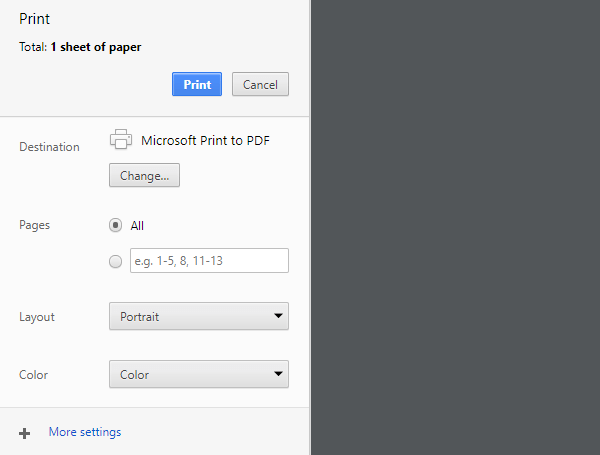
Step 2. To print a webpage, click the three dots at the top right corner of the browser window, then select the "Print" option from the dropdown menu.
Step 3. To print text messages from your iPhone on your Windows PC or Mac, set up the printing according to your needs and click "Print" to start the process. This allows you to easily transfer and display your iPhone messages on your computer screen.
There are two more solutions for you to print text messages from your iPhone, you can check the guide for more details.
The Bottom Line
Now you know how to view iPhone text messages on a computer, and you can also learn two other useful tips: saving iPhone messages on a PC/Mac and printing iPhone text messages. To get things done safely and quickly, simply carry out the steps according to your needs.
Related Articles
- How to Download SoundCloud Songs
- How to Copy Contacts from iPhone to SIM Card
- 4 Best Ways to Recover Deleted Files in Windows 11 Without Software
if you lose files in Windows 11. This post provides the four best ways to recover deleted files in Windows 11 without software. Read on to get more information. If you still prefer a data recovery tool, download and run Deep Data Recovery. - 2023 Solutions| How to Recover Deleted GoPro Files [Videos & Photos]
This post provides the best way to recover deleted GoPro files on Windows and Mac. Download the best GoPro file recovery software - Deep Data Recovery and recover deleted GoPro videos and photos with simple clicks. Keep reading to get more information.
Products
Articles & Tutorials
- Data Recovery
- Data Backup
- File Recovery
- File Backup
- System Backup and Restore
- Disk and Partition Clone
- Technical articles
- Mobile articles
- Disk Master Help
- Windows Data Recovery Tutorials
- Windows Secure Delete Tutorials
- Windows Partition Management Tutorials
- Windows File Backup and Restore Tutorials
- Windows System Backup and Restore Tutorials
- Windows Disk Backup and Restore Tutorials
- Windows Clone Tutorials