How to Transfer Music from iPad to iPad in Proven Ways
Transferring music from one iPad to another is more complicated than transferring photos, mainly due to copyright protection. As a result, there are limited convenient features on the iPad, such as AirDrop, that can be used to facilitate music transfer, although music information can be shared via AirDrop.
Then how can you transfer music from iPad to iPad?
Fortunately, transferring music from one iPad to another isn't impossible, even with varying levels of difficulty. There are proven methods that allow you to transfer music between iPads, with or without the use of iTunes or a computer.
How to Transfer Music from iPad to iPad Without iTunes
The Qiling MobiMover, an iOS content manager, allows you to transfer purchased or non-purchased music, as well as other files, between iDevices or between an iPhone/iPad/iPod touch and a Mac/PC. This software supports the transfer of various types of files, including music, photos, videos, contacts, and books, making it a versatile tool for managing your iOS content.
- Transfer videos from an iPhone to a computer
- Transfer MP3 from a Mac to an iPhone
- Transfer contacts from one iPhone to another
- Transfer text messages from an iPhone to a computer
To transfer music from iPad to iPad:
Step 1. Connect two iPads to the computer, then run Qiling MobiMover. To enable Qiling MobiMover to access your iPads, tap "Trust" on your devices and click "Allow" on the program. Click "Phone to Phone", then set the transfer direction - from old iPad to the new iPad, and click "Next" to continue.
Step 2. To transfer music from an old iPad, expand the "Audio" option and select "Music" from the list of available options. This will allow you to transfer music files from the old iPad to a new device or computer.
Step 3. Click "Transfer" and wait for the transferring process to finish. After the transfer process is complete, open the Music app on the target iPad to view the transferred music content.
Qiling MobiMover is a tool that can back up data and manage iOS content, making it easy to handle precious data including music, photos, videos, and contacts.
How to Transfer Music from One iPad to Another Without Computer
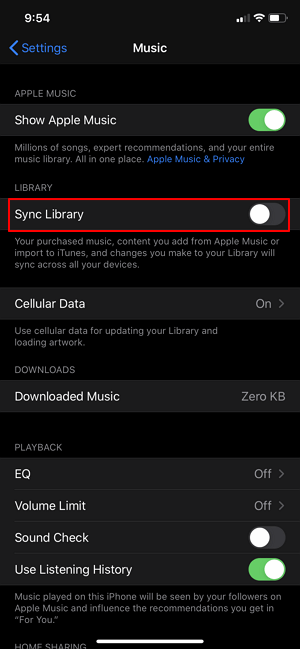
If you're an Apple Music subscriber with purchased music on your old iPad and want to transfer it to your new iPad, you can use data syncing to wirelessly transfer the content. By enabling iCloud Music Library on both devices with the same Apple ID, any music you add from Apple Music will automatically sync across your devices, making it easy to transfer music from one iPad to another, or from a Mac to an iPhone.
Step 1. Make sure both iPads are using the same Apple ID.
Step 3. On both devices, go to "Settings" > "Music."
Step 3. Toggle on "Sync Library."
How to Transfer Music from iPad to iPad with iTunes
Using iTunes to share music from one iPad to another is a workable but not recommended solution, only applicable for transferring purchased music. This process involves transferring music from the source iPad to iTunes, then syncing that music from iTunes to the target iPad, which is more complex and less straightforward than the other methods.
To transfer music from one iPad to another:
Step 1. To connect your old iPad to your computer, you will need to use a USB cable to physically connect the two devices. Once they are connected, your computer should recognize the iPad and allow you to access its contents, including any data you want to transfer or backup.
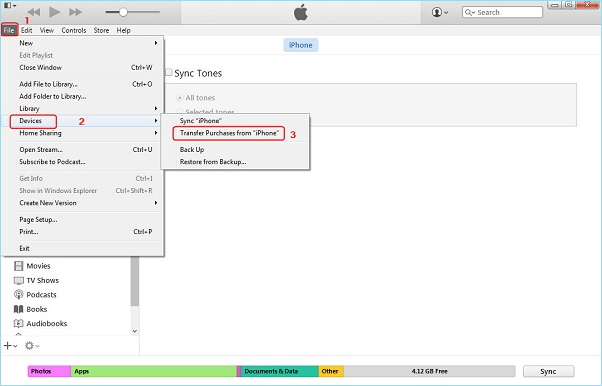
Step 2. To transfer purchases from your iPod to your computer, launch iTunes and navigate to the "File" menu, then select "Devices" and choose "Transfer Purchases from [your iPod name]."
Step 4. Connect the new iPad to this computer and click on your device icon.
Step 5. From the expanded section, choose "Songs."
Step 6. Right-click the music files you want to transfer and choose "Add to Device."
The Bottom Line
You can transfer music from one iPad to another using Qiling MobiMover, Apple Music, or iTunes, depending on your specific situation and preferences.
Related Articles
- How to Transfer Large Videos from iPhone to PC in Detail
- How to Access Music Files on iPhone
- How to Recover Deleted Game Files/Steam Data/Game Saves on PC
Recovering deleted game files on a PC can be achieved through several efficient approaches. To effectively recover deleted game files, refer to the detailed instructions in the article, which outline 5 methods for recovering lost game data after deletion.
Products
Articles & Tutorials
- Data Recovery
- Data Backup
- File Recovery
- File Backup
- System Backup and Restore
- Disk and Partition Clone
- Technical articles
- Mobile articles
- Disk Master Help
- Windows Data Recovery Tutorials
- Windows Secure Delete Tutorials
- Windows Partition Management Tutorials
- Windows File Backup and Restore Tutorials
- Windows System Backup and Restore Tutorials
- Windows Disk Backup and Restore Tutorials
- Windows Clone Tutorials