How to Transfer Large Videos from iPhone to PC in Detail
To free up your iPhone's storage and make it run faster, transfer large videos to a PC, then delete them from your device.
To transfer a large video from your iPhone to your computer, you can use one of four easy methods. These include copying large videos from iPhone to PC, and tips to delete unwanted large files from your iOS device.
How to Transfer Large Videos from iPhone to PC Easily
Supported files: Photos, videos, music, ringtones, contacts, messages, books, and more
When you want to transfer large files from your iPhone to your PC, you can use iPhone transfer software like Qiling MobiMover to get things done. Alternatively, if you're using a Mac, you can refer to an article on how to transfer files between your iPhone and Mac.
With this tool, you can transfer large videos from your iPhone's camera roll or movies/TV shows from other apps to your PC, and also transfer videos from your PC to your iPhone when you want to enrich your iPhone content.
To get large videos off iPhone to computer:
Notes: If you're transferring large videos from your iPhone camera roll, choose "Pictures" instead of "Videos" to avoid any potential issues during the transfer process.
Step 1. Connect your iPhone to your PC, then click "Trust" on your iPhone to authorize the computer. Launch Qiling MobiMover and navigate to "Content Management" > "Videos" > "Movies/TV/Music Video".
Step 2. When transferring files from an iPhone or iPad to a computer, the files are initially stored on the desktop. If you'd like to change the default storage location, go to "More" > "Settings" and select a custom path.
Step 3. Select the videos you want to copy, choose "Transfer to PC", and the selected videos will be transferred instantly. The transferred videos can be found in the selected folder after the process is complete.
Qiling MobiMover not only allows you to transfer videos from iPhone/iPad to PC, but also enables you to perform other tasks such as.
- Transfer files from PC to iPhone/iPad
- Transfer files from one iPhone/iPad to another
- You can manage the content on your iDevice from a computer by adding, editing, or deleting items.
- Transfer, back up and restore WhatsApp chats
You can also add music to your iPhone without using iTunes or access your iPhone files on a PC with this tool when needed.
How to Get Large Videos Off iPhone with File Explorer
Supported files: Photos and videos
You can copy large videos from your iPhone to your PC using Windows File Explorer, but it only allows photo and video transfer, not practical for large file transfers.
If your iPhone photos aren't showing up on your PC, first check your USB cable and ensure your iPhone is unlocked and you've trusted the computer to allow data transfer.
Here's how to transfer a large video from iPhone to PC using File Explorer:
Step 1. Connect your iPhone to your Windows PC with a USB cable. Open iTunes on your PC.
Step 2. Unlock your iPhone and trust the computer.
Step 3. To view your iPhone's photos and videos on your Windows computer, go to "This PC" and select your iPhone's name. Then, navigate to "Internal Storage," followed by "DCIM," and finally "100APPLE," where you'll find all the photos and videos from your iPhone's Photos app.
Step 4. To transfer large videos from your iPhone to your PC, start by connecting your iPhone to your PC using a USB cable. Open iTunes on your PC and select your iPhone from the top left corner.
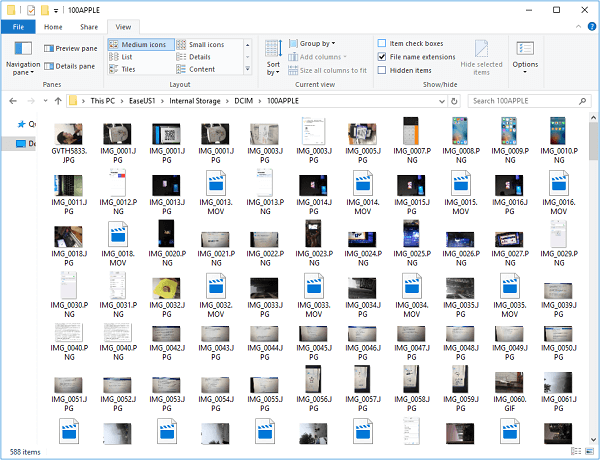
After downloading videos from your iPhone to your PC using File Explorer, you can delete files on your iPhone to free up device storage.
How to Send a Long Video from iPhone to Computer with VLC
Supported files: Mainly videos
The VLC app for iOS allows users to wirelessly transfer large videos from their iPhone to a PC, as long as both devices are connected to the same network.
VLC can also help with transferring files from iPhone to PC, making it a versatile tool for various media-related tasks.
To send large video files from iPhone to PC:
Step 1. Download and install VLC for iOS on your iPhone.
Step 2. Go to the "Photos" app and select the video you want to send.
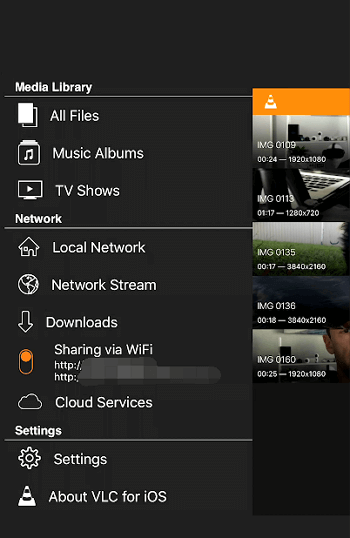
Step 3. Click the share icon, then choose "Save to Files" followed by "On My iPhone" and finally "VLC" to import iPhone videos into the VLC app.
Step 4. Open the VLC app, click the icon in the top-left corner, turn on "Sharing via WiFi" and note the IP address.
Step 5. You can access your home security camera's live feed on your Windows PC by opening a web browser and entering the IP address of the camera. This will allow you to view the camera's live feed on your computer screen.
Step 6. To copy videos from your iPhone to your computer, play the video you want to copy on your iPhone, right-click on the video window on your computer, and select "Save Video as" to download the video to your computer.
How to Transfer a Large Video from iPhone to Mac via iCloud Drive
Supported files: Any type of file
With iCloud Drive enabled, you can store and access any type of content from all your devices, including PC, as long as the file is 50GB or less and you have sufficient iCloud storage, allowing you to easily share large files like videos between devices.
To avoid slow data syncing when copying large files from your iPhone to your PC and syncing iCloud data over Wi-Fi, ensure you have fast network connections on both devices. This will prevent the data syncing process from being extremely slow and time-consuming.
To transfer large files from an iPhone to a PC using iCloud Drive, the process involves a few steps. First, the user must ensure that their iPhone and PC are connected to the same iCloud account.
Step 1. To enable iCloud Drive on your iOS device, go to "Settings", select your Apple ID, and then scroll down to enable "iCloud Drive".
Step 2. To send a large file to your PC, find the file you'd like to share and tap the share icon.
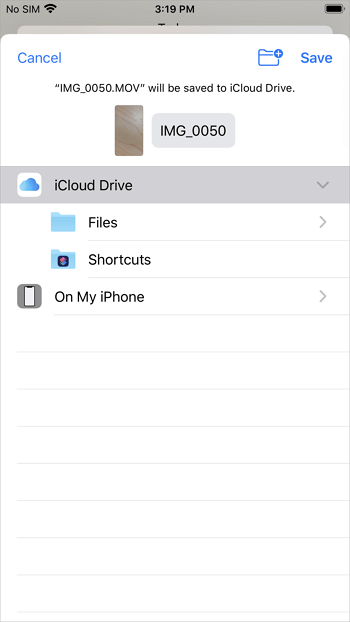
Step 3. Select "Save to Files" and choose "iCloud Drive" from the dropdown menu. Then, select or create a folder within iCloud Drive to save the item.
Step 4. To access iCloud on your PC, go to iCloud.com and sign in with your Apple ID, which is the same one you use on your iPhone.
Step 5. To access the saved large videos, go to iCloud Drive and select the folder where the videos were saved.
Step 6. Select and download the large videos from your iPhone to your PC.
If you have installed iCloud for Windows, turn on iCloud Drive via the iCloud settings and the files in iCloud Drive will be sync to the iCloud Drive folder on your PC automatically. If you encounter the issue "iCloud Drive not syncing" on your PC, you can solve the problem by following the steps to resolve it.
Other than iCloud Drive, cloud-based storage services like Dropbox, OneDrive, and Google Drive can also be used to transfer large video files from iPhone to Mac.
Bonus Tip: How to Delete Unwanted Large Files from iPhone
After transferring large files from iPhone to PC, you can remove unwanted files from your device to save storage. You can delete unwanted videos by going to the corresponding app or using an iOS content manager like Qiling MobiMover to access and delete iPhone files from a computer.
Frequently Asked Questions
When sending large videos from an iPhone to a PC, you may encounter some issues. To address these concerns, here are the answers to some potential questions:
1. How do I transfer large videos from my iPhone?
When transferring large videos from an iPhone, you can use the iPhone data transfer tool, Qiling MobiMover, to easily move files from the device to a computer. Simply connect your iPhone to the computer, select the desired video files, and click Transfer to send them to a PC or Mac, with no complicated steps required.
2. How do I transfer a large 4K video from my iPhone to my computer?
To transfer a large video from iPhone to PC, connect your iPhone to the computer and go to "This PC" to access the internal storage of the iOS device. Navigate to the "DCIM" folder, locate the video, and manually copy it from your iPhone to the computer using File Explorer or the Photos app.
3. How do I transfer large files from iPhone to a Windows laptop?
iCloud Drive allows you to transfer large files between your iPhone and computer without any file type limits, as long as the single file is under 50GB. To do this, store the target file in iCloud Drive on your iPhone, enable iCloud Drive, and then visit iCloud.com on your computer via a browser. From there, access iCloud Drive and download the large file to your computer.
The Bottom Line
The best way to transfer large videos or files from your iPhone depends on the type of content, network quality, and tools you have. You can opt for either wired or wireless solutions to get the job done.
Choose the way that fits your situation best to apply.
Related Articles
- How to Delete Apps on iPhone 11 [iOS 11 and Newer]
- How to Transfer Music from USB to iPhone
- [2022 New] How to Upload Photos to iCloud in 3 Ways
- Best Free Method to Import TV Shows to iPhone/iPad from PC and iTunes
Products
Articles & Tutorials
- Data Recovery
- Data Backup
- File Recovery
- File Backup
- System Backup and Restore
- Disk and Partition Clone
- Technical articles
- Mobile articles
- Disk Master Help
- Windows Data Recovery Tutorials
- Windows Secure Delete Tutorials
- Windows Partition Management Tutorials
- Windows File Backup and Restore Tutorials
- Windows System Backup and Restore Tutorials
- Windows Disk Backup and Restore Tutorials
- Windows Clone Tutorials