How to Recover Deleted Game Files/Steam Data/Game Saves on PC
Spending hours progressing through your favorite game only to discover your save files or game data have vanished is a frustrating experience for any PC gamer. Accidental deletion, system crashes, malware attacks, or failed updates can all cause game files to disappear without warning.
The good news is that deleted game files are not immediately erased from your hard drive. When you delete a file, the system marks the space as available for new data, but the original content remains intact until overwritten. This means you can still recover deleted game files on PC if you act quickly and follow the right methods.
This guide covers five proven game file recovery methods, from using professional recovery software to restoring files through Steam's built-in features. Follow the steps below to recover deleted game files and get back to gaming as soon as possible.
Why Game Files, Steam Data, or Game Saves Get Lost
Game files can be lost due to system problems, malware, or accidental deletion. Uninstalling unused games can free up disk space, but be cautious not to delete important files. If game files are lost, reinstalling from the original source or restoring from a backup can help.
- Steam games may still appear in the Game Library, but their names are grayed out, indicating that the files are present but Steam cannot locate them.
- The blue screen of death (BSOD) in Windows results in data loss when it encounters a catastrophic error, typically causing game data to be lost.
- After a game update or patch, it may crash due to bugs or incompatibilities, leading to missing game files.
- Accidentally pressing Shift+Delete or emptying the Recycle Bin permanently removes game files from the directory, making recovery more difficult.
To figure out why you lost your game, check the situations listed above. Once you have identified the issue, you can learn how to recover deleted game files on a PC by reading the following parts.
Recover Deleted Games on PC Using Software (Recommended)
Professional data recovery software is the most recommended solution for game file recovery. Whether you have a game file backup or not, you can quickly recover your game saves on your PC.
The Qiling Data Recovery Wizard is designed to recover damaged, corrupted, or missing game files, providing a straightforward way to restore deleted files due to unexpected errors, system failures, and other issues.
Qiling Data Recovery Wizard
- Supports over 1000 file types and offers flexible scanning options, ensuring excellent recovery results for all your game data.
- Recovers lost PC game data, including data from popular games like Hogwarts Legacy, Call of Duty, Genshin Impact, and Elden Ring.
- Compatible with both Windows and macOS, supporting Windows 11/10/8/7 and macOS 13.0 ~ OS X 10.9 and later.
You can restore deleted games saved on your PC in three simple steps.
Step 1. Select a location and start scanning
Launch Qiling Data Recovery Wizard, hover on the partition/drive where the deleted files were stored, and click "Scan" to find lost files.

Step 2. Select the files you want to recover
After scanning is complete, select the deleted files you want to recover. You can filter the results to show only specific file types, or search for a file by name in the "Search files or folders" box.

Step 3. Preview and recover deleted files
Preview the recoverable files, select the desired files, and click "Recover" to move them to a new location, bypassing the original lost disk.

Restore Deleted Games on PC from the Recycle Bin
When a file is deleted, it moves to the Recycle Bin, giving you a chance to recover it if you change your mind.
What you ought to do is:
Step 1. Double-click the Recycle Bin icon on the Desktop.
Step 2. Once the Recycle Bin window opens, locate the deleted game file. If it appears there, the file was successfully moved to the Recycle Bin during deletion.
Step 3. If the file is still available, right-click on it and choose the Restore option to recover it.
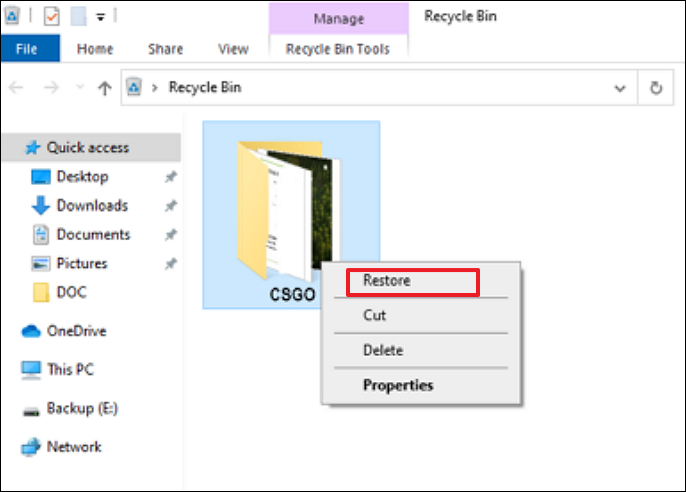
Step 4. The saved game file will be restored to its original location instantly and without any further user intervention.
- Notice:
- This approach only works if the game file was removed using the Delete key. If the file was permanently deleted via Shift+Delete or the Recycle Bin was emptied, this method will not be effective.
Deleting files with the Shift key in Windows permanently removes them from the hard disk directory, making recovery more difficult. If you need to recover Shift deleted files, visit the linked page for solutions.
Recover Lost Game Files from the Game Library
Your Steam games' names are grayed out, but you can still access them. This is likely due to a file issue where Steam cannot locate the game data on your drive.
The places where game data is saved can vary between games, making it difficult to retrieve deleted data. However, for Steam games, you can recover deleted data by following these steps.
Step 1. Launch Steam on your device and select "Library".
Step 2. Locate the name of the misplaced game, such as Dota 2, in the left panel, right-click on it, and choose "Properties."
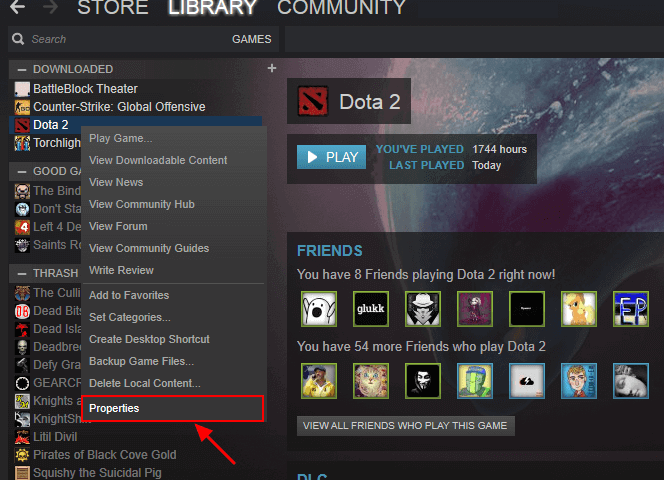
Step 3. Click "Local Files" from the Properties window's left-side menu, then click "Verify integrity of game files" to let Steam check and restore any missing or corrupted game data.
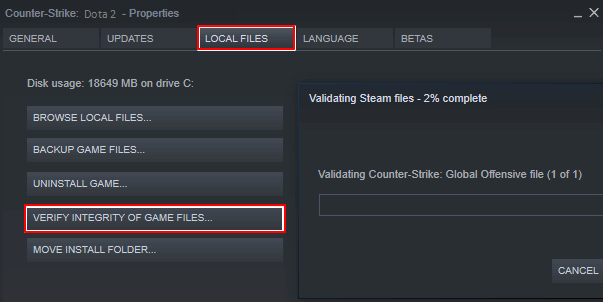
After completing the steps, you can reopen the game to see if the deleted data has been recovered.
Recover the Game Saves via Steam Menu
You can try this method if your games are still problematic on Steam. The short process will determine if any files are missing.
Step 1. Open Steam and navigate to the Library on your device.
Step 2. Right-click on the name of the game that is missing on the left side and select "Properties."
Step 3. Verify the game files' integrity by clicking "Local Files" and selecting "Verify integrity of game files" from the Properties window.
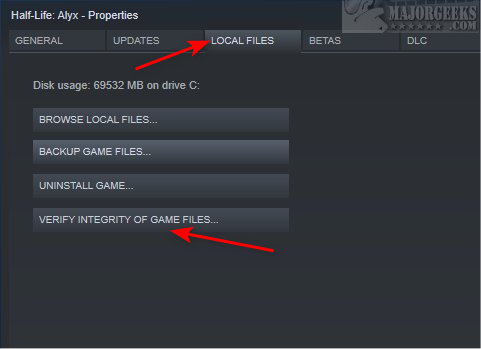
Step 4. After completing the procedures, try launching the game once again to see if the lost game data has been restored.
You can also restore lost saves by deleting the corrupted "sav." files. To do this, follow these additional steps:
Step 5. Exit the game and the Steam client completely.
Step 6. Navigate to the saved games directory at %localappdata%\[Game Name]\Saved\SaveGames.
Step 7. Select the folder whose name consists of a string of numbers.
Step 8. Delete the file SaveGameList.sav
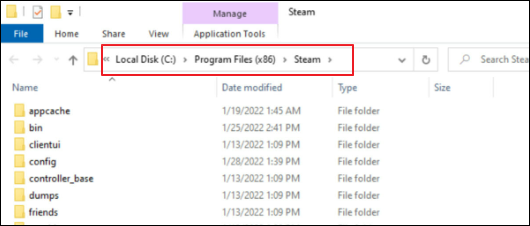
Step 9. Relaunch the Steam client and launch the game.
Restore Lost Game Data from the Steam Backup
Making backups of your games can be a farsighted option. If you lose game data, backups can be used to restore it. The steps to restore lost game data from Steam backups are listed below.
Step 1. Navigate to "Steam" - "Backup and Restore Games".
Step 2. To restore a prior backup, select the "Restore a Prior Backup" option. This allows you to recover your system from a previously saved state.
Step 3. Locate the game you wish to recover and choose the "Browse" option. Then, navigate to the Steam backups directory to find your game.
Step 4. Choose "Next."
Step 5. Reinstall your game by following the directions that appear on the screen.
Conclusion
If you have never created a file backup or history, you can use Qiling Data Recovery Wizard to retrieve your lost files. Alternatively, try to recover files from Recycle Bin or backup.
A professional backup tool like Qiling Data Backup can securely back up files to various storage devices and cloud services, protecting your data from potential threats.
Recover Deleted Game Files on PC FAQs
If you have learned how to recover deleted game files on your PC, you might have some follow-up questions. Let us address them here.
1. How do I recover permanently deleted games from my Xbox?
Recovering data from an Xbox One is complex but feasible with the Qiling Data Recovery Wizard, especially if the device is not encrypted. This application can recover permanently deleted or lost saved game files on the Xbox One hard drive as long as no data overwriting has occurred.
2. How to recover games using System Restore?
This method only works if a System Restore Point has already been created. If not, consider the alternative methods mentioned above.
System Restore is a built-in Windows feature that allows you to roll back your computer to a previous point in time. To use it, go to the Start menu, type "System Restore" in the search bar, and select "Create a restore point."
- Click on the Start button and type "System Restore" in the search bar, then press Enter.
- Select the System Restore point where the game was still installed from the list of available points.
- Click Next and follow the on-screen instructions to complete the process.
3. How to restore lost game files from PS4?
Using file recovery software can be an efficient approach to retrieving deleted game data on a PS4, as long as the hard drive is not encrypted, allowing you to recover lost game installation packs, captures, or videos.
4. Why is my game save progress lost?
When launching games on Steam, users may encounter a notification about potential save file discrepancies between their local files and those stored in the Steam Cloud. This prompts a choice between local files or the cloud, due to incompatibility between the two versions.
Related Articles
- Free Shortcut Virus Remover Software/Tool
- Top 14 Best Free Video Repair Software for Windows/Mac
- Where Is Steam Screenshot Folder? How to Access and How to Restore
- Super Easy! How to Recover Deleted Files from NAS (Synology/QNAP)
- SD Card Recovery Software Free Download Full Version with Crack
If you're trying to recover data from a memory card, stop using cracked serial keys and instead try Qiling's free memory card recovery software or the full version with an official license code. This is a safer option. - How to Recover Data from FAT32 SD Card/Hard Drive/USB (Windows & Mac)
You can recover data from a FAT32 SD card that has been formatted, deleted, corrupted, marked as RAW, or become inaccessible or damaged. This applies to all types of FAT32 SD cards, including those from Samsung, SanDisk, PNY, Transcend, Sony, Kingston, Lexar, and more.
Products
Articles & Tutorials
- Data Recovery
- Data Backup
- File Recovery
- File Backup
- System Backup and Restore
- Disk and Partition Clone
- Technical articles
- Mobile articles
- Disk Master Help
- Windows Data Recovery Tutorials
- Windows Secure Delete Tutorials
- Windows Partition Management Tutorials
- Windows File Backup and Restore Tutorials
- Windows System Backup and Restore Tutorials
- Windows Disk Backup and Restore Tutorials
- Windows Clone Tutorials