Where Is Steam Screenshot Folder? How to Access and How to Restore
By pressing the F12 key, you can take a screenshot in any Steam game, which will be saved on your computer, although the exact location may not be immediately clear.
The Steam screenshot folder is easily accessible through the Steam client. This folder contains all your gaming screenshots and is a great place to store and organize your gaming memories. Follow the guide below to locate the Steam screenshot folder on Windows 10 and Windows 11.
Where Is the Steam Screenshot Folder on Your PC
Screenshots taken on Steam are stored on your computer and can be accessed manually by navigating to the screenshots folder on your desktop. The folder is usually located in the same directory as the installed Steam game, and if you can't find it, check the Steam installation directory.
To access the Steam screenshot folder Windows 10 using the Steam installation directory, follow these instructions.
Step 1. To access the Steam folder on your Windows 10 computer, open the File Explorer and navigate to the location C:\Program Files (x86)\Steam. This will allow you to view and manage the contents of the Steam folder, including any installed games or other data.
Note. If you installed Steam somewhere other than the default location, you'll need to manually locate it on your computer.
Step 2. To access the Steam user data, open the "user data" subdirectory inside the Steam folder, and then open the directory with a string of digits (if there's only one Steam user).
Note. If you have more than one user account, the program will create a separate directory for each user, requiring you to navigate to the correct folder to access your files.
Step 3. To find the game you're looking for, locate and open the "760" folder, then navigate through the subfolders until you find the one containing the game.
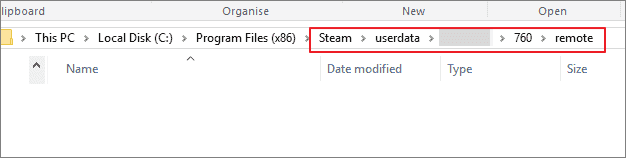
Note. The remote folder contains screenshots for games, with each file named after its corresponding Steam ID, a unique numerical identifier.
Step 4. After finding the correct game folder, open it and search in the screenshots folder for the photos.
How to Access Steam Screenshot Folder in Steam Client
Steam's screenshot organization system groups images by game, but it does not name the folders by game title. Instead, it uses each game's application ID, which can be confusing to navigate. This makes accessing the Steam screenshot folder through the client much easier.
Accessing your screenshots from the Steam client is straightforward. Unlike navigating to the folder on your hard drive, which can be tricky, the Steam client lets you locate the folder with just a few clicks. This makes it convenient to view and share your screenshots.
To access the Steam screenshot folder Windows 11 using the Steam client, follow these instructions.
Step 1. Launch the Steam application on your PC or access the Steam online client in your preferred browser.
Step 2. In the Steam client, click the "View" option in the upper left corner of the window.
Step 3. A drop-down menu will appear. Locate the "Screenshot" option and click on it.
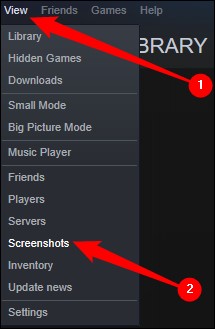
Step 4. The Steam screenshot manager will be shown, displaying the captured images along with options to save or share them.
Step 5. To access the hard drive location of a screenshot, select it in the screenshot manager and click the "Show On Disk" button at the bottom of the window.
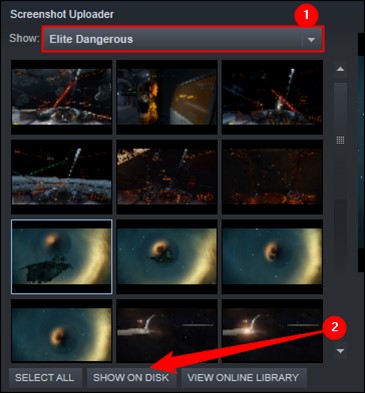
Step 6. Clicking this button will open your system's File Explorer, where you can access the screenshot and other previously taken screenshots from the folder.
How to View Steam Screenshot Folder Online
You can access your Steam screenshots online, eliminating the need to navigate through your computer's file explorer or hard drive, which can be complicated and disrupt your gaming experience. This way, you can easily view and upload your screenshots without leaving the Steam platform.
Steam allows users to access their screenshot folder online, and most users may not be aware of this feature. The platform stores all screenshots in its online library, where they remain secure and accessible as long as the user can connect to their Steam account. With 1 GB of storage space on Steam Cloud, users can store thousands of screenshots of their favorite gaming moments.
To access the Steam screenshot folder online, follow these steps:
Step 1. To access Steam, you can either go to the online Steam client in your browser or open the Steam application on your PC.
Step 2. To view the menu bar, click "View" in the menu bar in the upper-left corner of your screen.
Step 3. Select "Screenshots" from the drop-down menu selections.
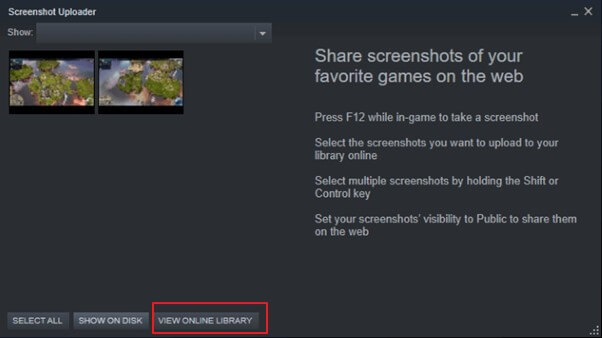
Step 4. The Steam screenshot organizer will appear, showing your screenshots alongside options for how to use them.
Step 5. To access the online library, click on one of the screenshots, and then look for the "View Online Library" option at the bottom of the screenshot organizer.
How to Restore Missing or Deleted Steam Screenshot Folder Windows 10/11
The Steam screenshot folder can be lost due to various reasons, including reinstalling Steam, deleting the folder manually, or upgrading to a new version of Windows. If your computer is formatted or restored to factory settings, the folder may also be lost. In some cases, the folder may not be visible in the Steam client, causing confusion.
- You have deleted the unnecessary files through a tool
- Accidentally deleted the screenshot folder
- You're trying to reinstall Steam but can't find the original download path. You can try looking for the Steam installation folder in the default download location on your computer, which is usually the Downloads folder.
Steam file misplacement can occur for various reasons. Gamers often capture screenshots while playing, and if the files are misplaced, it can be frustrating to lose those moments, especially for content creators who produce live gaming content.
You need a reliable data recovery tool to recover files from your hard drive, but finding a secure and efficient one can be a challenge. Fortunately, Qiling data recovery software is available to help you in this situation.
Qiling data recovery software has helped millions of users worldwide recover lost or corrupted data for over a decade, thanks to ongoing research and development in data recovery.
Deep Data Recovery's most important features include the following.
- Recover deleted files from various storage devices including hard drives, SSDs, USB drives, and memory cards with high success rates.
- Restore lost data on Windows 10/8.1/8/7/Vista/XP and Windows Server 2019/2008/2003. The software supports recovery from hard drives, solid state drives, USB drives, memory cards, and more.
- Recover deleted files from your computer with ease, including Word, Excel, PPT, PDF documents, as well as photos, videos, audio files, emails, and hundreds of other file types.
- Repair corrupted files with ease! Fix damaged JPEG/JPG, Word, Excel, PDF, MOV, MP4, GIF, and more with our reliable file repair tool.
If you've lost Steam's critical screenshots folder, you can use reliable data recovery software to safely and securely recover your data.
Step 1. Select a folder to scan for lost files
Launch Deep Data Recovery, select "Select Folder" under Specify a location, click "Browse" to choose the location where the lost folder was, and click "OK" to start the scan.

Step 2. Find and preview found files in the lost folder
If you remember the folder name, type it in the search box to quickly find the lost files. You can then open the found folder and double-click to preview the scanned files, or use the Filter feature to find a specific type of file.

Step 3. Recover and save the lost folder
Select the folder and files you need, click "Recover", and choose a new and secure location on your PC to keep the recovered data.

Steam Screenshot Folder FAQs
Steam is a popular gaming platform where users often take screenshots of their game achievements, leading to frequent questions about the screenshot folder on Steam.
1. How to access Steam Screenshot Folder on Mac?
To access the Steam screenshot folder on Mac, navigate to "Library/Application Support/Steam/Steam Screenshots" via the Finder by pressing Command (⌘) + Shift + G and typing in the path. This method lets you access the folder directly without going through the Steam client.
Step 1. Launch Steam and click on the "View" from the above menu
Step 2. Click on the "Screenshots", and select any of them.
Step 3. To open the Mac file path, click on the "Show on Disk" option.
2. Is the steam screenshot not working? How to fix it?
To resolve the Steam screenshot issue, close Steam and then run the Steam application as an administrator by right-clicking on the Steam icon and selecting "Run as Administrator". This should allow you to take a screenshot.
3. How to find the Steam Screenshot folder in Linux?
To find the Steam screenshot folder in Linux, follow these steps. The Steam screenshot folder is located at `~/Pictures/Steam Screenshot` by default.
Step 1. Go to ~/.local/share/Steam on Linux.
Step 2. Select the folder named with your Steam username.
Step 3. Click on the 760 folders, and then go to remote.
Step 4. Now, go to the folder with your game's ID and navigate to the Screenshots section.
4. How to change the Steam screenshot folder?
To change the Steam screenshot folder, follow these steps.
Step 1. To access the settings on Steam, start the Steam client and navigate to the main menu. From there, select "View" followed by "Settings" to access the settings options.
Step 2. To take a screenshot while playing a game, click on the "In-Game" option in the pop-up window that appears, and then select the "Screenshot Folder" option from the shortcut menu.
Step 3. You can choose or create a new folder to store the Steam screenshots.
Conclusion
Steam is a popular gaming platform that can be a challenge for users to access their saved screenshots, which are stored in the default directory. However, after reading this guide, users should be able to easily access their Steam Screenshot Folder.
If you've lost or misplaced the screenshot folder on Steam, you can use Deep Data Recovery to recover it. This tool provides a secure and thorough recovery process with an easy-to-use interface.
If screenshots outside Steam are missing too, check the Windows 11 screenshot locations and distinguish saved image files from clipboard-only captures.
Related Articles
- Microsoft Word Has Encountered a Problem and Needs to Close
- GIMP Recover Last Session: Recover Unsaved/Deleted/Lost GIMP Photos or Files
- Fix You Don't Currently Have Permission to Access This Folder
- Recover Cut Files from SD/USB, Windows PC or Android/iPhone Memory [2023 Updated]
- Best Get Data Back Full Version Crack Alternative Free Download in 2022
Download best alternative software to replace Get Data Back full version crack and let the NTFS, FAT, FAT32, exFAT, EXT recovery software to get data back from all drives, USB memory stick and memory card. - Hard Drive Recovery| Recover Files from a Hard Disk
If you've lost data on your hard drive, there are easy methods to recover it.
Products
Articles & Tutorials
- Data Recovery
- Data Backup
- File Recovery
- File Backup
- System Backup and Restore
- Disk and Partition Clone
- Technical articles
- Mobile articles
- Disk Master Help
- Windows Data Recovery Tutorials
- Windows Secure Delete Tutorials
- Windows Partition Management Tutorials
- Windows File Backup and Restore Tutorials
- Windows System Backup and Restore Tutorials
- Windows Disk Backup and Restore Tutorials
- Windows Clone Tutorials