How to Solve 'Not Enough Storage Space' Issue on the iPhone?
Quick Navigation:
With the iPhone, we've become accustomed to recording our daily life, using it for everything from taking photos and shooting videos to chatting with friends and listening to music. As a result, our lives are increasingly intertwined with our mobile phones. However, as time passes, the storage space on our iPhones gradually fills up, making it difficult to save new files and eventually leaving us with no room to store anything else.
First, you should identify what's taking up space on your iPhone, even if it has a large storage capacity like 256GB. This issue can arise regardless of the device's storage size, depending on how you use your iPhone.
Apple's iOS operating system takes up to 5GB of space.
Photos and videos have taken over the space for high-definition images, and videos have had a significant impact on our lifestyle.
People now prefer to use iPhones as video and music players, but the storage space fills up quickly as video and music files take up a lot of space.
Apps, especially games, can consume a significant amount of storage space on an iPhone.
E. Other data like attachments.
How to get the specifics:
To check your iPhone's storage, go to Settings, then tap on General, and finally tap on iPhone Storage.
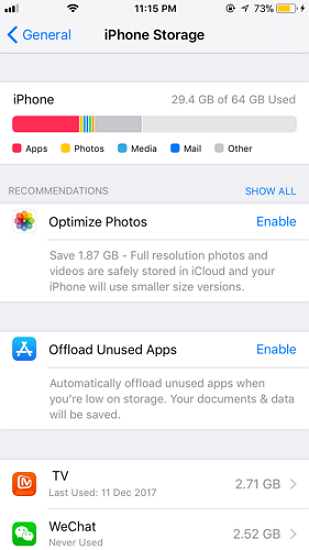
How can you regain the storage space on your iPhone?
1. Delete
To maintain your iPhone's performance and free up storage space, it's a good habit to regularly clean up outdated and useless junk files. This includes deleting unwanted photos, especially if you take multiple shots to get one you like, and removing unused apps that you no longer need. By doing so, you can save a significant amount of space and keep your device running smoothly.
2. Optimize
Storing all data on an iPhone can be risky due to limited space, requiring additional costs to extend storage, which may not be as secure as expected.
To optimize your disk space, consider using iPhone transfer software, which can help free up space on your device.
How Can Qiling MobiMover Help You?
This iPhone data transfer tool allows you to transfer all data from your iPhone to your computer or another device, including large files like photos, videos, music, and movies. It's useful for freeing up space on your iPhone by moving unnecessary data, such as recordings of events that you only need for a specific occasion, to your computer, where they can be safely stored and protected in case of data loss. This way, you can keep your iPhone organized and ensure that your most important data is backed up.
Step 1. To back up your iPhone using Qiling MobiMover, connect your iPhone to your PC, then trust the computer. Launch Qiling MobiMover and navigate to "Backup Manager" > "Back up" to initiate the backup process.
Step 2. Since all the supported files are selected by default, you can click "One-Click Backup" directly to start backing up your iPhone to computer.
Step 3. Wait patiently until the backup process completes. To restore the backup, go to "Backup Manager" > "Restore" and follow the onscreen instructions.
To transfer photos from iPhone to a computer, you can use the USB cable that came with your iPhone or a wireless transfer method like AirDrop or iCloud. If using a USB cable, connect your iPhone to your computer, open iTunes, and select the "Photos" option to sync your iPhone photos with your computer.
Related Articles
- How to Reset iPhone 7/7 Plus to Factory Settings without iTunes
- Bluetooth Not Working in iOS 11 on iPhone 8/8 Plus/X? Fixes Here!
- How to Fix iPad Stuck on Apple Logo Effectively
- How to Easily Download iCloud Backup Files
Products
Articles & Tutorials
- Data Recovery
- Data Backup
- File Recovery
- File Backup
- System Backup and Restore
- Disk and Partition Clone
- Technical articles
- Mobile articles
- Disk Master Help
- Windows Data Recovery Tutorials
- Windows Secure Delete Tutorials
- Windows Partition Management Tutorials
- Windows File Backup and Restore Tutorials
- Windows System Backup and Restore Tutorials
- Windows Disk Backup and Restore Tutorials
- Windows Clone Tutorials