The Easiest Way to Export Outlook Contacts to iCloud
The rewritten text applies to the latest iOS 14 and older iOS systems, as well as iPhone 12Pro/12 and older versions of iPhones.
You can export your Outlook contacts to iCloud by following these steps: Export your Outlook contacts to a CSV file, then sync the CSV file with iCloud. To do this, open Outlook on your PC, go to the "People" tab, select all contacts, and click "Export to a file". Choose the CSV file format and save the file. Then, go to iCloud.com, sign in with your Apple ID, and click on "Contacts". Click on "Import" and select the CSV file you saved. This will sync your Outlook contacts with iCloud, ensuring they are backed up in a safe place.
After conducting some online research, I found that it's not possible to directly connect iCloud with Outlook. However, I discovered two ways to import Outlook contacts to iCloud, either directly or indirectly, which I was able to successfully implement.
| Workable Solutions | Step-by-step Troubleshooting |
|---|---|
| Method 1. Use iCloud Control Panel | Launch iCloud Control Panel > Check the option "Mail, Contacts, Calendars" > Click "Apply"...Full steps |
| Method 2. Use iCloud.com | Launch Outlook > Click "Contacts" > Drag the contacts to the desktop...Full steps |
| Bonus Tip: Export Contacts to PC | Connect your iPhone to the computer and launch the software...Full steps |
Import Outlook Contacts to iCloud via iCloud Control Panel
What You Need to transfer Outlook contacts to iCloud
1. To use an Apple ID and iCloud, you need to sign up for an Apple ID/iTunes account. Your iCloud account will use the same username and password as your Apple ID/iTunes account.
2. To use the iCloud Control Panel, you'll need a Mac running OS X 10.7.5 or higher, or a PC running Windows Vista or 7 or higher, and the iCloud Control Panel itself. This allows you to access and manage your iCloud account and its features, such as backing up your device, accessing your photos and files, and more.
3. To use iCloud services, you'll need an iPhone, iPod touch, or iPad running iOS 5 or higher, and the latest version of iTunes installed on your computer.
Export Outlook Contacts to iCloud via iCloud Control Panel
Step 1.Launch iCloud Control Panel on your computer, or for Mac users, start iCloud Preference Panel.
Step 2.To configure your iPhone's mail settings, select the "Mail, Contacts, Calendars, and Tasks" option, uncheck all other boxes, and then click "Apply".
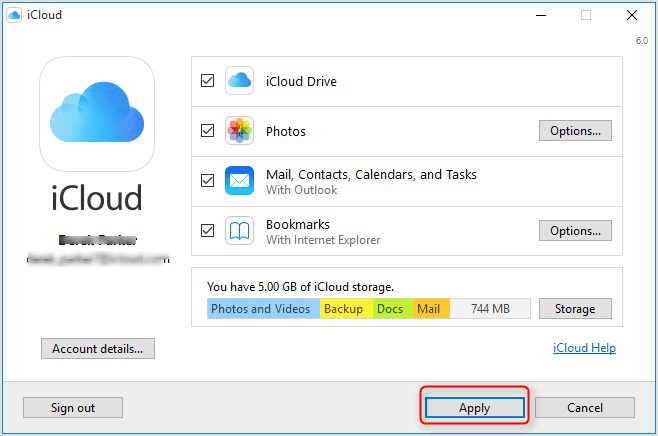
After clicking "Apply," all Outlook data, including contacts, calendars, mail, and tasks, will be synced to iCloud.
Transfer Outlook Contacts to iCloud with iCloud.com
If you don't have iCloud installed on your PC, you can export Outlook contacts to contacts via Web using an online CSV to VCF converter. This is necessary because Outlook exports contacts in CSV format, but iCloud only accepts vCard files. To do this, follow the detailed steps: first, export your Outlook contacts to a CSV file, then use an online converter to convert the CSV file to a VCF file, and finally, upload the VCF file to iCloud.
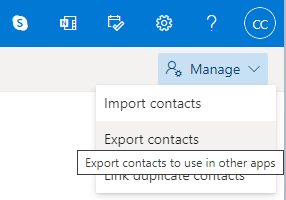
Step 1. To export contacts from Outlook Web, go to the "People" tab, select contacts, click the "Manage" icon at the top right corner, choose "Export contacts", and click "Export" to get all contacts in a CSV file.
Step 2. To convert a contact from a CSV file to a vCard file, you can use an online converter. This process typically involves uploading the CSV file to the converter's website, selecting the desired output format as vCard (VCF), and then downloading the converted file.
Step 3. To access your iCloud account, navigate to icloud.com in a web browser, then sign in with your iCloud username and password.
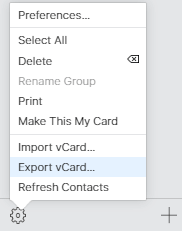
Step 4. To add converted vCard files to Outlook contacts, select "Contacts" on the main interface, click the "Settings" tab in the lower-left corner, and choose "Import Vcard" to add the converted vCard file. This will export your Outlook contacts to iCloud.
Bonus Tips: How to Export Contacts to PC from iPhone with Qiling MobiMover
iCloud is an easy-to-use service for backing up and sharing data, but it has some limitations. The free storage is only 5 GB, so syncing larger amounts of data requires purchasing more storage. Additionally, viewing data on iCloud can be less convenient than viewing it on your PC. Fortunately, alternatives like Qiling MobiMover are available to sync iPhone data.
The iPhone transfer software can transfer data between iOS devices and PC, such as transferring videos from iPhone to PC. Qiling MobiMover can easily back up contacts to PC with few simple clicks in CSV/vCard/Html file, making it a convenient tool for transferring data between devices.
Step 1. To connect your iPhone to your PC, use a USB cable and start Qiling MobiMover. Unlock your iPhone and click "Trust" on the PC. Next, go to the "PC to Phone" section and select the files you want to transfer.
Step 2. Select the contacts you want to transfer and click "Open" to start the transfer process.
Step 3. To transfer contacts from your PC to your iPhone, click the "Transfer" button to initiate the process.
To merge your Outlook contacts with iCloud, you can use either of the two methods mentioned above. This will allow you to access and use your contacts seamlessly at both your office and home locations.
Related Articles
- How to Convert iPhone Video to MP4 in 2 Simple Ways
- How to Transfer Contacts from iPhone to Samsung
- WhatsApp Transfer, Backup & Restore on iPhone and Android
- How to Transfer PDF from iPad to Computer
Products
Articles & Tutorials
- Data Recovery
- Data Backup
- File Recovery
- File Backup
- System Backup and Restore
- Disk and Partition Clone
- Technical articles
- Mobile articles
- Disk Master Help
- Windows Data Recovery Tutorials
- Windows Secure Delete Tutorials
- Windows Partition Management Tutorials
- Windows File Backup and Restore Tutorials
- Windows System Backup and Restore Tutorials
- Windows Disk Backup and Restore Tutorials
- Windows Clone Tutorials