How to Transfer Contacts from iPad to iPhone 13/12/11
Quick Navigation:
- How to Transfer Contacts from iPad to iPhone Without iCloud
- How to Sync Contacts from iPad to iPhone Using iCloud
- How to Copy Contacts from iPad to iPhone via AirDrop
- The Bottom Line
Three easy ways for you to transfer contacts from iPad to iPhone or vice versa.
To sync contacts across multiple devices, you can use iCloud, Google Contacts, or a third-party service like AnyTrans. If you're using iCloud, go to Settings > [your name] > iCloud > iCloud Drive, turn on Contacts, and make sure it's set to iCloud. On the other device, go to Settings > [your name] > iCloud > iCloud Drive and turn on Contacts.
There are built-in features and third-party tools that allow you to copy contacts between an iPad and iPhone, both being Apple devices. You can use these options to transfer contacts from your iPad to your iPhone, or vice versa, with ease.
How to Transfer Contacts from iPad to iPhone Without iCloud
The app also supports various file types, including photos, videos, music, ringtones, voice memos, books, and more.
Although using a cloud-based service is quite convenient, there may be situations where you prefer to transfer contacts from iPad to iPhone without using iCloud. For instance, if you want to move contacts selectively, or if the Apple IDs on the devices are different, iCloud may not be able to meet your needs.
To copy contacts or other types of content between an iPad and an iPhone, the versatile iPhone transfer software - Qiling MobiMover is what you need. With this tool, you will be able to transfer contacts, photos, videos, music, and other types of content between your devices.
- Transfer data between one iPhone/iPad/iPod touch to another
- Transfer files between an iPhone/iPad/iPad and a computer
- Access and manage iDevice content from a computer
- Back up and restore iPhone
This tool serves multiple purposes, functioning as an iOS data transfer tool, an iPhone backup tool, and a WhatsApp manager, making it convenient to back up an iPhone to an external hard drive or transfer WhatsApp messages between devices.
To transfer contacts from iPad to iPhone or vice versa:
Step 1. Connect your iOS devices to your computer, launch Qiling MobiMover, ensure your computer is trusted on your iDevices, and navigate to "Content Management" > "Contacts".
Step 2. To transfer contacts from your iPhone to your iPad, select the contacts you want to transfer and click "More" > "To Another Phone".
Step 3. After the transfer process is complete, you can view the transferred contacts in the Contacts app on your iPad.
How to Sync Contacts from iPad to iPhone Using iCloud
To sync contacts from an iPad to an iPhone, you can use iCloud, which allows sharing data across devices with the same Apple ID account, including iPhone, iPad, iPod, Mac, and PC. This means you can easily copy all contacts from the iPad to the iPhone using iCloud. However, note that iCloud only supports syncing all contacts at once, not specific items.
Before you start, make sure:
- There is a stable Wi-Fi connection on both devices
- There is enough iCloud storage to save these contacts
- The Apple IDs used on the iDevices are the same
To sync contacts from iPad to iPhone:
Step 1. Open "Settings" on the iPad and tap on your name.
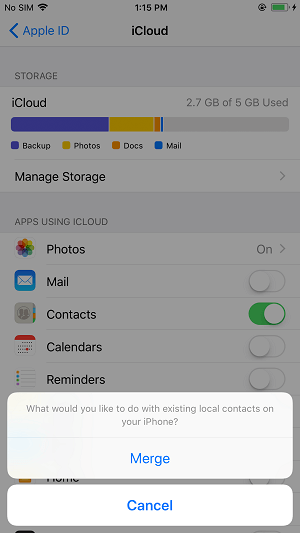
Step 2. Choose "iCloud" and then toggle on "Contacts".
Step 3. Open "Settings" on the iPhone and click your name.
Step 4. Choose "iCloud" and switch on "Contacts".
Step 5. When you see the notification "Your contacts will be merged with iCloud", choose "Merge" to begin syncing contacts.
If you're experiencing the issue of iPad contacts not syncing, you can try the provided fixes or explore alternative methods to transfer contacts from your iPad to your iPhone.
How to Copy Contacts from iPad to iPhone via AirDrop
AirDrop is a file-sharing feature on Apple devices that allows users to share photos, videos, contacts, locations, websites, and more between two devices, including iPhone and iPad, making it easy to share contacts between them.
When transferring contacts using AirDrop, the process can be time-consuming as you can only transfer one contact at a time, making it impractical for bulk transfers. However, if you need to transfer a few contacts, AirDrop can be a viable option. For bulk transfers, consider using alternative solutions.
To transfer iPad contacts to iPhone:
Step 1. Turn on AirDrop on the iPhone and iPad.
Step 2. Open the Contacts app on the iPad.
Step 3. Tap the contact you want to transfer.
Step 4. Scroll down to choose "Share Contact."
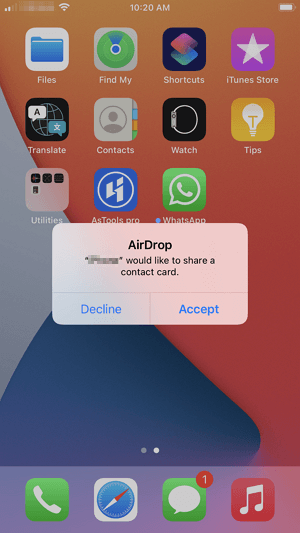
Step 5. Tap "AirDrop" and select the name of the iPhone.
Step 6. To accept the item on your iPhone, tap "Accept" and then click "Save" to save the contact to your phone.
The Bottom Line
You can also use these tips to transfer photos, videos, and more, not just contacts. If you're looking for a wireless solution, use iCloud or AirDrop. Alternatively, for transferring other types of content, consider using the iPhone transfer software - Qiling MobiMover.
Related Articles
- How to Back Up iPhone 8/8 Plus in Different Ways
- How to Transfer Photos from iPhone to External Hard Drive
- How to Migrate Windows 7 to SSD with Excellent Software
Qiling Disk Master can help to migrate Windows 7 to SSD through two means: backup the system drive to an image file, and then restore it to the SSD, or directly clone the system drive to the new SSD. - How to Repair Windows 7 without Losing Data?
Try 6 solutions provided in this article to repair Windows 7 without losing data, it's easy to troubleshoot Windows 7 problems with the guide.
Products
Articles & Tutorials
- Data Recovery
- Data Backup
- File Recovery
- File Backup
- System Backup and Restore
- Disk and Partition Clone
- Technical articles
- Mobile articles
- Disk Master Help
- Windows Data Recovery Tutorials
- Windows Secure Delete Tutorials
- Windows Partition Management Tutorials
- Windows File Backup and Restore Tutorials
- Windows System Backup and Restore Tutorials
- Windows Disk Backup and Restore Tutorials
- Windows Clone Tutorials