How to Transfer Files from iPhone to Mac With/Without iTunes
Quick Navigation:
- Part 1. How to Transfer Files from iPhone to Mac Without iTunes
- Method 1. Transfer Files from iPhone to Mac with iPhone Transfer Software
- Method 2. Transfer Files from iPhone to Mac Wirelessly via AirDrop
- Method 3. Transfer Photos from iPhone to Mac with iCloud
- Method 4. Transfer Files from iPhone to Mac Wirelessly Using iCloud Drive
- Part 2. How to Transfer Files from iPhone to Mac with iTunes File Sharing
- The Bottom Line
- FAQ
- 1. How to transfer files from iPhone to PC without iTunes?
- 2. How to transfer data from iPhone to laptop wirelessly?
- 3. How to transfer files from iPhone to Mac using USB?
5 Tips for you to transfer photos, videos, contacts, messages, PDF files, documents, and more from iPhone to Mac.
If you're an Apple fan with multiple devices, you likely have an iPhone, iPad, iPod Touch, and Mac, among others. To work or study more efficiently, you'll need to transfer files between your iPhone and Mac. Fortunately, this can be done with or without iTunes, allowing you to seamlessly transfer files between your iPhone and computer.
Part 1. How to Transfer Files from iPhone to Mac Without iTunes
You can transfer files from your iPhone to your Mac without using iTunes by using one of four proven methods: a reliable iPhone data transfer tool, AirDrop, iCloud Photos, or iCloud Drive. The best approach for you depends on the type of content you want to copy, so read on to learn more about each option.
Method 1. Transfer Files from iPhone to Mac with iPhone Transfer Software
Supports: Photos, Videos, Music, Audiobooks, PDFs, Contacts, Messages, and More
If you're wondering how to transfer photos from your iPhone to your Mac without using iTunes, a reliable iPhone data transfer tool, like Qiling MobiMover, is likely your best choice.
With a file transfer tool installed on your Mac or PC, you can easily transfer files between devices, such as from one iPhone to another, or between a computer and an iPhone, without using iTunes.
Qiling MobiMover is a free and safe video downloader that can also be used to download Twitch clips and videos from YouTube, Facebook, Twitter, and other sites to your Mac or iPhone/iPad.
Get the app now and follow the steps below to transfer files, including photos, videos, music, contacts, messages, and more, from your iPhone to Mac within minutes.
To transfer files from iPhone to Mac:
Step 1. Connect your iPad to your Mac using a USB cable, and when prompted, tap "Trust This Computer" on your iPad. Then, run Qiling MobiMover for Mac and select "Phone to Mac" on the main screen.
Step 2. MobiMover automatically loads all supported data from your iPad, as shown in the screenshot, and allows you to export them all or select specific data types to send to your Mac. You can also choose the destination for saving the exported files, with the option to save them to a desktop folder named "Exported by MobiMover" if not customized.
Step 3. To transfer data from an iPhone or iPad to a Mac, click the "Transfer" button, which will import the data. Once the process is complete, you can view, edit, or delete the imported data on your Mac.
Qiling MobiMover offers convenience in various iOS data transfer situations, allowing users to easily transfer photos from iPhone to PC or Mac, as well as copy photos from one iPhone to another, making the process effortless.
Method 2. Transfer Files from iPhone to Mac Wirelessly via AirDrop
Supports: Photos, Videos, Contacts, Documents, and More
AirDrop is a solution provided by Apple to transfer files between iPhone and Mac or between any other two AirDrop-supported devices, allowing wireless file transfer without a USB cable, but requiring both Wi-Fi and Bluetooth connectivity.
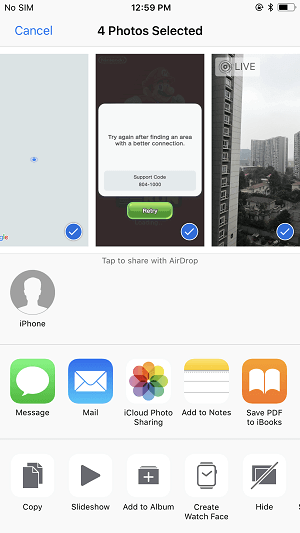
To transfer photos from iPhone to Mac using AirDrop, you can follow these steps: Go to the Photos app on your iPhone, select the photos you want to transfer, tap the "Share" icon, and choose AirDrop. On your Mac, go to the Finder, click on the AirDrop icon in the sidebar, and select the photos you want to receive.
To transfer photos from iPhone to Mac without iTunes:
Step 1. Turn on AirDrop on your Mac.
- To turn on AirDrop on your Mac, go to the "Finder" and select "Go" from the menu, then choose "AirDrop". Additionally, ensure that Bluetooth and Wi-Fi are enabled on your Mac.
- Set the option "Allow to be discovered by" to either "Everyone" or "Contacts Only".
Step 2. Turn on AirDrop on iPhone.
- On your iPhone, swipe up from the top/bottom of your screen to open the "Control Center".
- To share files using AirDrop, simply tap on the AirDrop icon and select whether you want your iPhone to be discovered by your contacts only or everyone.
Step 3. Once your devices are connected, you can transfer files from your iPhone to your Mac without using iTunes.
- Go to the "Photos" app on your iPhone.
- To copy photos from your iPhone to your Mac, you can use the Photos app on your Mac, which can sync with your iPhone's Photos app. This allows you to access and copy photos from your iPhone to your Mac.
- To transfer photos from iPhone to Mac, click the "Share" button on your iPhone, then select the name of your Mac in the AirDrop section, allowing for a direct transfer without the need for iTunes.
Method 3. Transfer Photos from iPhone to Mac with iCloud
Supports: Photos and Contacts
If you're looking for a way to transfer iPhone photos to your PC, using cloud storage services like iCloud, Dropbox, or Google Drive can be a convenient solution. To use these services, you'll need to meet two key requirements:
- You use the same account on the source device and the target device. This is a requirement for the transfer of data.
- You can store the files you want to transfer in the space provided.
Since iCloud is the built-in solution available on both iPhone and Mac, if you want to transfer files from your iPhone to your Mac without downloading an app, we recommend giving it a try.
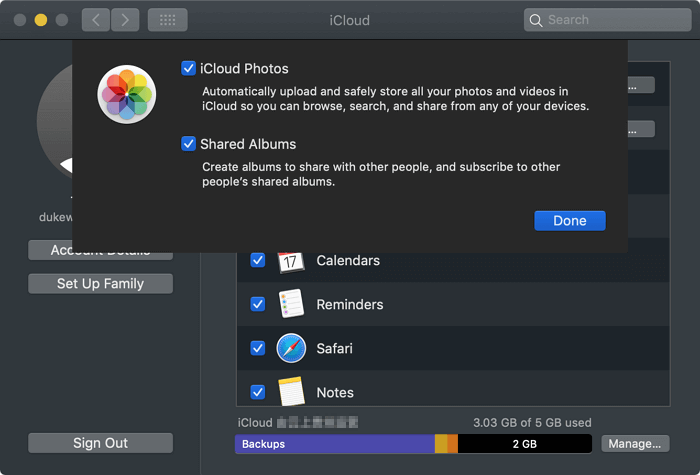
Step 1. To turn on iCloud Photos on your iPhone, go to Settings, tap on your name, then tap on iCloud, and finally tap on Photos, where you can toggle on iCloud Photos.
Step 2. To access System Preferences on a Mac, click the Apple menu at the top left corner of the screen and select "System Preferences".
Step 3. To access iCloud, sign in with your Apple ID and password, and if necessary, complete the verification process by providing any required information.
Step 4. To sync iPhone photos to your Mac automatically, click on the "Options" next to "Photos" and select "iCloud Photos". This will allow your iPhone photos to be synced to your Mac over Wi-Fi, and you can access them in the Photos app on your Mac.
If you want to send photos from your iPhone to a computer, you can also use the Photos app on your Mac to transfer them without using iTunes.
Method 4. Transfer Files from iPhone to Mac Wirelessly Using iCloud Drive
Supports: Word, Excel, PPT, PDF Files...
If you want to transfer files like Word documents and PDFs from your iPhone to Mac, iCloud Drive is the way to go. Unlike iCloud Photos or Contacts, which are designed for sharing media and contacts, iCloud Drive is specifically for sharing documents, making it ideal for transferring files like Word documents and PDFs between your devices.
To transfer files from iPhone to Mac:
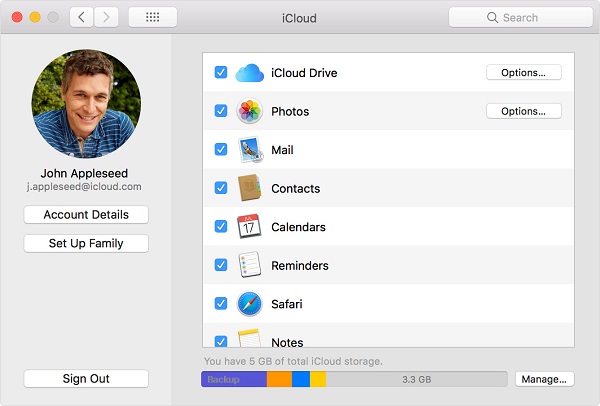
Step 1. To turn on iCloud Drive on your phone, go to Settings, then tap on your name, followed by "iCloud", and scroll down to toggle on "iCloud Drive".
Step 2. To copy files to iCloud, go to the "Files" app on your mobile device, select "Browse" and then "iCloud Drive", and add the files you want to copy to iCloud.
Step 3. To enable iCloud Drive on your Mac, go to the Apple menu, select System Preferences, then choose iCloud, and finally enable iCloud Drive, making sure to use the same Apple ID on your Mac and iOS device.
Step 5. After syncing, access your files in iCloud Drive by going to "Finder" > "iCloud Drive" on your computer.
You can transfer iPhone files to your computer over Wi-Fi by using the "Wireless Transfer" feature, which allows you to share files between your iPhone and computer without the need for a physical connection. This feature enables you to transfer photos, videos, music, and other files from your iPhone to your computer, making it a convenient option for sharing and backing up your data.
Using iCloud Drive is also advisable when you want to transfer files from a Mac to an iPhone wirelessly or share files between an iDevice and a Windows PC.
Part 2. How to Transfer Files from iPhone to Mac with iTunes File Sharing
Supports: Files created by apps that support file sharing
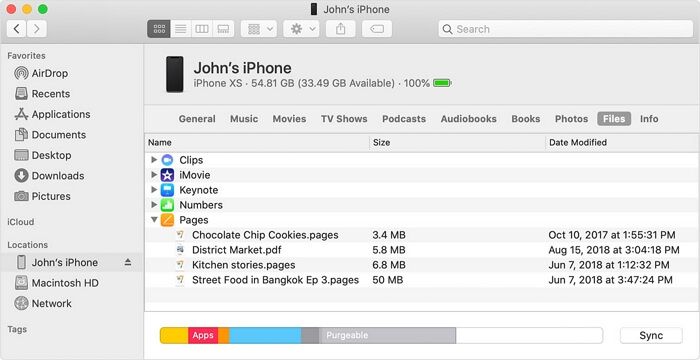
iPods can transfer files between your computer and your iOS device via apps that are compatible with file sharing. Documents used in apps like Keynote, Numbers, and Pages can all be transferred via iTunes.
To transfer files between iPhone and Mac via iTunes:
Step 1. Connect your device to the computer and launch iTunes.
Step 2. To access file sharing on your device, click the device icon in the iTunes window and select "File Sharing".
Step 3. Select the app that you want to transfer a file to or from.
Step 4. Transfer files between the iPhone and the Mac.
- To sync iPhone files to a Mac, select the desired file, click "Save to," choose the desired storage location, and then click "Save To" to proceed.
- To transfer files from a Mac to an iPhone, click on the "Add" button, select the desired files, and then click "Add" once more.
The Bottom Line
Transferring files or photos between an iPhone and a Mac is now a breeze, and you can do it in a few simple steps. Whether you want to move a photo from your iPhone to your Mac or vice versa, or transfer a file from your Mac to your iPhone, you can follow the same process.
The methods above apply to most iPhones and Mac computers, including MacBook Air, MacBook Pro, iMac, and iMac Pro.
If you're experiencing issues transferring files, I hope one of the solutions I provide will help you successfully complete the transfer.
FAQ
1. How to transfer files from iPhone to PC without iTunes?
You can transfer files from your iPhone to your PC using three alternative methods to iTunes: an iOS data transfer tool, email, or cloud services like iCloud and Google Drive. The method you choose depends on your specific needs, and if you want to know more about how each way works, there's a guide available for reference.
2. How to transfer data from iPhone to laptop wirelessly?
Wireless file transfer solutions can be used to transfer data between an iPhone and a PC, including laptops, as there is no system difference between laptops and desktop computers.
3. How to transfer files from iPhone to Mac using USB?
To transfer files from an iPhone to a Mac, simply plug your iPhone into your Mac, launch Qiling MobiMover or iTunes, and follow the steps to transfer files.
Related Articles
- How to Transfer Photos from iPhone to Mac in All Possible Ways
- How to Back Up iPhone Without iTunes in 3 Ways
Products
Articles & Tutorials
- Data Recovery
- Data Backup
- File Recovery
- File Backup
- System Backup and Restore
- Disk and Partition Clone
- Technical articles
- Mobile articles
- Disk Master Help
- Windows Data Recovery Tutorials
- Windows Secure Delete Tutorials
- Windows Partition Management Tutorials
- Windows File Backup and Restore Tutorials
- Windows System Backup and Restore Tutorials
- Windows Disk Backup and Restore Tutorials
- Windows Clone Tutorials