How to Transfer Music from Windows 10 to iPhone and Vice Versa
The iOS 11/10/9/8 update is available for iPhone XS/XS Max/XR, iPhone X, iPhone 8/8 Plus, iPhone 7/7 Plus, iPhone 6/6s, and other iPhone/iPad models.
When transferring music from Windows 10 to an iPhone, you have two options. You can use iTunes to sync your music from the computer to the iPhone, but this will erase all current data on the iPhone. Alternatively, you can use Qiling MobiMover, which doesn't require iTunes or an internet connection, and simply needs a Windows 10 computer and your device. For more details, you can read this step-by-step instruction.
- Option 1. A Quick and Easy Way to Transfer Music from Windows 10 to iPhone
- Option 2. Sync Music from Windows 10 to iPhone with iTunes
- Bonus Tip. How to Transfer Music from iPhone to Windows 10
Option 1. A Quick and Easy Way to Transfer Music from Windows 10 to iPhone
Qiling MobiMover is a fast iOS data transfer tool that can transfer various files, including music, photos, videos, contacts, messages, and more, from Windows 10 to iPhone or vice versa, at speeds of around 30 M per second, making it suitable for transferring large media files.
This application offers fast transfer speeds and ease of use, allowing users to transfer music between a computer and an iOS device in just three steps, making it a great option for those who are new to computers.
The software has many additional features beyond transferring music from Windows 10 to iPhone, including iOS data management, video download, and iOS screen unlock, making it worth exploring. You can now download it on your computer and start transferring music to your iPhone.
Step 1. Connect the iPhone to your Windows 10 computer and launch Qiling MobiMover.
To enable Qiling MobiMover to access your iPhone, click "Allow" on the program and then tap "Trust" on your iPhone.
To transfer files from your PC to a phone, select the "PC to Phone" transfer mode and click "Select Files" to proceed.
Step 2. Select saved music on your computer and click "Open" to continue.
Step 3. Confirm the selected music files on your PC and click "Transfer" to start transferring music files from your Windows 10 PC to your iPhone.
Once the process is complete, you can verify the files by opening the Music app on your iPhone.
Option 2. Sync Music from Windows 10 to iPhone with iTunes
Syncing music between computers and the iPhone is a way to transfer purchased music, but it will replace all current data and doesn't include non-purchased songs. To avoid losing data, consider using Option 1 or backing up your iPhone before syncing.
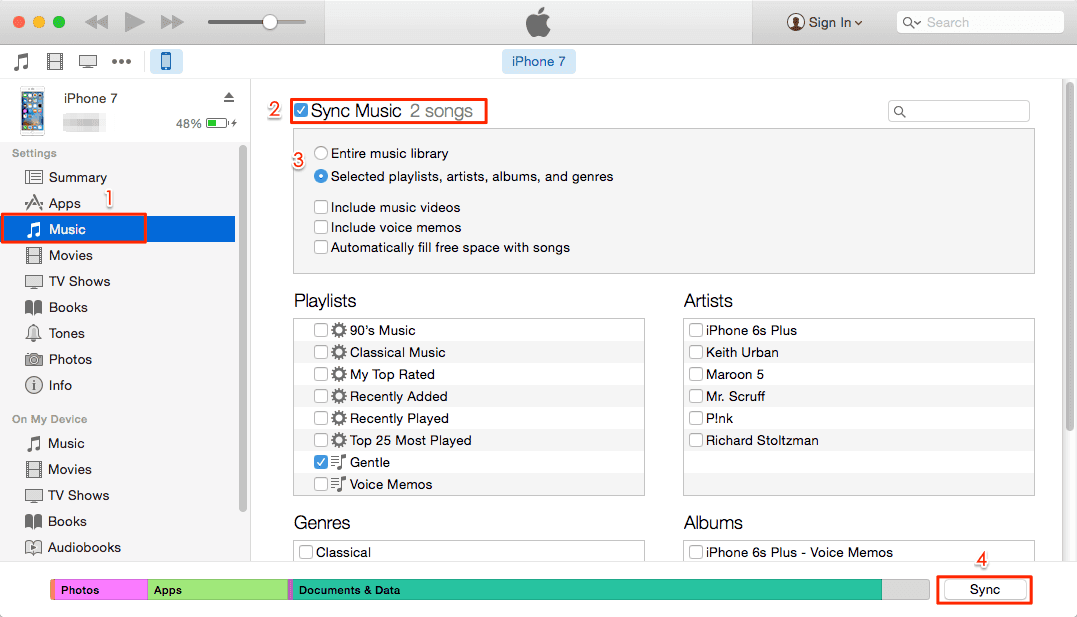
Step 1. To sync your iPhone, iPad, or iPod touch with your computer, start by launching iTunes on your computer. Next, connect your device to your computer using a USB cable. This will allow you to access your device's contents and sync them with your computer.
Step 2. To troubleshoot the "iTunes couldn't connect this iPhone" issue, click the device button (an iPhone located near the top-left of the window) and then click "Music" in the left-side menu. If iTunes still fails to connect your iPhone, check these solutions to resolve the problem.
Step 3. To sync music from the right page, tick the box next to "Sync Music".
Step 4. To sync music to your iPhone, go to Settings, then Music, select iCloud Music Library, toggle it on, sign in with your Apple ID, then click "Apply" and "Sync."
Bonus Tip. How to Transfer Music from iPhone to Windows 10
MobiMover allows you to transfer files between an iOS device and a Windows computer, making it easy to import music from Windows 10 to your iPhone or transfer songs from iPhone to your Windows 10 PC. To do this, simply follow the steps to use MobiMover and you'll be able to complete the transfer within minutes.
Step 1. Connect your iPhone to your Mac/PC and run Qiling MobiMover. Tap "Trust" on your device to allow the program to access your iPhone.
Step 2. To transfer music from your iPhone to your PC, select the desired music files by clicking on the "Music" option, then click on the "Settings" icon at the top right corner to choose a safe location on your PC to save the files.
Step 3. To transfer music files from your phone to your computer, click the "Transfer to PC" option and initiate the transfer process. Once the transfer is complete, you can verify and play the transferred music files on your computer.
The Bottom Line
You can transfer music from your computer to your iPhone using either iTunes or Qiling MobiMover, regardless of your computer's operating system. Both options allow you to move songs to your iPhone 6/7/8/X or iPhone XR/XS/XS Max, but Qiling MobiMover is a better choice since it can transfer both purchased and non-purchased music without erasing anything from your iPhone.
Related Articles
- How to Transfer Files from Mac to iPhone with/Without iTunes
- How to Transfer Contacts from iPhone to iPhone via Bluetooth
- How to Transfer Photos from Mac to iPhone in 5 Ways
- Solved - Files in Downloads Folder Disappeared [2023]
If your files in the downloads folder have mysteriously disappeared, there's a solution.
Products
Articles & Tutorials
- Data Recovery
- Data Backup
- File Recovery
- File Backup
- System Backup and Restore
- Disk and Partition Clone
- Technical articles
- Mobile articles
- Disk Master Help
- Windows Data Recovery Tutorials
- Windows Secure Delete Tutorials
- Windows Partition Management Tutorials
- Windows File Backup and Restore Tutorials
- Windows System Backup and Restore Tutorials
- Windows Disk Backup and Restore Tutorials
- Windows Clone Tutorials