How to Transfer Videos from Mac to iPhone/iPad in 3 Ways
Want to enjoy your favorite videos on the go? You can easily transfer videos from your Mac to your iPhone or iPad by using one of three methods. You can use reliable iOS data transfer software to transfer a video from Mac to iPhone, or use AirDrop to send videos directly from Mac to your iPhone. Alternatively, you can sync videos from Mac to iPhone using iTunes, making it easy to access your favorite videos whenever you like.
If you need help transferring videos from your iPhone to your Mac or downloading videos from websites to your iPhone, the necessary steps are also included in the guide.
Part 1. How to Transfer Videos from Mac to iPhone/iPad in 3 Ways
Whether you prefer to transfer videos from your Mac to your iPhone or iPad without using iTunes, or send videos from your Mac to your iOS device wirelessly, there is a solution that suits your needs.
Method 1. Transfer videos from Mac to iPhone without iTunes
Videos on your iPhone/iPad will be removed if you sync videos from Mac to iPhone/iPad with iTunes. To keep existing videos on your iPhone/iPad, use a tool like Qiling MobiMover to transfer videos from Mac to iPhone/iPad instead.
Qiling MobiMover is a user-friendly iOS manager and transfer tool that allows access and editing of iOS files, and transferring files between iPhone and Mac/PC or between two iOS devices, serving as an alternative to iTunes. It also functions as a file converter, enabling batch conversions of HEIC to JPG and video to MP3, as well as a video downloader that saves videos from over 1,000 video sites.
Key Features:
- Transfer files from computer to iPhone/iPad
- Send files from iPhone/iPad to computer
- Sync data from one iPhone/iPad/iPod to another
- To back up your iPhone to a PC or Mac, you can use the iTunes software. Simply connect your iPhone to the computer, open iTunes, and select the device.
- To back up WhatsApp to PC and restore it to another iPhone, you can use the WhatsApp Web and Google Drive backup feature. First, open WhatsApp on your iPhone and go to Settings > Chats > Chat Backup.
- Convert HEIC to JPG and videos to audio
- Download videos from websites to computer or iPhone/iPad
The software supports transferring various file types, including movies, TV shows, music videos, home videos, photos, music, ringtones, books, audiobooks, contacts, messages, and notes. It can be used to transfer videos from a Mac to an iPhone using a USB cable, making it a convenient option for users looking to transfer content between devices.
To transfer a video from Mac to iPhone:
Step 1. Connect your iPhone to your Mac using a USB cable, launch Qiling MobiMover, and select "Mac to Phone" > "Select Files" to proceed.
Step 2. To import videos from your Mac to your iPhone, select the videos you want to transfer and click "Open" to continue.
Step 3. After checking the selected videos, click the "Transfer" button to start transferring them from your Mac to your iPhone. Once the transfer is complete, open the Photos app on your iPhone to verify the transferred videos.
You can easily transfer movies, TV shows, and home videos from your Mac to your iOS device in just a few minutes, even without a network connection, by following the provided steps.
Method 2. Transfer Videos from Mac to iPhone via AirDrop
AirDrop is a built-in file-sharing utility that allows transferring files, including videos, between Mac, iPhone, iPad, and iPod Touch devices. This means you can quickly transfer videos from a Mac to an iPhone or iPad using AirDrop. Additionally, you can also transfer contacts from one iPhone to another using the same feature.
To transfer videos from your Mac to your iPhone using AirDrop, start by opening the Photos app on your Mac and selecting the video you want to transfer. Then, click the "Share" button and select "AirDrop" from the menu.
Step 1. Turn on "AirDrop" on your iPhone.
- To open the Control Center on your iPhone, swipe down from the top right corner of your screen if you have an iPhone X or later, or swipe up from the bottom of your screen if you have an iPhone 8 or earlier.
- Press deeply on the module where Airplane Mode locate in.
- Turn on your iPhone's WLAN and Bluetooth features to ensure they're functioning properly, preventing issues like WiFi not working or Bluetooth not working.
- To share files using AirDrop, tap on the "AirDrop" icon and select either "Contacts Only" or "Everyone" to make your iPhone discoverable by others.
Step 2. Turn on AirDrop on Mac.
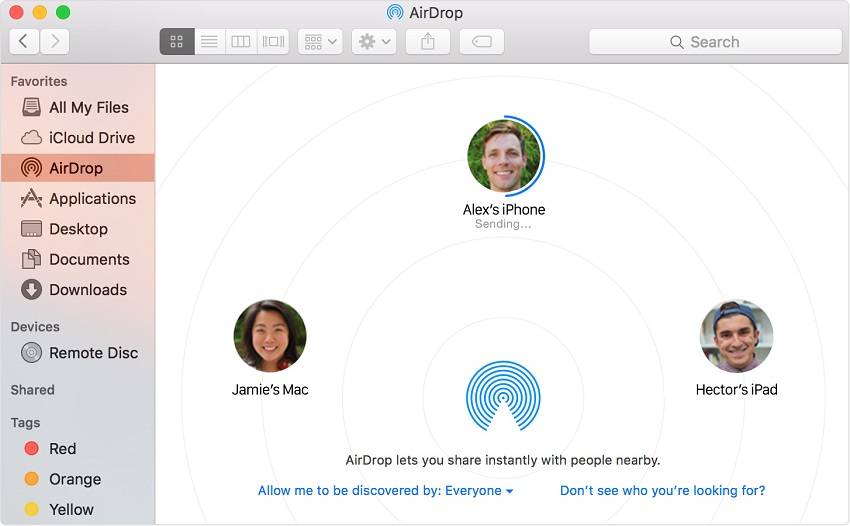
- To turn on AirDrop on your Mac, go to "Finder" > "Go" > "AirDrop" and ensure that both "Bluetooth" and "WiFi" are turned on.
- To make sure your account can be found by others, set the option "Allow to be discovered by" to either "Everyone" or "Contacts Only" on your account settings.
Step 3. Send videos from Mac to iPhone.
- On your Mac, drag the videos you want to transfer to iPhone/iPad to the icon of the recipient and click "Send."
- You can share a video from your Mac to your iPhone by clicking the "Share" button in an app that contains the video, selecting AirDrop, choosing the recipient, and then clicking "Done" to send the video.
Method 3. Put videos from Mac to iPhone using Finder and iTunes
If you're willing to replace your iPhone/iPad's existing data with synced videos from your Mac, or you don't have any videos on your device, you can use Finder or iTunes to transfer videos from your Mac to your iPhone. To do this, make sure your Mac is running the latest Finder by going to the App Store, updating, and installing it. Then, follow the steps to transfer videos from your Mac to your iPhone using Finder.
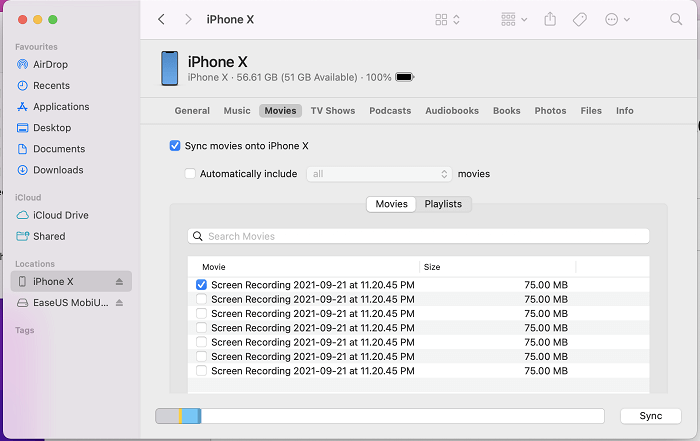
To sync videos from your Mac to iPhone using Finder, follow these steps: Open Finder on your Mac, select your iPhone from the sidebar, click on "Movies" under the "Locations" tab, and then select the movies you want to transfer. Click "Sync" to transfer the selected movies to your iPhone.
Step 1. Connect your old iPhone to a computer and launch iTunes.
Step 2. Select your device on Finderand choose "Movie."
Step 3.Tick the option "Sync movies onto iPhone [name of your iPhone]" and click apply. Confirm the sync when asked.
Step 4.After the syncing completes, you can check the videos on your iPhone/iPad.
If you are running iTunes on your Mac, follow the steps below.
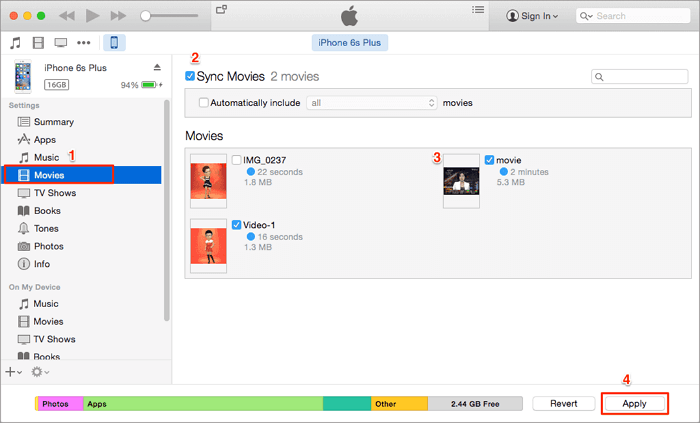
Step 1. Connect your iPhone or iPad to your Mac using a USB cable, and if iTunes doesn't launch automatically, open it manually.
Step 2. Click the Device button and choose "Movies."
Step 3.To transfer movies to your iPhone, click the checkbox next to the "Sync Movies" option and select the movies you'd like to transfer.
Step 4.To sync selected videos from your Mac to your iPhone or iPad, click the "Apply" button. This will initiate the syncing process, allowing the videos to be transferred to your mobile device.
You can copy photos and videos from your Mac to your iPhone using one of three common methods, or you can use cloud services like Dropbox to sync your videos between devices.
Transferring files between a Mac and an iOS device is a common occurrence, with many people wanting to move videos from their iPhone to their Mac to free up storage space or make a backup of important files. To accomplish this, you can use various methods, including transferring movies, TV shows, and other video types from Mac to iPhone, as well as transferring videos from iPhone to Mac. The process is straightforward, and there are several options available to make it happen.
Part 2. How to Transfer Videos from iPhone to Mac
Importing videos from an iPhone to a Mac is a slightly different process than copying videos from a Mac to an iPhone. The process involves using a USB cable to connect the iPhone to the Mac, then using a software such as Image Capture or iMovie to transfer the videos.
You can transfer videos from Mac to iPhone using Qiling MobiMover or AirDrop, and these methods can also be used to import photos and videos from iPhone to Mac. The steps are similar, with the only difference being the source and target devices. You can simply switch the devices and follow the same process to get the desired result. For detailed steps, refer to the previous part.
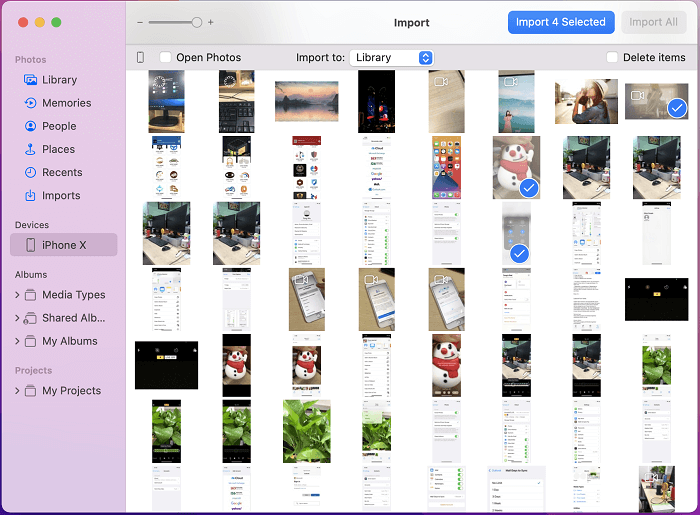
To transfer photos and videos from iPhone to Mac, use the Photos app on Mac, which is a built-in app that imports photos and videos from iPhone, but only videos in the Camera Roll, excluding movies and TV shows from other sources.
To sync photos and videos from iPhone to Mac, you can use iCloud, which also syncs videos in Camera Roll, but only if you have the same Apple ID on both devices and have turned on iCloud Photos on both. This allows you to upload files via Wi-Fi and access them across devices, but may take a long time if you have large video files.
Part 3. How to Download Videos to iPhone Directly Using a Mac
You can download videos from websites like YouTube, Vimeo, Metacafe, Facebook, Twitter, and more directly to your iPhone/iPad using Qiling MobiMover, a video downloader that allows you to save videos from video sites to your iOS device using the URL, eliminating the need to transfer videos from Mac to your device.
Learn how to download any video from any site using a URL, allowing you to save videos from popular sites to your iOS device for offline watching.
The bottom line
You can transfer photos and videos from your Mac to your iPhone and vice versa using a computer, whether it's a Mac or PC. Additionally, you can easily get videos from websites directly to your iPhone or iPad using a computer.
I believe the tips will be helpful at some point. If you find them useful, feel free to share the article with your loved ones with just a few clicks.
Related Articles
- Reliable YouTube to MP3 Program - Qiling MobiMover
- How to Transfer Data from iPhone to iPhone After Setup
- How to Transfer iPhone Photos to PC
- How to Add Ringtones to iPhone X/11/12/13 in 5 Ways
Products
Articles & Tutorials
- Data Recovery
- Data Backup
- File Recovery
- File Backup
- System Backup and Restore
- Disk and Partition Clone
- Technical articles
- Mobile articles
- Disk Master Help
- Windows Data Recovery Tutorials
- Windows Secure Delete Tutorials
- Windows Partition Management Tutorials
- Windows File Backup and Restore Tutorials
- Windows System Backup and Restore Tutorials
- Windows Disk Backup and Restore Tutorials
- Windows Clone Tutorials