Automatic Repair Couldn't Repair Your PC: Windows Recovery Steps
The message means Windows Recovery Environment could not fix the detected startup problem automatically. The cause may be a failed update, damaged file system, wrong boot target, or hardware fault. Repeatedly running the same repair without checking the disk can waste time or stress a failing drive.
Protect data and identify the boot disk
Disconnect unnecessary USB drives and confirm firmware still detects the Windows drive. If the drive disappears, makes unusual noises, or reports health warnings, stop repair attempts and copy or image important data first. If BitLocker prompts for a recovery key, use the key associated with this PC; do not reformat the drive to bypass the prompt.
Enter Windows Recovery Environment
Step 1. From the Automatic Repair screen select Advanced options, then Troubleshoot.
Step 2. Try Startup Repair once and record its result. If it fails again, return to Advanced options.
Step 3. Choose Uninstall Updates if the failure immediately followed an update, starting with the latest quality update. A feature update may have a separate rollback option.
Step 4. Try System Restore if a restore point exists. It changes system state but is not a substitute for a file backup.
Step 5. Use Startup Settings to try Safe Mode if Windows can load a minimal environment. Remove a recently added driver or application only if the timing supports it.
Repair boot configuration only when needed
If diagnostics point to missing boot files, identify whether the PC boots in UEFI/GPT or legacy BIOS/MBR mode. Boot the Windows installation USB in the same mode, open Command Prompt from recovery, and use diskpart with list disk and list volume to identify the Windows and EFI volumes. Drive letters in recovery may differ from normal Windows. Do not run clean, format the EFI partition, or guess disk numbers.
For a confirmed UEFI installation, assign a temporary letter to the existing EFI system partition and use Microsoft's bcdboot procedure to recreate boot files from the correct Windows directory. On legacy MBR systems, the approach differs; do not apply UEFI commands blindly. If you cannot positively identify the boot partition, stop and use a full image backup or qualified repair assistance.
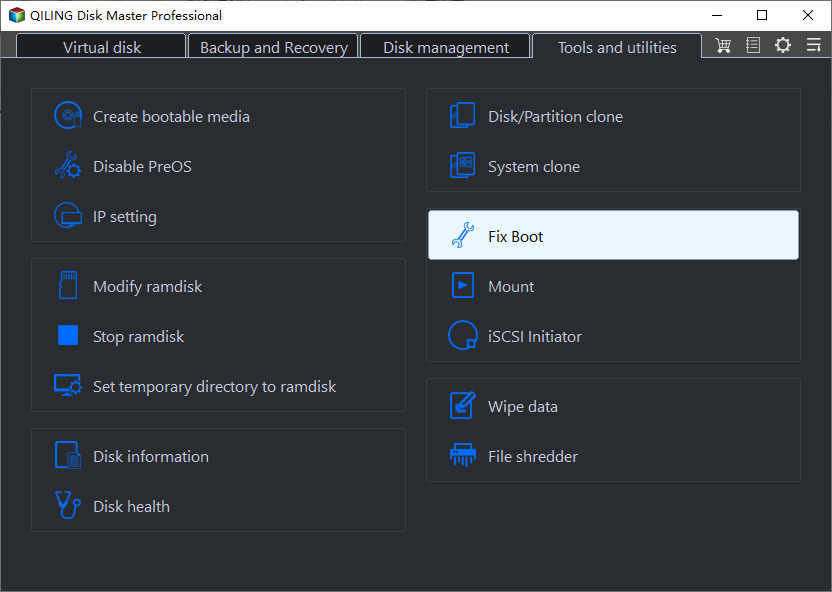
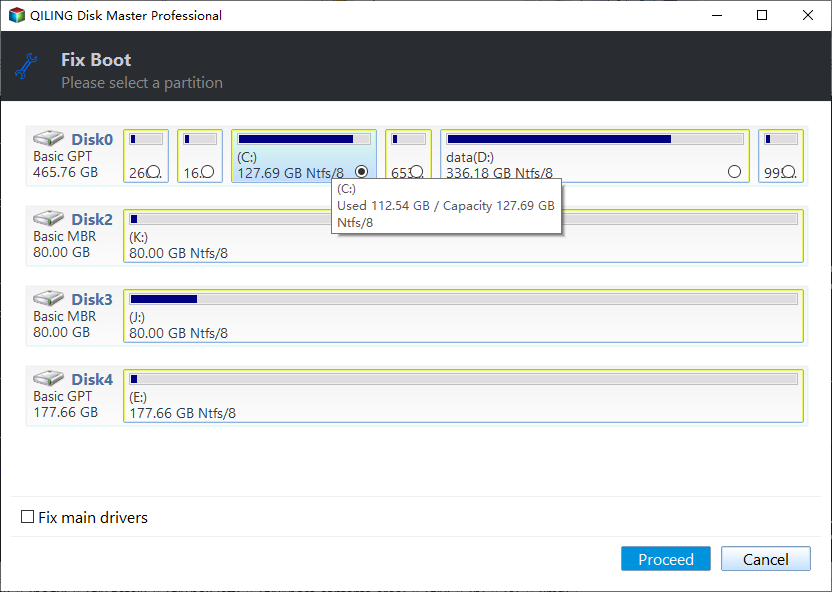
Qiling Disk Master Pro's Fix Boot option
Qiling Disk Master Pro also provides Fix Boot under Tools and utilities. It is an option only after you have confirmed the Windows disk is detected and the failure is related to boot configuration. The tool asks you to select a partition, so identifying the correct Windows installation and preserving a backup remain essential. It does not repair a physically failing drive, recover missing personal files, or replace an investigation of the original stop error.
If Windows still does not start
Check storage health and memory, then consider an in-place repair or reinstall after files are secured. Verify the backup opens on another PC. Replacing a failing drive before reinstalling is more reliable than repeatedly repairing damaged boot files on unstable hardware.
Related Articles
- Windows Will Not Boot
Compare recovery and backup paths. - Repair EFI Bootloader
Use the appropriate UEFI boot repair sequence.
Products
Articles & Tutorials
- Data Recovery
- Data Backup
- File Recovery
- File Backup
- System Backup and Restore
- Disk and Partition Clone
- Technical articles
- Mobile articles
- Disk Master Help
- Windows Data Recovery Tutorials
- Windows Secure Delete Tutorials
- Windows Partition Management Tutorials
- Windows File Backup and Restore Tutorials
- Windows System Backup and Restore Tutorials
- Windows Disk Backup and Restore Tutorials
- Windows Clone Tutorials