How to Repair EFI Bootloader in Windows 10/11 (2026 Guide)
When your Windows 10 or Windows 11 PC fails to boot and shows errors like "Boot Configuration Data is missing" or "No bootable device found", the problem is often a corrupted or missing EFI bootloader. The EFI (Extensible Firmware Interface) bootloader is what UEFI-based systems use to start Windows. Without it, your PC cannot load the operating system.
This guide explains what the EFI bootloader is, what causes it to fail, and walks you through 5 proven methods to repair the EFI bootloader and get Windows booting again.
PAGE CONTENT
- What Is the EFI Bootloader?
- Symptoms of EFI Bootloader Failure
- Method 1: Automatic Startup Repair
- Method 2: Rebuild EFI Bootloader with bcdboot
- Method 3: Rebuild EFI System Partition with diskpart
- Method 4: Rebuild BCD with bootrec
- Method 5: System Restore
- How to Back Up Before EFI Repair
- FAQs About EFI Bootloader Repair
What Is the EFI Bootloader?
On UEFI-based systems (which includes all modern Windows 10/11 PCs), Windows uses an EFI System Partition (ESP) to store boot files. The ESP is a small FAT32 partition (usually 100MB) that contains:
- The boot manager (bootmgfw.efi)
- The Boot Configuration Data (BCD) store
- Language files and other boot support files
When you turn on your PC, the UEFI firmware loads the boot manager from the ESP, which reads the BCD and starts Windows. If the ESP is missing, corrupted, or the boot files are damaged, Windows cannot start.
Symptoms of EFI Bootloader Failure
Common signs that your EFI bootloader is corrupted or missing:
- "Boot Configuration Data is missing or contains errors" error screen
- "No bootable device found" or "No boot device available"
- "Recovery: Your PC couldn't start properly" with error code 0xc000000f
- PC boots into Automatic Repair loop repeatedly
- PC boots directly to BIOS/UEFI instead of Windows
- "Operating System not found" error
Method 1: Automatic Startup Repair
Startup Repair is the easiest fix to try first. It can automatically diagnose and repair common EFI bootloader problems.
Step 1. If Windows fails to boot twice in a row, it will enter the Automatic Repair screen automatically. If not, boot from a Windows installation USB and click "Repair your computer".
Step 2. Go to Troubleshoot > Advanced options > Startup Repair.
Step 3. Select your Windows account and enter your password.
Step 4. Startup Repair will diagnose and attempt to fix the boot issue. This may take 5-15 minutes.
Step 5. When finished, restart your PC and check if Windows boots.
Method 2: Rebuild EFI Bootloader with bcdboot
If Startup Repair fails, use the bcdboot command to copy boot files from your Windows installation to the EFI partition.
Step 1. Boot from a Windows installation USB, then click "Repair your computer" > "Troubleshoot" > "Advanced options" > "Command Prompt".
Step 2. Identify your Windows drive letter by running diskpart:
diskpart
list vol
Step 3. Look for the volume with your Windows installation (usually labeled "Windows" or with a large size). Note its drive letter (e.g., C:).
Step 4. Identify the EFI System Partition (ESP). It's usually a small FAT32 partition (around 100MB). Note its volume number.
Step 5. Assign a drive letter to the ESP:
select vol Y (replace Y with the ESP volume number)
assign letter=Z
exit
Step 6. Rebuild the EFI boot files by running bcdboot:
bcdboot C:\Windows /s Z: /f UEFI
Step 7. You should see "Boot files successfully created". Type exit and restart your PC.
Method 3: Rebuild EFI System Partition with diskpart
If the EFI System Partition is completely missing or corrupted, you need to recreate it before rebuilding the boot files.
Step 1. Open Command Prompt from Advanced options.
Step 2. Run diskpart:
diskpart
list disk
Step 3. Select your system disk:
select disk X (replace X with your system disk number)
Step 4. List partitions to check if an ESP exists:
list part
Step 5. If no ESP exists, shrink the Windows partition to make space:
select part Y (replace Y with the Windows partition)
shrink desired=100
Step 6. Create the EFI System Partition:
create partition efi size=100
format quick fs=fat32 label="System"
assign letter=Z
Step 7. Exit diskpart and rebuild the boot files:
exit
bcdboot C:\Windows /s Z: /f UEFI
Step 8. Restart your PC.
Method 4: Rebuild BCD with bootrec
The bootrec tool can repair the Boot Configuration Data (BCD) store, which tells the boot manager how to load Windows.
Step 1. Open Command Prompt from Advanced options.
Step 2. Run the following commands one by one:
bootrec /fixmbr
bootrec /fixboot
bootrec /scanos
bootrec /rebuildbcd
Step 3. When asked to add the installation to the boot list, type Y and press Enter.
Step 4. Type exit and restart your PC.
- Note
- If
bootrec /fixbootreturns "Access is denied", use Method 2 (bcdboot) instead. This is a known issue on Windows 10/11 where the boot partition lacks write permissions.
Method 5: System Restore
If the EFI bootloader failure started after a recent Windows update or driver installation, System Restore can revert your system to a working state.
Step 1. From Advanced options, select System Restore.
Step 2. Select your Windows account and enter your password.
Step 3. Choose a restore point from before the boot issue started.
Step 4. Click "Next" > "Finish" to start the restore.
Step 5. Your PC will restart and revert to the selected restore point.
How to Back Up Before EFI Repair
Before changing the EFI System Partition or rebuilding boot files, back up important data to a separate drive. If Windows cannot start, create Qiling WinPE bootable media on another working computer, boot the affected PC from it, and use Qiling Disk Master to save the required files.
Prepare an empty USB drive for the bootable media and a separate external HDD or SSD for the backup. Do not save the backup on the Windows disk that you are about to repair.
Stage 1: Create a Qiling WinPE Bootable USB
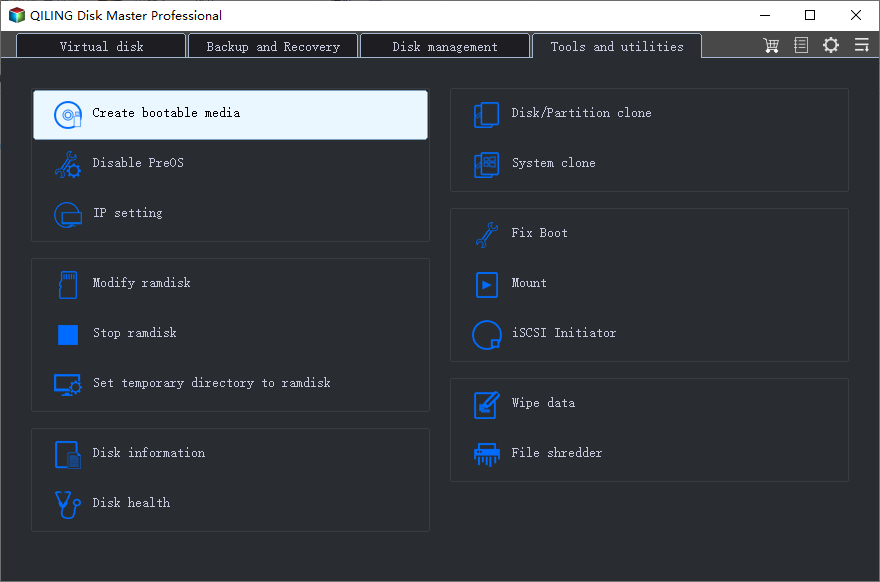
Step 1. Install and open Qiling Disk Master on a working Windows computer. Connect the empty USB drive, open Tools, and select Create bootable media.
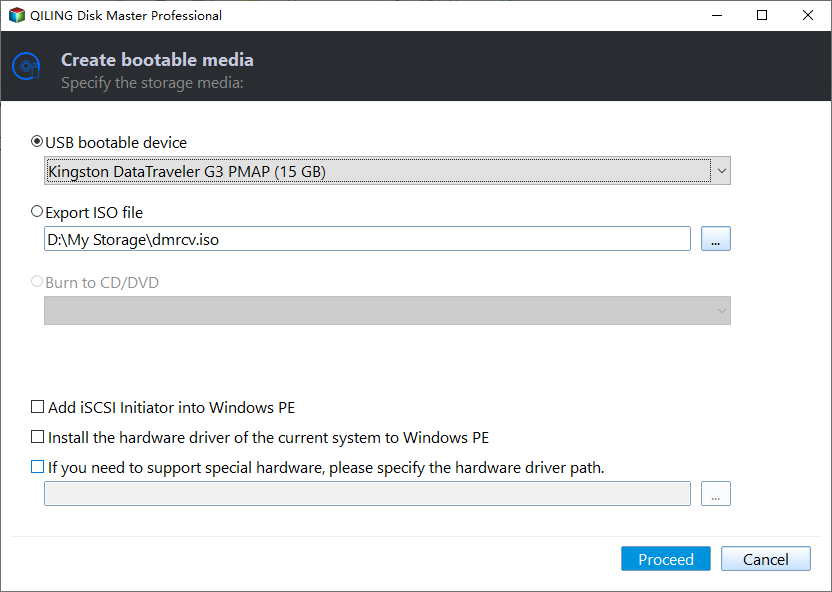
Step 2. Select the connected USB drive as the bootable media destination. Check its drive letter and capacity carefully because creating the media will erase the USB drive.
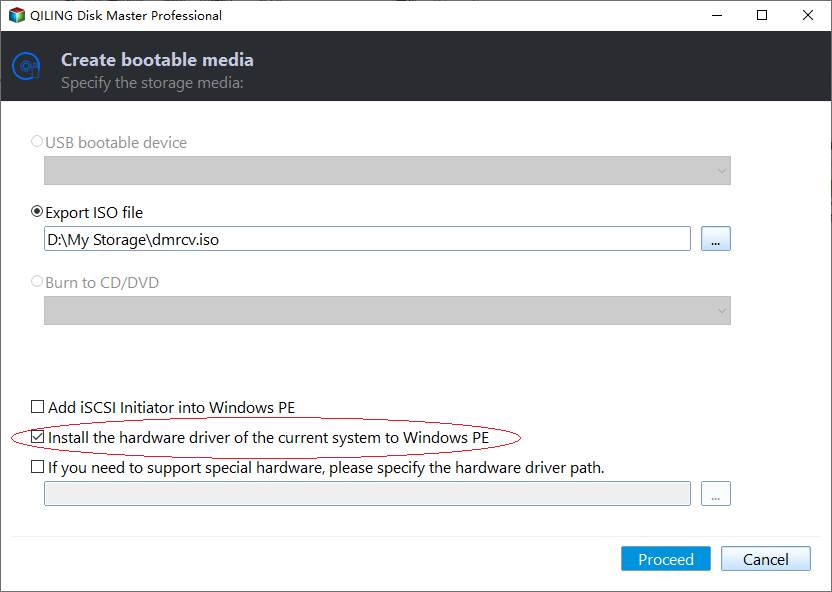
Step 3. If the affected computer uses RAID or a storage controller that WinPE may not recognize, add the required storage driver. Otherwise, continue with the default drivers.
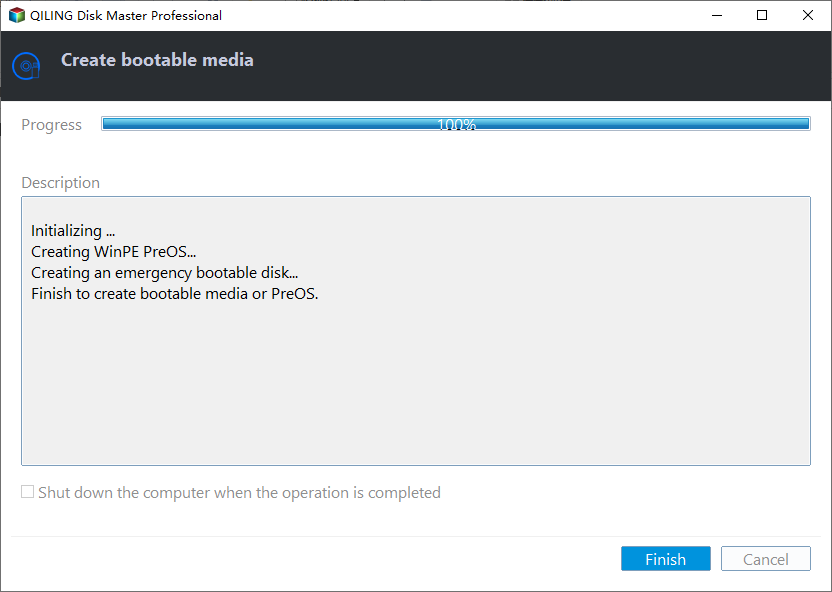
Step 4. Click Proceed and wait until the bootable USB is complete. Safely eject it from the working computer.
Stage 2: Boot the Affected Computer into Qiling WinPE
Step 1. Connect the Qiling bootable USB and the external backup drive to the computer that cannot start. Leave the Windows system disk connected.
Step 2. Turn on the PC and repeatedly press its boot-menu key, commonly F12, F11, Esc, or F9. Select the USB drive. If it does not appear, enter BIOS/UEFI setup and place the USB drive first in the boot order.
Step 3. Wait for Qiling Disk Master to open. Confirm that the Windows disk and external backup drive are both displayed. Drive letters in WinPE may differ from those used in Windows, so identify each drive by its capacity, folders, and disk model.
Stage 3: Back Up Important Files to the External Drive
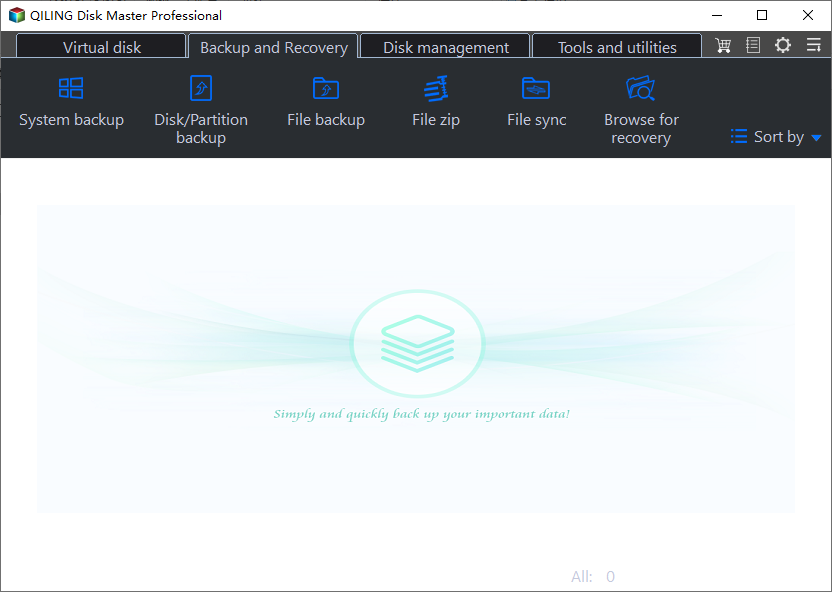
Step 1. Open Backup and Recovery and select File backup.
Step 2. Expand the Windows disk and select the files and folders you need. Check user folders such as Desktop, Documents, Pictures, Downloads, and any application data or project folders that are important.

Step 3. Click the destination selector and choose a folder on the external HDD or SSD. Confirm that the destination is not located on the Windows disk being repaired and that it has enough free space.

Step 4. Review the selected source folders and destination, then click Proceed. Keep the computer connected to power and do not disconnect either drive while the backup is running.

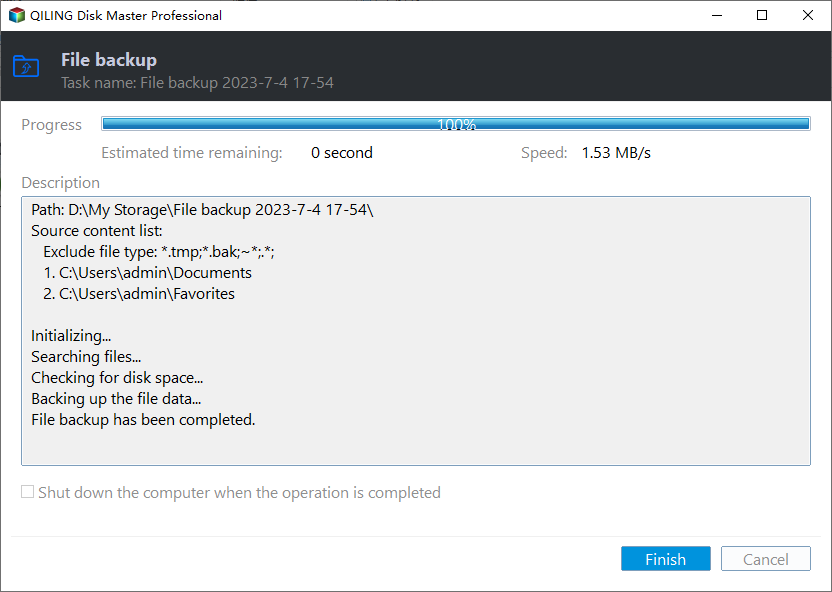
Step 5. Wait until Qiling reports that the file backup has completed. Click Finish, open the external drive, and confirm that the backup task or image is present before repairing the EFI bootloader.
After verifying the backup, shut down the computer, disconnect the external backup drive, and then perform the EFI repair method that matches the problem. Disconnecting the backup drive helps prevent selecting it accidentally in DiskPart.
FAQs About EFI Bootloader Repair
What is the EFI bootloader?
The EFI bootloader is the boot manager stored on the EFI System Partition (ESP) of UEFI-based systems. It loads Windows when you start your PC. If it's corrupted or missing, Windows cannot boot.
How do I know if my PC uses UEFI or Legacy BIOS?
Open System Information (press Win + R, type msinfo32). Look for "BIOS Mode"—if it says "UEFI", your PC uses UEFI. If it says "Legacy", it uses the older BIOS boot mode. All Windows 11 PCs and most Windows 10 PCs from 2015+ use UEFI.
What is the difference between bcdboot and bootrec?
bcdboot copies fresh boot files from a Windows installation to the EFI partition. bootrec repairs the existing BCD store. If bootrec fails (especially with "Access is denied"), bcdboot is the more reliable solution.
Can I repair the EFI bootloader without a Windows USB?
It's difficult. Most EFI repair methods require Command Prompt access from the Windows Recovery Environment, which you reach via a Windows installation USB. Create one on another PC if you don't have one.
Will EFI bootloader repair delete my files?
No. Repairing the EFI bootloader only affects the boot partition and BCD store. Your personal files, applications, and Windows installation remain intact. However, always back up before attempting repairs as a precaution.
Conclusion
A corrupted or missing EFI bootloader can prevent Windows 10/11 from starting, but the problem is usually fixable without reinstalling Windows. Start with Startup Repair, then try bcdboot to rebuild the boot files. If the EFI System Partition is missing, recreate it with diskpart. For a safer repair experience, back up your data first using Qiling's bootable media.
For ongoing protection against boot failures, consider creating regular system backups with Qiling Backup.
Related Articles
- Fix Windows 10/11 Won't Boot: 8 Proven Solutions (2026)
- How to Fix bootrec /fixboot Access Denied Error
- Complete Guide to bootrec.exe Commands
- How to Create Windows 10 Recovery USB
- Fix bootrec /fixboot Access Denied in Windows 11
If bootrec /fixboot returns "Access is denied" on Windows 11, learn how to fix this error using bcdboot and diskpart to repair the EFI bootloader. - How to Clone a Failing Hard Drive in Windows 10 Without Data Loss
Learn how to clone a failing or dying hard drive to a new HDD or SSD, rescue your data, and avoid permanent data loss with sector-by-sector cloning. - Windows 11 Secure Boot Certificate Expired in 2026 (Fix)
Products
Articles & Tutorials
- Data Recovery
- Data Backup
- File Recovery
- File Backup
- System Backup and Restore
- Disk and Partition Clone
- Technical articles
- Mobile articles
- Disk Master Help
- Windows Data Recovery Tutorials
- Windows Secure Delete Tutorials
- Windows Partition Management Tutorials
- Windows File Backup and Restore Tutorials
- Windows System Backup and Restore Tutorials
- Windows Disk Backup and Restore Tutorials
- Windows Clone Tutorials