How to Create a Windows 10 System Backup Image
A system backup image is a complete snapshot of your Windows 10 installation. It contains the operating system, the hidden boot partitions, your installed programs, drivers, and personal settings. If a drive fails, a Windows update breaks the system, or malware corrupts key files, you can restore that image and get a working PC back instead of reinstalling Windows and every application from scratch.
This guide explains what a Windows 10 system backup image includes, how to create one with Qiling Backup in a few clicks, how to use the built-in Windows system image tool as an alternative, and how to restore the image when you actually need it.
PAGE CONTENT
- What Is a Windows 10 System Backup Image
- Method 1: Create a System Backup Image with Qiling Backup
- Method 2: Use the Built-in Windows 10 System Image Tool
- How to Restore Windows 10 from a System Backup Image
- System Image vs File Backup vs Restore Point
- FAQs About Windows 10 System Backup
What Is a Windows 10 System Backup Image
A system backup image copies everything Windows needs to run and stores it as one or more image files on another drive. Restoring the image puts the system back exactly as it was on the day the image was created.
A typical Windows 10 system backup image includes:
- The operating system - Windows 10 itself, including system files and registry settings.
- System and boot partitions - the EFI or System Reserved partitions that make Windows start.
- Installed programs and drivers - so you do not have to reinstall and re-activate every app.
- User accounts and settings - desktop layout, network configuration, and personal preferences.
- Files on the system drive - anything stored on the C: drive at the time of the backup, unless you exclude it.
A system image is not the same as copying a folder. It records the structure of the disk, so it can rebuild a bootable Windows installation instead of only returning your documents.
Create a new image at these moments:
- Before installing a major feature update, such as an update that may fail and roll back. See Backup Before Windows 11 25H2 Update for a checklist.
- Before replacing, resizing, or repartitioning the system drive.
- After a clean install, once your programs and settings are in place.
- On a regular schedule, so the image is never more than a few weeks old.
Method 1: Create a System Backup Image with Qiling Backup
Qiling Backup creates a system image in a few clicks and selects the required Windows partitions for you. It also supports scheduled backups, compression, and password protection, which the built-in Windows tool does not offer.
Step 1. Install and open Qiling Backup. On the main page, open "Backup and Recovery" and choose "System Backup".

Step 2. Check the source. The disk where Windows is installed and its boot partitions are already selected. If you only need your documents, run a separate "File Backup" task instead.

Step 3. Choose a destination. Use an external HDD or SSD, a USB drive with enough free space, or a NAS. Never save the image on the drive you are backing up.

Step 4. Open "Schedule" if you want the image refreshed automatically. A monthly system backup is a practical starting point, and you can create a scheduled backup that also runs before each major Windows update.
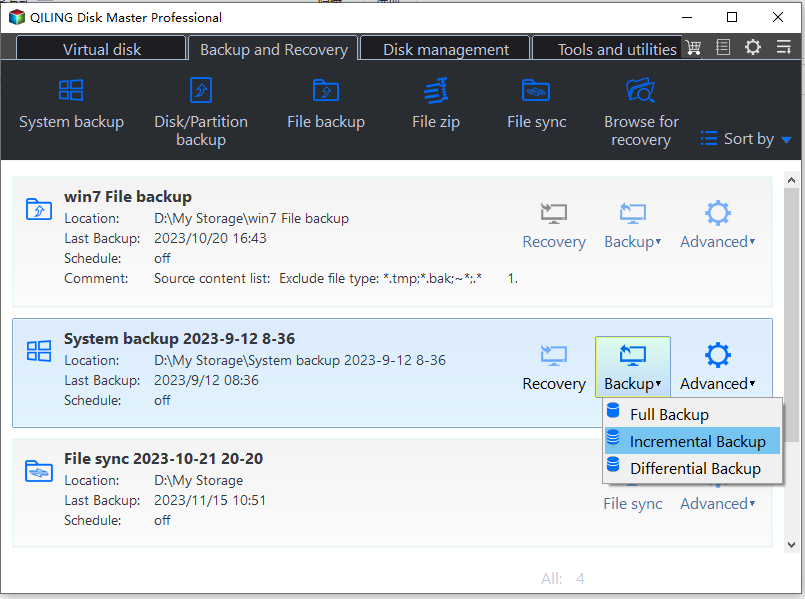
Step 5. Click "Proceed" and wait until the progress reaches 100%. When the task card appears on the home page, check that the image is listed and can be opened before you delete anything or change your disk.

Note: Keep at least one copy of the image on a drive that stays disconnected from your PC. Ransomware and power surges can reach a backup drive that is always plugged in.
Method 2: Use the Built-in Windows 10 System Image Tool
Windows 10 still includes the Backup and Restore (Windows 7) tool, which can create a system image at no cost. It is slower than third-party software, offers no compression, and its schedule is limited, but it works when you cannot install anything on the PC.
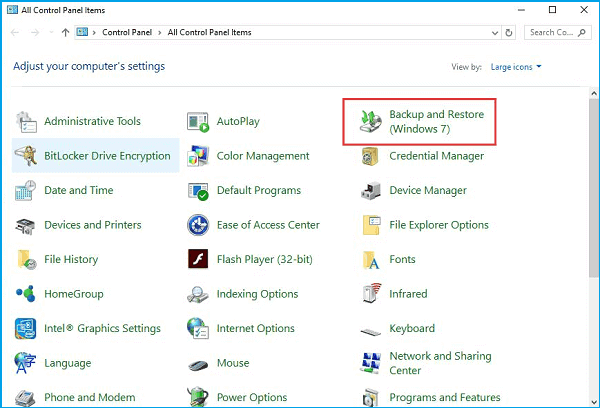
Step 1. Open Control Panel, then go to "Backup and Restore (Windows 7)".
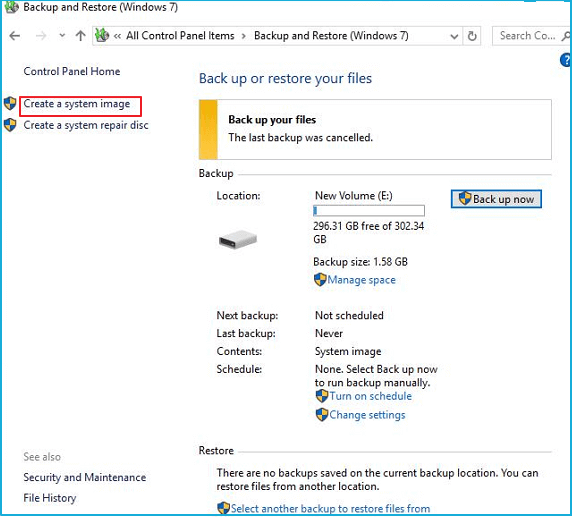
Step 2. Click "Create a system image" in the left pane.
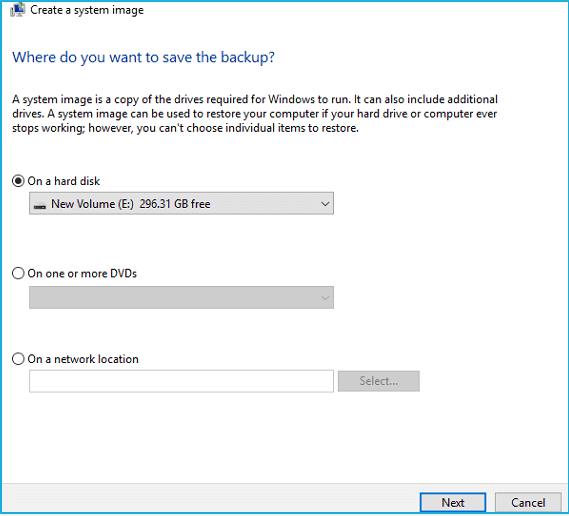
Step 3. Choose where to save the image: an external drive, a set of DVDs, or a network location.
Step 4. Confirm the drives that will be included and start the backup. When it finishes, Windows offers to create a system repair disc. Accept it and keep the disc or USB key together with the image, because you need it to boot into recovery mode.
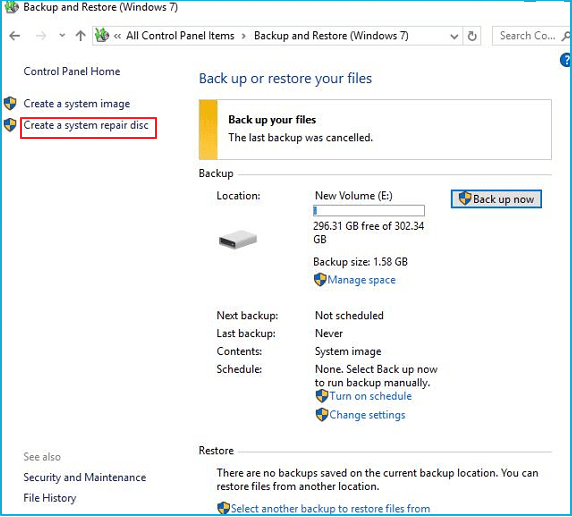
The built-in tool cannot refresh a full system image on a fixed schedule, so it works best as a one-off safety net. For regular protection, use software that supports scheduling, or read how often you should create a system image before you decide on a routine.
How to Restore Windows 10 from a System Backup Image
An image is only useful if it can be restored, so do not wait for a failure to test the process.
Restore with Qiling Backup
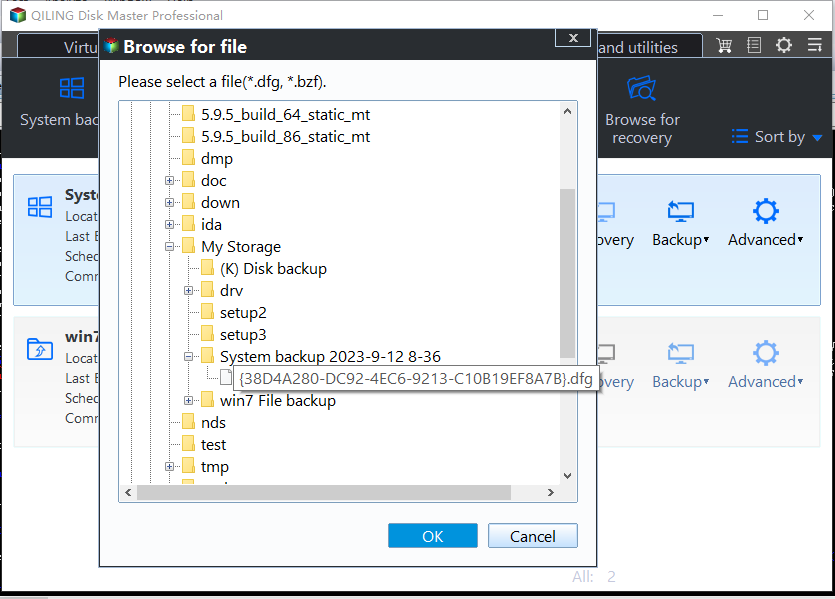
Step 1. Open Qiling Backup and find the system backup task. Open its "Recovery" option and select the image you want to use.
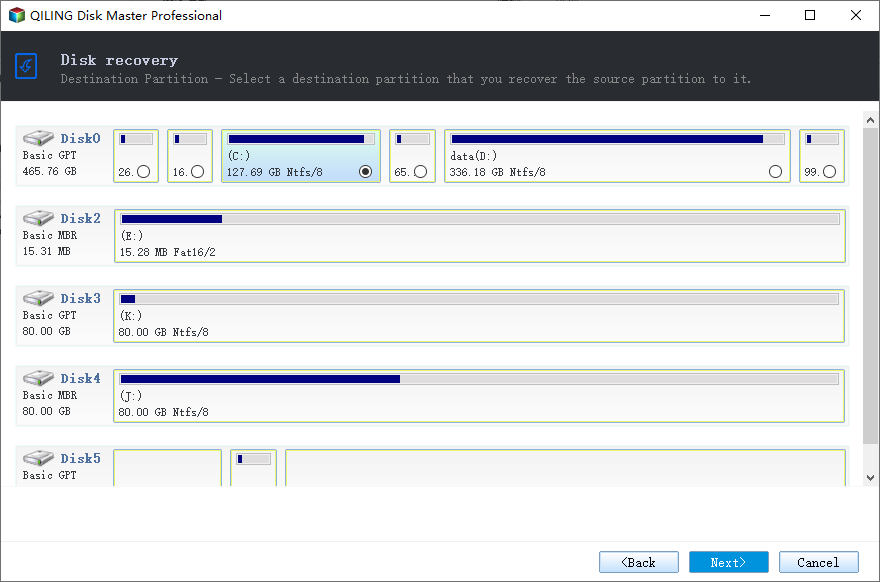
Step 2. Choose the target disk. Normally this is the original system disk; if the drive was replaced, pick the new one and the restore rebuilds Windows together with its boot partitions.
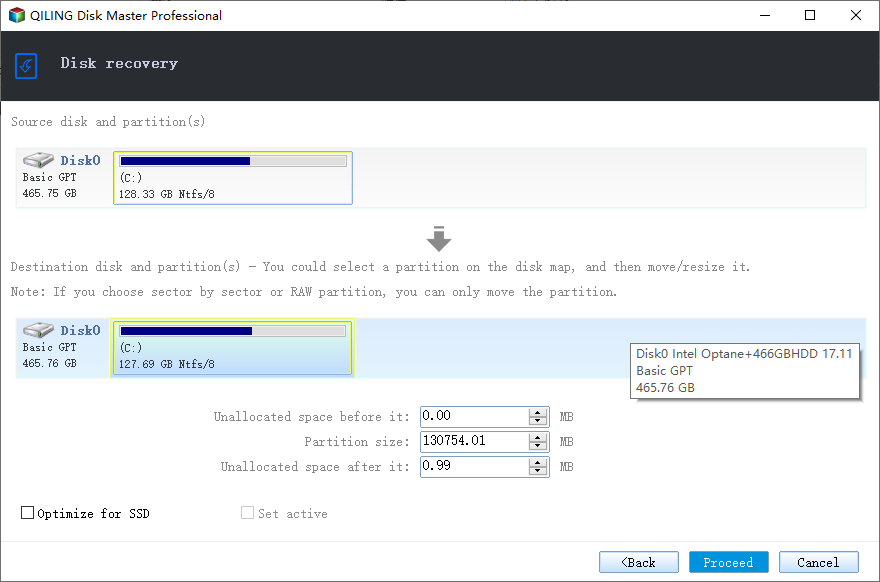
Step 3. Preview the restore plan, click "Proceed", and confirm the warning. The PC restarts to complete the restore.
Restore with a system repair disc
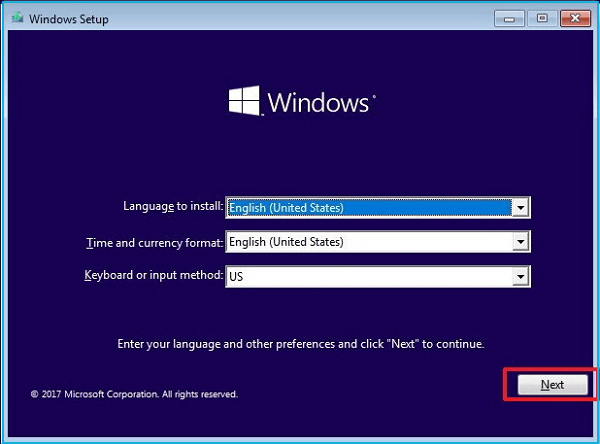
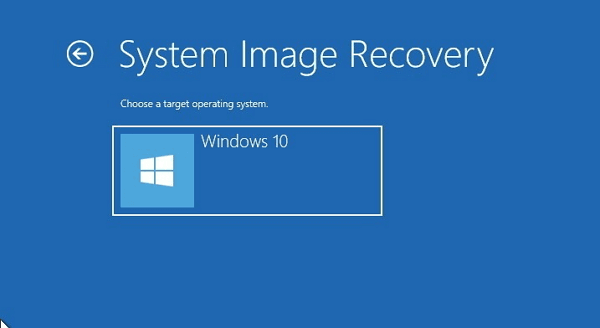
If Windows will not start, boot from the repair disc or the installation USB you created earlier.
- On the Windows Setup screen, click "Next" and then "Repair your computer".
- Choose "Troubleshoot" and then "System Image Recovery".
- Select the image on the external drive and follow the wizard.
For more detail about recovering a system image, see Windows System Backup and Restore Tutorials.
System Image vs File Backup vs Restore Point
These three tools solve different problems, and the best protection uses more than one of them:
- System image - rebuilds Windows, programs, and settings. Best after a disk failure or a broken update, but it is fixed in time and usually large.
- File backup - copies documents, photos, and other folders, and can run as often as you like. Use a file backup for data you change daily, and check clone vs image if you also plan to move Windows to a new disk.
- Restore point - records system files and the registry, not your data. It is small and fast, but it cannot recover a dead drive or a deleted document.
In practice: an image for the system, a file backup for your data, and a restore point for quick rollbacks after a driver change. If you plan to move Windows instead of restoring it, read about disk cloning in Windows 10 and what disk imaging covers.
FAQs About Windows 10 System Backup
How big is a Windows 10 system backup image?
Roughly the size of the used space on your system drive. A typical Windows 10 installation with common programs occupies 30-60 GB. Compression in Qiling Backup can reduce that noticeably, and the image can be split across several volumes.
Can I restore a system image to a different PC?
A full system image is tied to the hardware it was created on. Restoring it to very different hardware often causes boot errors, because Windows keeps drivers for the original machine. For a new PC, a clean install plus a file backup is more reliable.
Does a system image include my personal files?
Yes, if they are stored on the system drive, because they are captured as part of that drive. Files kept on other drives are not included, so back them up separately.
How often should I create one?
Monthly is a good baseline for a stable PC, plus a fresh image before a major Windows update or any hardware change. Keep at least two images so a problem is never copied into your only backup.
Can I delete old system image files?
Yes. Each image is a self-contained snapshot. Once a newer image has been verified, you can delete the older one to free space, but never delete all of them at once.
Conclusion
A Windows 10 system backup image is the fastest way back from a failed drive, a broken update, or a corrupted system. Qiling Backup creates one in five steps, selects the required Windows partitions automatically, and supports scheduled and compressed backups, while the built-in Backup and Restore (Windows 7) tool works as a free fallback. Whichever method you choose, store the image on a separate drive and test a restore before you need it.
Next, learn how to set up automatic backups, or compare Windows Backup and QILING Backup before you commit to a long-term plan.
Related Articles
- [Free] How to Make a Full Backup of Windows 10/8/7
- How Often Should I Create A System Image (with How-to Guide)
- Windows System Backup and Restore Tutorials
Step-by-step tutorials for backing up Windows and restoring a system image when Windows will not start. - What is Disk Imaging? Complete Guide to System Backup & Cloning
- Boot Drive vs Recovery Drive: Are They the Same Thing?
Understand the difference between the drive Windows starts from and the recovery drive you boot from in an emergency.
Products
Articles & Tutorials
- Data Recovery
- Data Backup
- File Recovery
- File Backup
- System Backup and Restore
- Disk and Partition Clone
- Technical articles
- Mobile articles
- Disk Master Help
- Windows Data Recovery Tutorials
- Windows Secure Delete Tutorials
- Windows Partition Management Tutorials
- Windows File Backup and Restore Tutorials
- Windows System Backup and Restore Tutorials
- Windows Disk Backup and Restore Tutorials
- Windows Clone Tutorials