File Backup: How to Back Up Files with Qiling Backup
When do we need file backup?
File backup is useful when you want to protect documents, photos, videos, music, work files, emails, or other personal data without creating a full system image. It helps you restore important files after accidental deletion, disk failure, virus attack, system crash, or an unexpected overwrite.
Qiling Backup provides a simple way to create file backup tasks. You can choose specific files or folders, save the backup image to a local drive, external disk, NAS, or network location, and set a schedule so important files are protected regularly.
How to create a file backup with Qiling Backup?
Step 1. Run Qiling Backup. On the main window, choose "Backup" and then select "File Backup" to start a new file backup task.
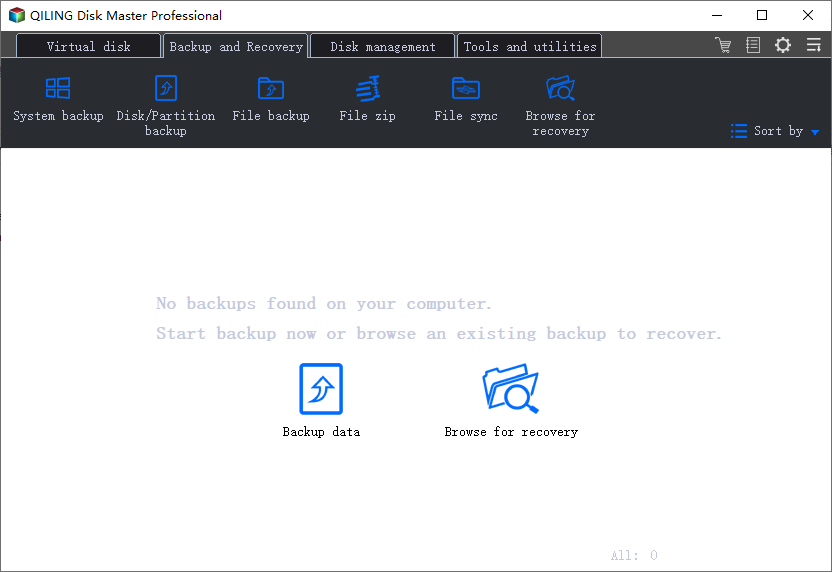
Step 2. Enter a task name and description if needed. Then click the file or folder selection area to choose the data you want to back up.
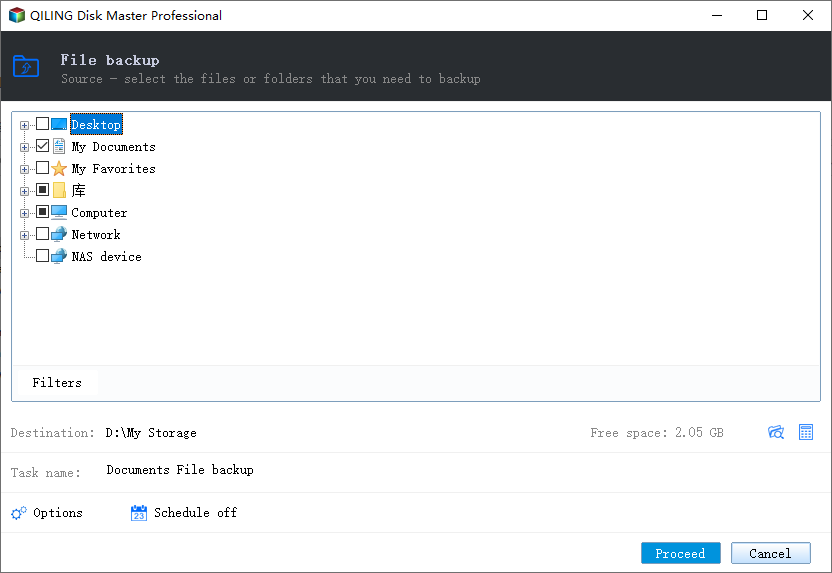
Step 3. Browse your computer and select the files or folders that need protection. You can choose common folders such as Desktop, Documents, Pictures, Videos, or any custom folder that stores important data.
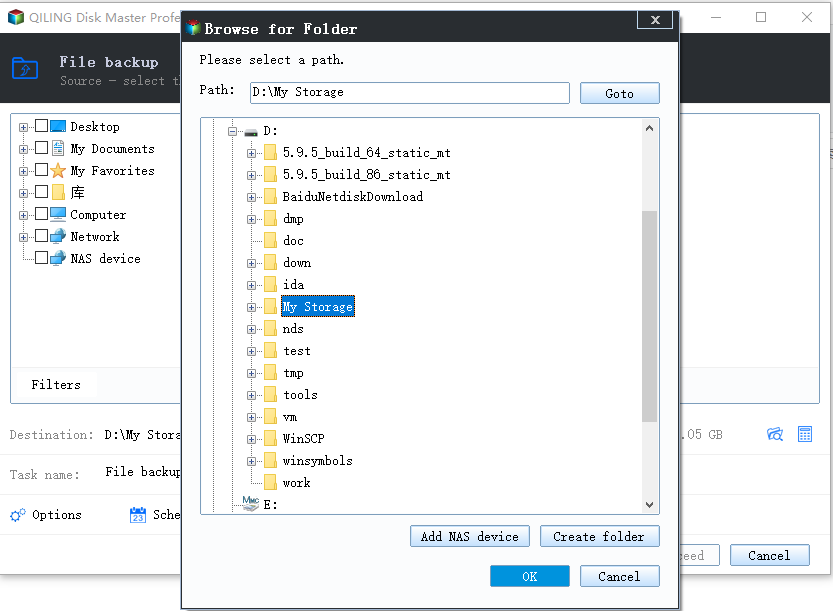
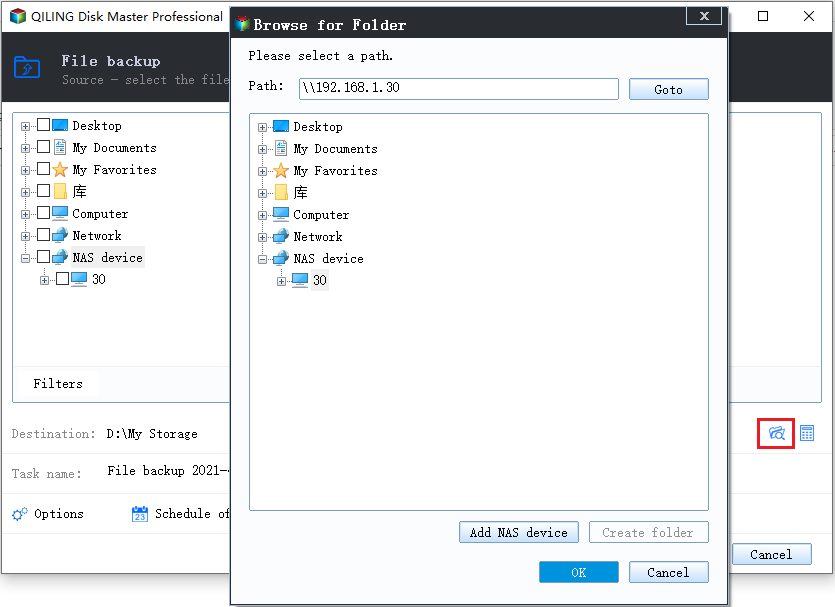
Step 4. Choose a destination path for the backup image. To reduce the risk of data loss, save the backup to another disk, an external hard drive, a network share, or NAS instead of the same folder as the source files.
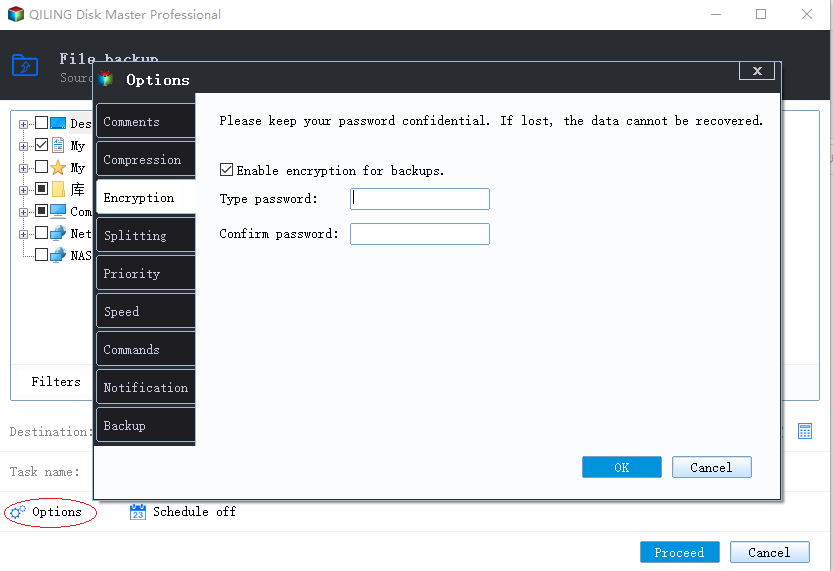
Step 5. Click "Options" if you want to adjust backup settings. You can configure compression, password protection, splitting, comments, or other options according to your storage and security needs.
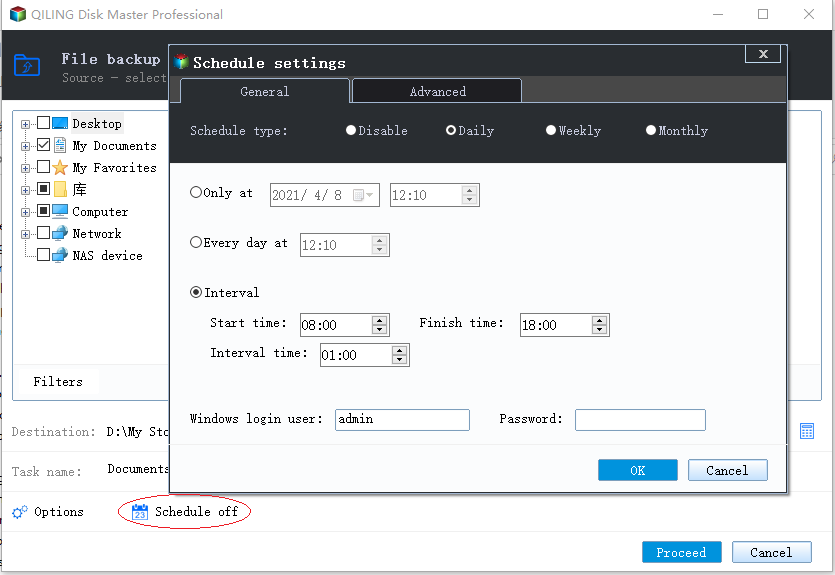
Step 6. Click "Schedule" to create an automatic file backup plan. You can run the task daily, weekly, monthly, or at a specific time so new and changed files are backed up regularly.
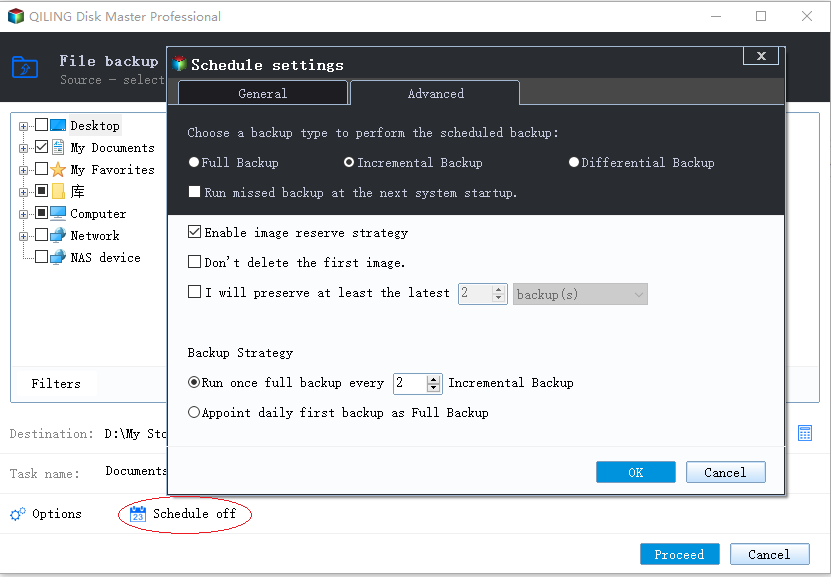
Step 7. If you want to save storage space, configure a backup strategy. A proper backup scheme can help keep several backup versions while removing old images automatically.
Step 8. Click "Proceed" to start the file backup. After the task finishes, the backup image will appear in the backup list, and you can use it later to restore selected files or folders.
Tips for a reliable file backup
For important files, keep at least one backup copy on a different storage device. If possible, combine local backup with another copy on NAS, external storage, or cloud storage. This makes it easier to recover files even if the computer or internal drive fails.
It is also helpful to test the backup image after the first task finishes. Open Qiling Backup, choose the created file backup, and check whether the restore option can find the files you need. A backup is truly useful only when it can be restored successfully.
Related Articles
- Schedule backup: how to automatically and regularly perform a backup
- (August 2022) Ultimate Guide of Windows File Backup
- How to backup system with Qiling Backup
- How to restore files from backups in Windows
- Auto Backup Windows 7 Computer or Files to External Hard Drive
This article helps you backup Windows 7 to external hard drive to protect it safely, whether you want to create full backup or file backup. - How to Backup Files on Windows 10
Learn how to back up files on Windows 10 with built-in tools and backup software, so you can protect important data from deletion, system errors, or disk failure.
Products
Articles & Tutorials
- Data Recovery
- Data Backup
- File Recovery
- File Backup
- System Backup and Restore
- Disk and Partition Clone
- Technical articles
- Mobile articles
- Disk Master Help
- Windows Data Recovery Tutorials
- Windows Secure Delete Tutorials
- Windows Partition Management Tutorials
- Windows File Backup and Restore Tutorials
- Windows System Backup and Restore Tutorials
- Windows Disk Backup and Restore Tutorials
- Windows Clone Tutorials