[Backup Question] How Often Should I Create A System Image
What Is A System Image
Saving all your hard drive data in a single image can be a lifesaver, especially when dealing with device issues. By creating a system image, you can capture all your hard drive's data in a single snapshot, which can then be saved to an external hard drive for safekeeping. This way, you can easily recover your data later, making it a reliable backup solution.
A system image backup is a type of backup that captures the entire state of your computer, including operating system, installed applications, and settings. This type of backup is useful for restoring your computer to its exact state at the time of the backup, which can be helpful in case of a major system failure or when upgrading your computer's hardware. However, it's not a replacement for regular backups of your personal files and data, which should be done on a regular basis.
System Image is a complete copy of your hard drive, including all data, system files, and settings, stored as a single image on an external drive. This allows you to easily transfer your entire system to a new device or restore it in case of a disaster.
The system image is different from a backup in that it takes up the same amount of storage space as the original data, whereas a backup can be compressed and take up less space. For example, if you have 200 GB of data, a zipped backup would take up less space, but a system image would require 200 GB of space on your external drive. Some tools can be used to compress a system image, but it is generally ineffective.
To avoid errors when creating and restoring system images, it's recommended to use a standard program and ensure the system image file format is compatible with the program you created it with, such as using .xml or .vhd extensions for Windows system images. This will help prevent issues and ensure a smooth restoration process.
There are advantages to creating and maintaining system images.
- You can instantly recover to the previous state without installing Windows and Software.
- Replacing a hard drive (HDD) or solid-state drive (SSD) is a straightforward process. You'll simply need to install the system image on the new drive and connect it, without needing to install any additional software or drivers.
Regardless of the operating system you're using, there are various backup methods available. If you're wondering how often to create a system image, we've can help!
How Often Should I Create a System Image
There are no constraints about when you can create a system image and at what frequency.
Usual system image creation frequency: Creating a system image on your Windows OS every three months can be beneficial, as it captures all hard disk data and file modifications from the previous period, allowing you to restore your system to a previous state if needed.
Immediate System Image Backup: Whenever you update your Windows OS, install new software or make significant changes, create a system image right away to ensure you can easily restore your system to a previous state if needed.
Create a System Repair Disc: You can transfer a system image to a system repair disc, which is feasible if you have limited data and ensure the disc is not damaged. It's recommended to create a system repair disk at least once a year.
Creating Backup on System Image: If you're backing up with a system image, you can schedule it to run daily or weekly. Make sure to delete the previous month's images to avoid consuming too much storage, but keep at least two prior images in case of issues with the hard drive or system image creation.
System image backup and system state backup are two different backup methods. System image backup creates a copy of the entire system, including all data, applications, and settings, while system state backup only captures the system's registry, COM+ class registration, and boot configuration data.
System State Backup & System Image Backup Windows 10
System state backup on Server computers is crucial for disaster recovery. To use it, you can create a system state backup by going to Server Manager, adding the Features and Roles, and then selecting the Backup feature. You can also use the Windows Server Backup tool to create a system image backup on Windows 10, which includes the system state.
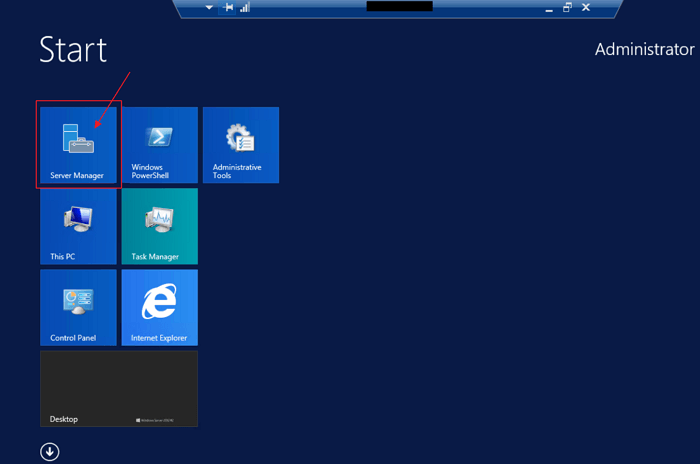
How to Create a System Image on Windows Computer
Creating a system image on a Windows computer can be done efficiently using one of two methods. To do so, you can either use the built-in tool called Windows Backup, which allows you to create a system image and also backs up your personal files, or use the Windows Recovery Environment (WinRE) to create a system image, which is a more manual process that requires booting from a USB drive or CD/DVD. Both methods have their own advantages and disadvantages, and choosing the right one depends on your specific needs and preferences.
Method 1. The Third-Party Backup Tool
Using the Qiling Backup Home is the most reliable and effective method for users, as it allows for a full-offline backup by creating a system image.
Qiling Backup stands out as the most suitable system image creation tool due to its exceptional features and capabilities. It offers a robust and reliable way to create, manage, and restore system images, making it an indispensable tool for system administrators and IT professionals.
- It lets you create system images in a few clicks, saving time and effort.
- Full offline backup helps to keep your data safe.
- You don't lose any data, making it 100% reliable and lossless.
- The tool offers free and paid plans for both personal and enterprise use, providing flexibility for users to choose the best option for their needs.
- Its simple UI makes the system image a hassle-free experience.
- The software allows users to schedule backups at a desired frequency, making the process automated.
- The tool is a versatile backup solution that can handle various tasks, including system backup, disk clone for Windows 10, incremental backup, and cloud backup, making it suitable for all your backup needs.
To create a system image via Qiling Backup, first, make sure your computer is turned off and then press the power button to turn it back on. Next, press the F11 key to enter the UEFI firmware settings.
Step 1. On the main page, click "System backup" button to start.

Step 3. Qiling Backup will automatically select your system partition, so you only need to choose a backup destination.

Step 4. You can save the backup file either on your local computer or a network-attached storage (NAS) device.

Step 5. After completing the backup process, you can monitor the backup status, restore, access, or remove the backup by right-clicking on the backup task on the left-hand side.

Method 2. Microsoft System Image Creator
Windows Backup and Restore and Qiling Backup can create system images, but Windows has limitations in functionality and is complex to use, making it unreliable for some users.
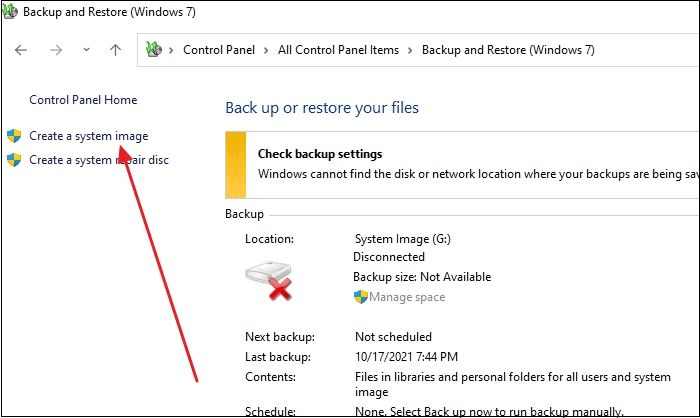
To create a system image using Windows Backup and Restore, follow these steps: Go to the Control Panel, click on System and Security, then select Backup and Restore. Click on "Create a system image" and select the drive where you want to save the image.
Step 1. Open the Run prompt using "Win + R", type control, and then press the Enter key. This will open the Control Panel.
Step 2. Open the Control Panel and click on the "Backup & Restore" option.
Step 3. On the left section, click on "Create a System Image".
Step 4. Navigate to On a Hard Disk Option.
Step 5. A drop-down menu will appear. Select the appropriate option and click "Next".
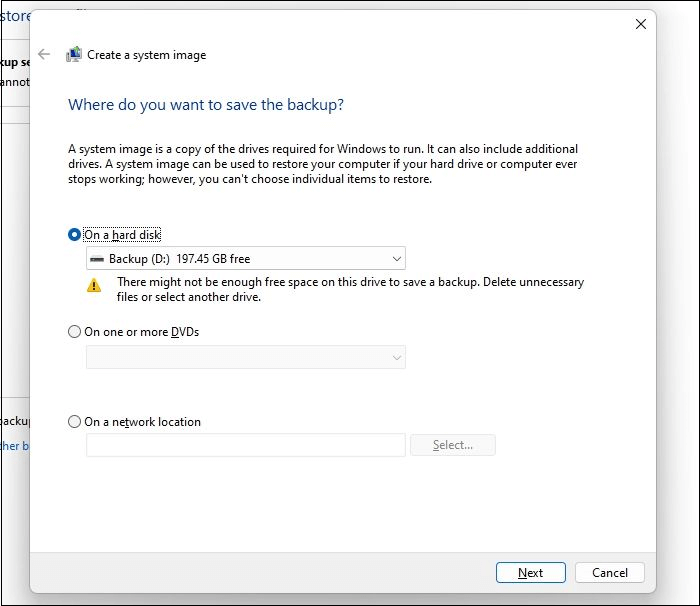
Step 6. Now, you also select any other external drive if you want to. Click on "Next".
Step 7. Now, press the "Start Backup" button.
You will be prompted to head over to create a system repair disk, but you should click on No.
Besides guiding you on how to create a system image on a Windows computer, you may also want to know how to create a system image on Windows 10 for another computer or create a system image on Windows 10 using a USB drive.
FAQs About Creating a System Image
If you still have questions about how often I should create a system image, turn to the FAQs and find answers below.
1. When should you create a system image?
System Image is a backup of your Windows system, including all settings, apps, files, and drivers, which can be used to restore your computer to its previous state in case of a system failure or other issues. It's like taking a snapshot of your system at a specific point in time, allowing you to recover it later if needed.
2. Is system image better than backup?
Backups are more practical for storing and accessing data, but system images create a more accurate clone of your computer, including all system files, personal files, apps, settings, and personalization.
3. Does creating a system image wipe the drive?
Creating a system image will not wipe off your data. Instead, it will create a snapshot of your entire hard drive, including all your files, programs, and settings, which you can then save to an external drive. This allows you to have a backup of your system in case something goes wrong.
The Bottom Line
You should create a system image weekly to ensure that your system is backed up immediately after installing new software or Windows. This will help in case of any system failure or data loss.
You can schedule regular backups and create a system image every three months, which can be done with just one click using the Qiling Backup software. This tool allows for both full offline backups and cloud storage backups, ensuring reliability and efficiency in the backup process.
For moving an existing system image file to another drive, read Can You Copy a System Image to Another Drive?
Related Articles
- Windows Backup Failed While Determining Libraries Location [Best Solutions]
- Why Does Windows 10 Backup Say Windows 7? [Methods Provided]
- How to Clone GPT Disk to SSD in Windows Without Boot Failure
- Windows 11 Backup to External Hard Drive Guide [3-Minutes Solution]
- How Do I Create an ISO Image of my Hard Drive?
Learn what an ISO image contains and how to create an image of a hard drive with Qiling Disk Master. - How Do I Replace My Hard Drive and Keep Windows License?
Do you want to learn how to replace a hard drive while keeping your Windows license? This page explains how to use a powerful disk cloning program to clone a hard drive to a new one without losing anything, even your Windows license.
Products
Articles & Tutorials
- Data Recovery
- Data Backup
- File Recovery
- File Backup
- System Backup and Restore
- Disk and Partition Clone
- Technical articles
- Mobile articles
- Disk Master Help
- Windows Data Recovery Tutorials
- Windows Secure Delete Tutorials
- Windows Partition Management Tutorials
- Windows File Backup and Restore Tutorials
- Windows System Backup and Restore Tutorials
- Windows Disk Backup and Restore Tutorials
- Windows Clone Tutorials