Cannot Delete a Protected Partition: Identify It First
Diskpart's 'Cannot delete a protected partition without the force protected parameter set' message means Windows is protecting a special partition from ordinary deletion. It does not prove that the partition is empty, corrupt, or safe to remove.
Find Out What the Partition Does
Open Disk Management and note the disk number, capacity, partition order, and labels. An EFI System Partition can contain UEFI boot files; a Windows Recovery Environment partition can hold recovery tools; an OEM partition may support vendor recovery. A small size or missing drive letter is normal for these roles.
In an elevated Command Prompt, run reagentc /info to check whether Windows RE is enabled and where it is registered. You can use Diskpart's read-only list disk, select disk N, and list partition to inspect the target, then exit. Replace N only after matching the model and capacity. These inspection commands do not authorize removal.
Decide Whether Removal Is Even Necessary
If your goal is to extend C:, check whether the protected partition actually sits between C: and the unallocated space. Deleting it may break recovery and may still not produce usable adjacent space. If you are preparing a replacement disk or a clean installation, consider whether the old disk should simply remain intact until the new system boots.
The Diskpart override option and third-party delete functions can remove some protected partitions, but they cannot tell you whether the partition is expendable. The exact error is a safety barrier, not a request to retry with stronger force. Do not follow a generic command sequence on the only working copy of Windows.
Back Up and Record the Recovery Path
Step 1. Save personal files to another physical drive and open a few copied files. Create a full system or disk image if you might need to restore boot and recovery partitions, not merely a File Explorer copy of C:.
Step 2. In Qiling Disk Master choose Backup and Recovery > Disk/Partition backup, select the whole physical source disk (not just C:), and confirm that the EFI or recovery partition is included.
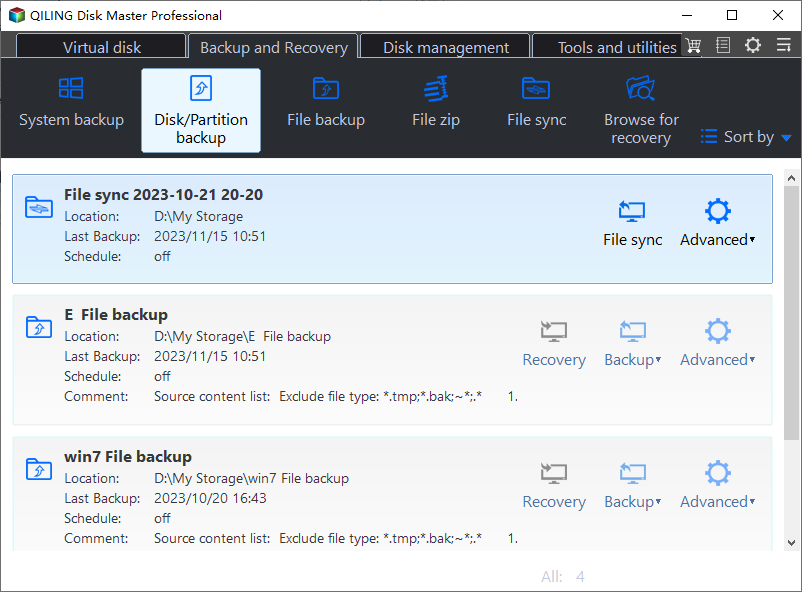
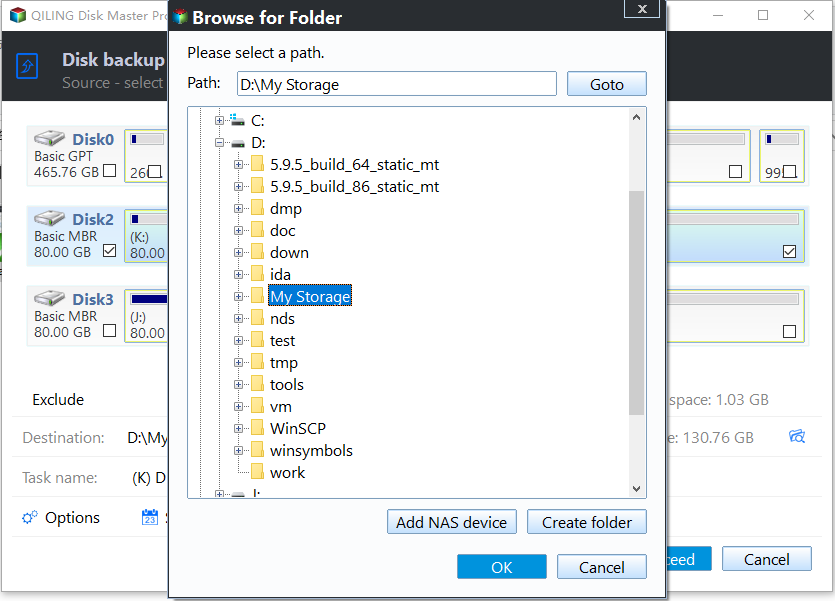
Step 3. Choose another disk as the backup destination, click Proceed, and wait for completion. Verify that Qiling can locate the image and that bootable recovery media can see both the backup and source disk.
What a Safe Removal Plan Must Specify
Before any deletion, write down the exact disk and partition numbers, whether it contains Windows RE or EFI files, the tested image restore path, and what will occupy the freed space. Removing the active EFI partition can leave Windows unbootable. Removing a WinRE partition can disable Reset and advanced recovery until it is recreated and registered correctly.
This article intentionally stops before an irreversible deletion command or Qiling Delete click. Those steps must be reviewed against the actual disk map and backup state. If the partition is needed, keep it; if the goal is space recovery, assess a supported move or resize method instead.
Conclusion
The error protects a potentially essential partition. Identify its role, verify a full backup and recovery path, and do not force deletion merely to clear the message.
Related Articles
- Delete a Recovery Partition
Review when a recovery partition can be removed. - What Is a Recovery Partition?
Understand the role of Windows recovery storage.
Products
Articles & Tutorials
- Data Recovery
- Data Backup
- File Recovery
- File Backup
- System Backup and Restore
- Disk and Partition Clone
- Technical articles
- Mobile articles
- Disk Master Help
- Windows Data Recovery Tutorials
- Windows Secure Delete Tutorials
- Windows Partition Management Tutorials
- Windows File Backup and Restore Tutorials
- Windows System Backup and Restore Tutorials
- Windows Disk Backup and Restore Tutorials
- Windows Clone Tutorials