What Is Recovery Partition and Can I Delete It in Windows
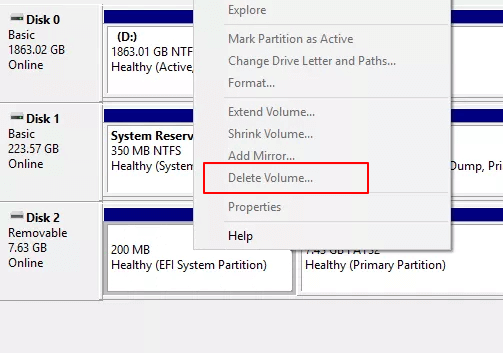
A recovery partition stores Windows recovery tools or vendor reset files. Deleting the wrong one can remove Reset this PC or boot repair options.
When to Keep It
- The partition is the active WinRE location.
- You rely on factory reset.
- You do not have a system image or recovery USB.
- The disk has enough free space and deletion is not necessary.
When Deletion May Be Reasonable
You may remove an old or unused recovery partition after confirming the active WinRE partition and creating a full backup. Never delete EFI or System Reserved partitions.
Use Qiling Disk Master Only After You Confirm the Recovery Partition Is Unused
Do not delete a recovery partition just because it is small or has no drive letter. First confirm whether Windows is using it for WinRE, then create a backup or recovery USB.
Step 1. Check the Active WinRE Location
Open Command Prompt as administrator and run reagentc /info. If the recovery partition shown in Windows RE location matches the partition you want to delete, keep it or move it instead.
Step 2. Create a Backup or Recovery USB
Before deleting any recovery partition, create a full system backup or a Windows recovery USB. This gives you a fallback if Reset this PC or startup repair is needed later.
Step 3. Select the Unused Recovery Partition
Open Qiling Disk Master and locate the recovery partition by size and position. Make sure it is not the EFI System Partition, MSR partition, or the active WinRE partition.
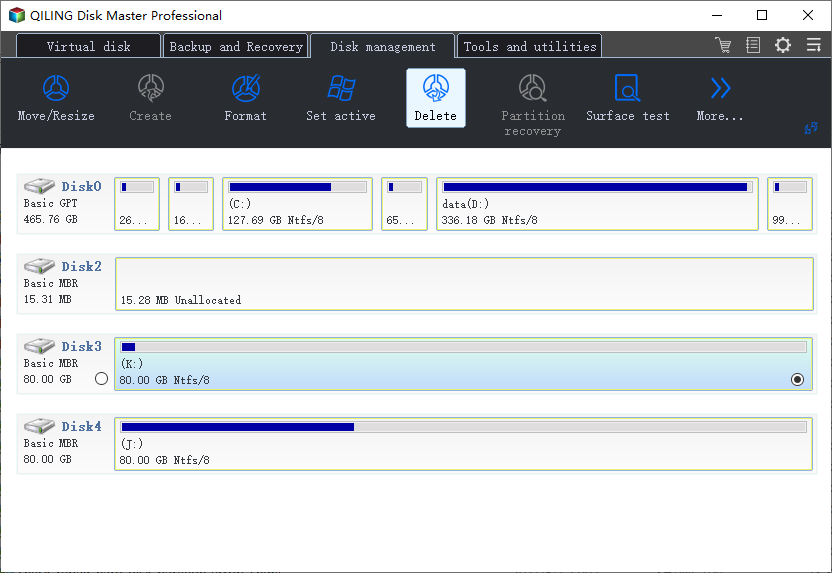
Step 4. Delete the Partition and Preview
Choose Delete and review the pending operation. It should affect only the unused recovery partition you selected.
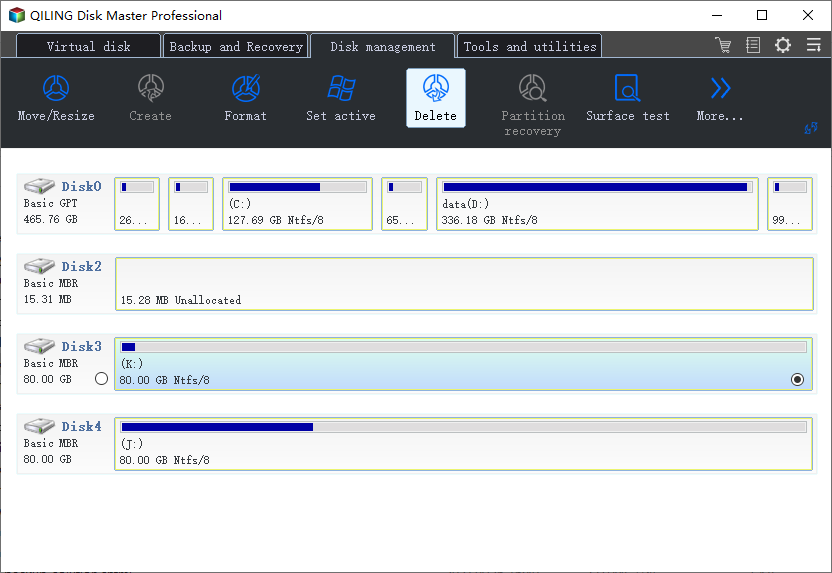
Step 5. Proceed and Reuse the Space
Click Proceed. After deletion, extend a neighboring partition or create a new partition from the unallocated space. Run reagentc /info again if you changed the Windows system disk.
Conclusion
Keep the recovery partition if Windows uses it or if you rely on factory reset. Delete only an unused recovery partition after backup and WinRE confirmation.
If Windows 11 shows several recovery partitions, use the multiple recovery partitions checklist to identify the active WinRE partition before considering removal.
Related Articles
- Windows Partition Management Tutorials
- Windows Data Recovery Tutorials
- Why Do I Have 2 Recovery Partitions and How to Fix It - Qiling
Learn why Windows has two recovery partitions, how to identify the active WinRE partition, and when it is safe to remove the old one.
Products
Articles & Tutorials
- Data Recovery
- Data Backup
- File Recovery
- File Backup
- System Backup and Restore
- Disk and Partition Clone
- Technical articles
- Mobile articles
- Disk Master Help
- Windows Data Recovery Tutorials
- Windows Secure Delete Tutorials
- Windows Partition Management Tutorials
- Windows File Backup and Restore Tutorials
- Windows System Backup and Restore Tutorials
- Windows Disk Backup and Restore Tutorials
- Windows Clone Tutorials