Can You Change Cluster Size Without Formatting in Windows?
Cluster size, also called allocation-unit size, is chosen when a volume is formatted. Windows does not offer a routine in-place cluster-size change for an existing data volume. Claims of no-format conversion need product-specific proof and a verified backup.
Check the Current Size and Need
Run Command Prompt as administrator and enter fsutil fsinfo ntfsinfo D:, replacing D: with the intended NTFS data volume. Read Bytes Per Cluster; do not confuse it with sector size. Confirm the drive letter in File Explorer and Disk Management before making any change.
Most users should leave the default allocation unit. Larger clusters can waste space with many tiny files; a specific application or device may require a particular size. Changing the cluster size will not cure bad sectors, make an HDD healthy, or increase its physical capacity.
Part 1: Back Up the Entire Data Volume
These steps are for a data partition, not the running Windows system partition. Connect a separate disk with enough free space and confirm its model.
Step 1. In Qiling Disk Master open Backup and Recovery > File backup. Select all required folders on the target data partition in the source tree; include hidden application data only when you know it is needed.


Step 2. Select the separate destination disk, click Proceed, wait for completion, and restore or open sample files to verify the backup.

Part 2: Format with the Required Cluster Size
Formatting removes the selected partition's data. Check its disk number, drive letter, capacity, and label twice. Do not use this procedure on C: while Windows is running.
Step 1. In Qiling's Disk management view, select the intended data partition and choose Format.
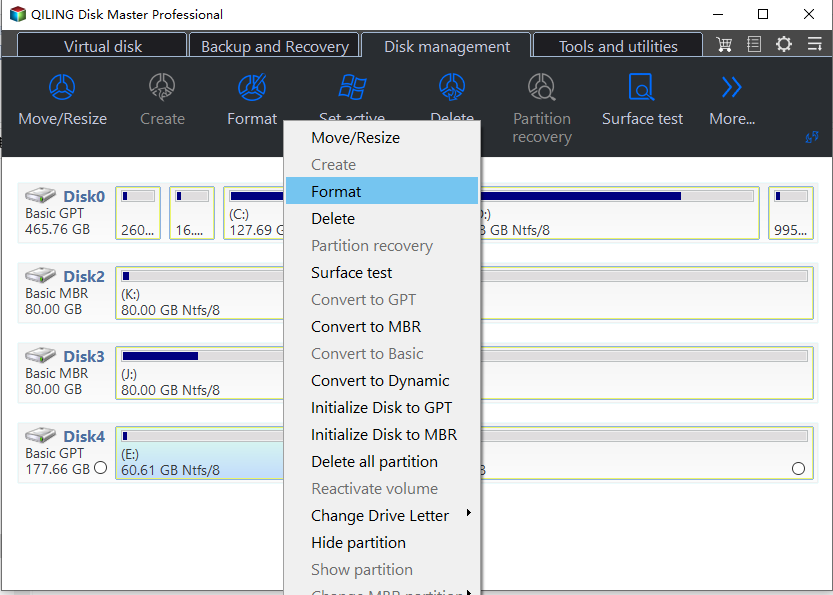
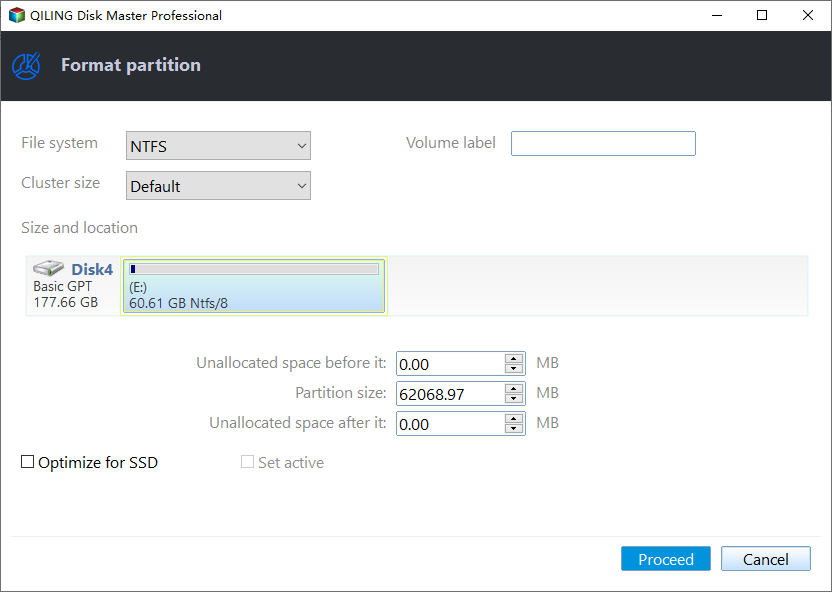
Step 2. Select the required file system and Cluster size in the format dialog. Leave it at Default unless an application or device specifies another value. Review the displayed partition size and location.
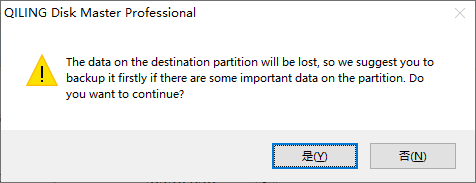
Step 3. Click Proceed, acknowledge the data-loss warning, and wait for the operation to finish. Do not disconnect the disk during formatting.
Part 3: Restore and Verify
Use Qiling's file-backup recovery function to restore the saved folders to the newly formatted volume, or copy them from a verified ordinary-file backup. Open representative documents and run any application that depends on this volume. Run fsutil fsinfo ntfsinfo D: again to confirm Bytes Per Cluster; the letter may have changed, so verify it first.
If the original was a boot, recovery, or vendor partition, do not apply this data-volume procedure. Those partitions have additional requirements and may require an image restore or clean installation rather than a simple file backup.
Conclusion
Without a proven supported in-place method, use a verified backup, deliberate data-volume format, and restore. Keep the default cluster size unless there is a clear requirement.
Related Articles
- NTFS vs exFAT vs FAT32
Choose the file system before formatting. - Format a Drive as FAT32
Review backup and format risks.
Products
Articles & Tutorials
- Data Recovery
- Data Backup
- File Recovery
- File Backup
- System Backup and Restore
- Disk and Partition Clone
- Technical articles
- Mobile articles
- Disk Master Help
- Windows Data Recovery Tutorials
- Windows Secure Delete Tutorials
- Windows Partition Management Tutorials
- Windows File Backup and Restore Tutorials
- Windows System Backup and Restore Tutorials
- Windows Disk Backup and Restore Tutorials
- Windows Clone Tutorials