NTFS vs exFAT vs FAT32: Which Format to Choose (2026)
When you format a hard drive, SSD, USB flash drive, or SD card in Windows, you're asked to choose a file system. The three most common options are NTFS, exFAT, and FAT32. Each has different features, file size limits, and compatibility—choosing the wrong one can cause problems like files being too large to copy, or the drive not being recognized on certain devices.
This guide compares NTFS, exFAT, and FAT32 in detail, explains their differences, and helps you choose the best file system for your specific use case.
PAGE CONTENT
- Quick Comparison Table: NTFS vs exFAT vs FAT32
- What Is NTFS?
- What Is exFAT?
- What Is FAT32?
- Detailed Comparison
- Which File System to Choose?
- How to Format a Drive to NTFS, exFAT, or FAT32
- How to Convert NTFS to FAT32 Without Losing Data
- FAQs About NTFS, exFAT, and FAT32
Quick Comparison Table: NTFS vs exFAT vs FAT32
| Feature | NTFS | exFAT | FAT32 |
|---|---|---|---|
| Max file size | 16 TB (practically unlimited) | 16 EB (practically unlimited) | 4 GB |
| Max partition size | 256 TB | 128 PB | 32 GB (in Windows format tool) |
| Windows compatibility | Full (read/write) | Full (read/write) | Full (read/write) |
| macOS compatibility | Read-only | Full (read/write) | Full (read/write) |
| Linux compatibility | Full (with ntfs-3g) | Full (read/write) | Full (read/write) |
| TV/gaming console support | Limited | Good | Excellent |
| File-level security | Yes (permissions, encryption) | No | No |
| Journaling | Yes (better data integrity) | No | No |
| Best for | Windows system drive, internal drives | External drives used on Win + Mac | Small USB drives, older devices |
What Is NTFS?
NTFS (New Technology File System) is the default file system for Windows. It's been the standard since Windows NT and is used for the C: drive on all modern Windows installations.
Advantages of NTFS
- Supports files larger than 4GB (no practical size limit)
- File-level security (permissions, encryption, compression)
- Journaling feature that helps recover from crashes and power failures
- Supports hard links, symbolic links, and shadow copies
- Best performance for Windows internal drives
Disadvantages of NTFS
- macOS can only read NTFS (cannot write without third-party software)
- Not supported by most TVs, gaming consoles, and older devices
- More overhead, which can slow down small USB flash drives
What Is exFAT?
exFAT (Extended File Allocation Table) was introduced by Microsoft in 2006 for flash drives. It's designed to overcome FAT32's 4GB file size limit while maintaining cross-platform compatibility.
Advantages of exFAT
- Supports files larger than 4GB
- Full read/write support on both Windows and macOS
- Lightweight with less overhead than NTFS, good for flash drives
- Supported by most modern TVs, cameras, and gaming consoles
Disadvantages of exFAT
- No file-level security (no permissions or encryption)
- No journaling, so it's more vulnerable to corruption after sudden power loss
- Not suitable for Windows system drive (only for data drives)
- Less widely supported on older devices compared to FAT32
What Is FAT32?
FAT32 (File Allocation Table 32) is the oldest of the three, introduced with Windows 95 in 1996. It's still widely used due to its universal compatibility.
Advantages of FAT32
- Universal compatibility—works on almost all devices (Windows, macOS, Linux, TVs, consoles, cameras, car stereos)
- Best for small USB drives (under 32GB)
- Low overhead, good for small drives
Disadvantages of FAT32
- 4GB maximum file size—you cannot store files larger than 4GB
- Windows format tool limits FAT32 partitions to 32GB (larger requires third-party tools)
- No file-level security
- No journaling
- Less efficient for large drives due to larger cluster sizes
Detailed Comparison
File Size Limits
The biggest practical difference is the file size limit. FAT32 can only store files up to 4GB, which means you cannot copy a 5GB video file or a large backup image to a FAT32 drive. NTFS and exFAT have no practical file size limit.
Cross-Platform Compatibility
- FAT32: Works everywhere—Windows, macOS, Linux, TVs, consoles, cameras.
- exFAT: Works on Windows and macOS (full read/write). Most modern devices support it, but older devices may not.
- NTFS: Windows only (full). macOS can read but not write natively. Most TVs and consoles do not support it.
Performance
For internal drives on Windows, NTFS offers the best performance and reliability due to journaling and optimized file access. For external flash drives, exFAT and FAT32 have less overhead and can be faster on smaller drives. NTFS is not recommended for small USB flash drives because its journaling writes can wear out flash memory faster.
Security
Only NTFS supports file-level permissions, encryption (EFS), and compression. exFAT and FAT32 do not support any file-level security.
Which File System to Choose?
For Windows System Drive (C:)
Use NTFS. Windows cannot boot from exFAT or FAT32. NTFS provides security, journaling, and the best performance for internal drives.
For External Hard Drives / SSDs Used Only on Windows
Use NTFS. You get the best performance, security, and no file size limits.
For External Drives Used on Both Windows and Mac
Use exFAT. It's the only format with full read/write support on both operating systems and no 4GB file limit.
For USB Flash Drives Under 32GB
Use FAT32 (if you don't need files over 4GB) or exFAT (if you need larger files).
For SD Cards (Cameras, Phones)
Use FAT32 for SD cards under 32GB (most cameras and phones support it). For SDXC cards (64GB+), use exFAT as required by the SD standard.
For Drives Used on TVs and Gaming Consoles
Check your device's manual. Most modern TVs and consoles support exFAT, but older devices only support FAT32. NTFS is rarely supported.
How to Format a Drive to NTFS, exFAT, or FAT32
Step 1. Connect the drive to your PC.
Step 2. Open File Explorer, right-click the drive, and select "Format".
Step 3. Under "File system", select NTFS, exFAT, or FAT32.
Step 4. Click "Start" to format. Warning: all data on the drive will be erased.
- Note
- Windows format tool only supports FAT32 up to 32GB. To format a larger drive to FAT32, use Qiling Partition Master or the command line.
How to Convert NTFS to FAT32 Without Losing Data
The safest way to change an NTFS partition to FAT32 is to back up the files, format the partition, and then restore the files. Formatting removes the original data, so the conversion is only loss-free when the backup has been completed and verified before formatting.
Part 1. Back Up Files from the NTFS Partition
Step 1. Connect a second healthy drive or select a reliable network location with enough free space. Do not use the NTFS partition that you plan to format as the backup destination.
Step 2. Launch Qiling Backup, choose "File backup", and select the folders and files on the NTFS partition that you want to keep. Include hidden folders only when they are required by an application.

Step 3. Select the healthy drive or network location as the backup destination, click "Proceed", and wait for the backup to finish. Open several backed-up files or check the backup task status before moving to the formatting step.

Important: FAT32 cannot store a single file of 4GB or larger. Move or split oversized files before formatting. Also decrypt EFS-encrypted files and decompress NTFS-compressed files because FAT32 does not support these NTFS features.
Part 2. Format the Partition as FAT32
Step 1. After verifying the backup, launch Qiling Partition Master and open the disk management page. Identify the correct partition by its disk number, capacity, drive letter, and current NTFS file system.
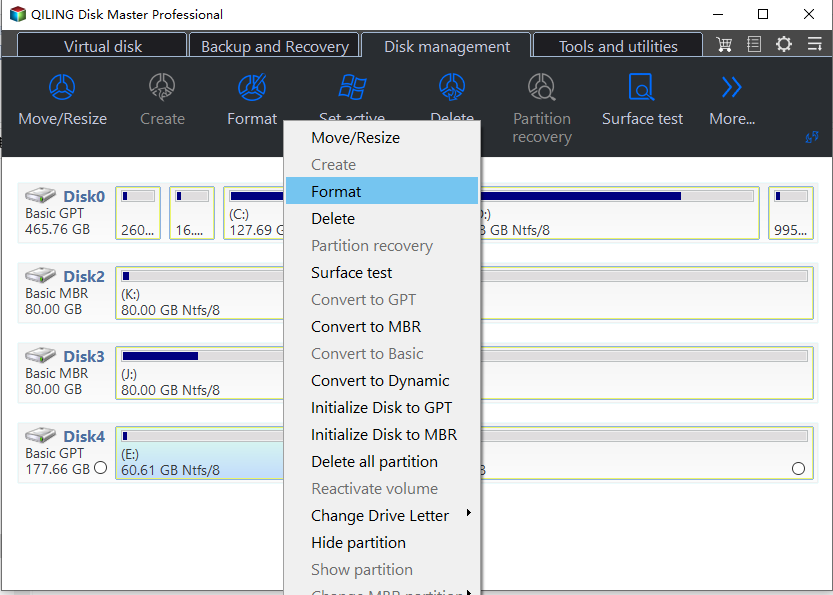
Step 2. Select the NTFS partition and click "Format". In the format window, choose "FAT32" as the file system. Do not continue if the selected disk number or partition size is not the one you backed up.
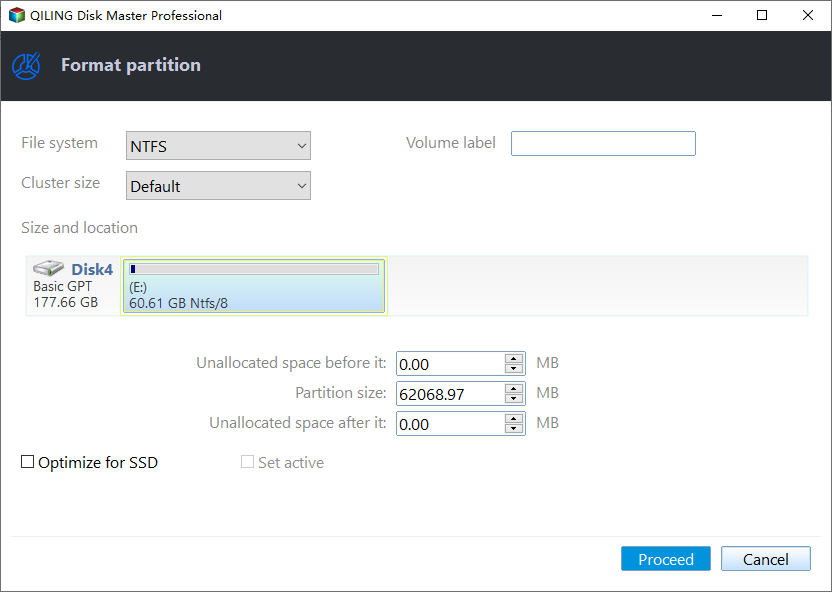
Step 3. Confirm the warning that all data on the partition will be erased, then click "Proceed" to start formatting. Keep the drive connected until the operation finishes.
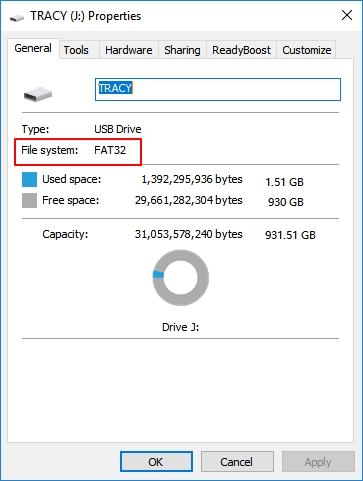
Step 4. Open File Explorer, right-click the formatted partition, and select "Properties". Confirm that the file system is FAT32 before restoring any files.
Part 3. Restore Files to the FAT32 Partition
Step 1. If you made a normal file backup, open the backup location in File Explorer. Copy the folders and files back to the formatted FAT32 partition, keeping the original folder structure where possible.
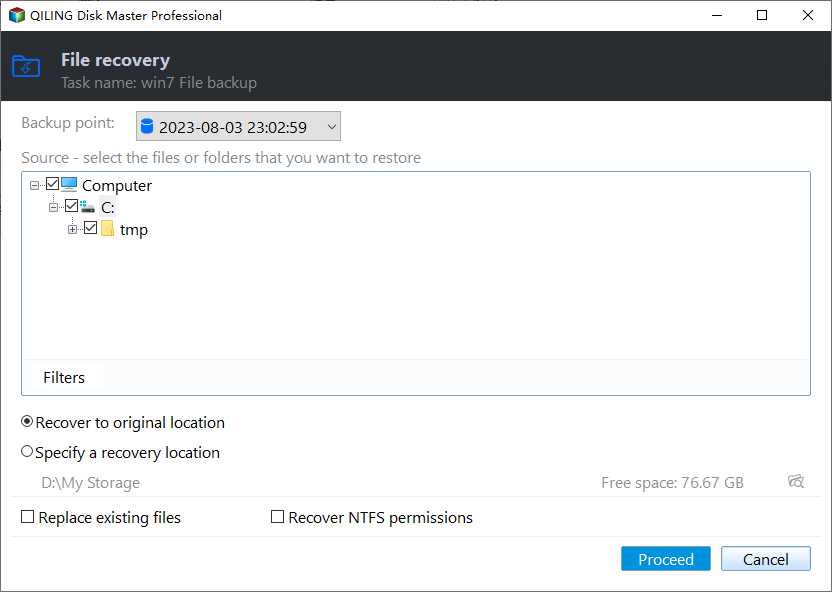
Step 2. If you created a Qiling Backup image, open Qiling Backup, choose "File recovery", and select the backup image. Select the files or folders to restore, choose the FAT32 partition as the recovery location, and click "Proceed".
Step 3. Wait for the restoration to finish, then open several restored files. Check the available space and confirm that no individual file is 4GB or larger, because FAT32 cannot store files that reach or exceed that limit.
Note: Windows formatting tools usually show FAT32 only for volumes up to 32GB. Qiling Partition Master can format larger compatible volumes to FAT32, but the FAT32 single-file limit still applies. If you cannot create a verified backup, do not format the NTFS partition.
FAQs About NTFS, exFAT, and FAT32
Which is better: NTFS or exFAT?
It depends on your use case. NTFS is better for Windows internal drives and drives used only on Windows. exFAT is better for external drives shared between Windows and Mac.
Can Mac write to NTFS?
No, macOS can only read NTFS drives. To write to NTFS on Mac, you need third-party software like Paragon NTFS or Tuxera NTFS.
Why can't I copy a 5GB file to my USB drive?
Your USB drive is likely formatted as FAT32, which has a 4GB file size limit. Reformat it to exFAT or NTFS to store larger files.
Is exFAT faster than NTFS?
On external flash drives, exFAT can be faster because it has less overhead. On internal drives, NTFS is faster due to optimized file access and journaling.
Can I convert FAT32 to NTFS without losing data?
Yes. Open Command Prompt (Admin) and run convert X: /fs:ntfs (replace X with your drive letter). This converts FAT32 to NTFS without formatting.
Conclusion
Choosing between NTFS, exFAT, and FAT32 depends on your device and how you use it:
- NTFS for Windows system drives and internal drives.
- exFAT for external drives shared between Windows and Mac.
- FAT32 for small USB drives and maximum device compatibility.
If you need to convert between file systems or format a large drive to FAT32, use Qiling Partition Master for a safe, no-data-loss conversion.
Related Articles
- How to Format USB Flash Drive to FAT32
- How to Format USB Flash Drive to NTFS
- How to Format External Hard Drive to exFAT
- Best Free Partition Manager Software of 2026: Top 6 Picks
- Should You Format USB Drive to FAT32 or NTFS?
Confused between FAT32 and NTFS for your USB drive? Compare the two formats and choose the best one based on file size, compatibility, and security. - How to Format USB Drive for PC and Mac (Windows & macOS)
Need to use a USB drive on both Windows and Mac? Learn how to format it to exFAT for full read/write compatibility on both operating systems.
Products
Articles & Tutorials
- Data Recovery
- Data Backup
- File Recovery
- File Backup
- System Backup and Restore
- Disk and Partition Clone
- Technical articles
- Mobile articles
- Disk Master Help
- Windows Data Recovery Tutorials
- Windows Secure Delete Tutorials
- Windows Partition Management Tutorials
- Windows File Backup and Restore Tutorials
- Windows System Backup and Restore Tutorials
- Windows Disk Backup and Restore Tutorials
- Windows Clone Tutorials