Create Bootable USB Password Reset Tool for Windows
A bootable password reset USB can help when you cannot sign in to Windows. The right method depends on whether you use a Microsoft account, a local account, BitLocker, or a company-managed computer.
Choose the Right Recovery Method
- For a Microsoft account, reset the password online first.
- For a local account, use a password reset disk if one was created earlier.
- For BitLocker-protected drives, keep the recovery key ready before booting repair media.
- For work or school PCs, contact the administrator instead of bypassing policies.
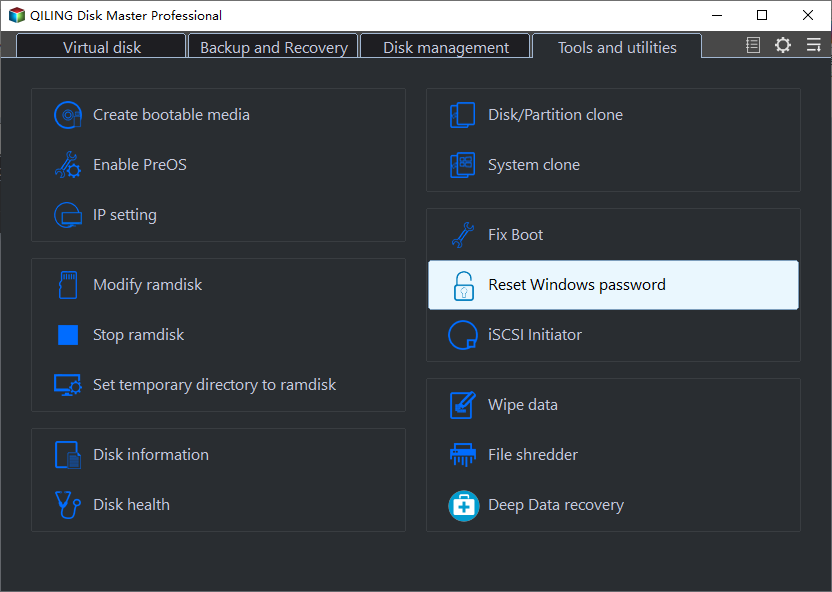
Create Windows Recovery Media
- On another Windows PC, download official Windows installation media.
- Create a bootable USB with the Media Creation Tool.
- Boot the locked PC from the USB drive.
- Choose Repair your computer instead of installing Windows.
- Use Startup Repair, System Restore, or Reset this PC according to your situation.
Reset Windows Password with Qiling Disk Master
If you need a simpler bootable USB password reset workflow for a local Windows account, Qiling Disk Master can help create a reset environment and change the password without reinstalling Windows.
Step 1. Install Qiling Disk Master on a working computer. Open the tool and choose the Create bootable media feature.
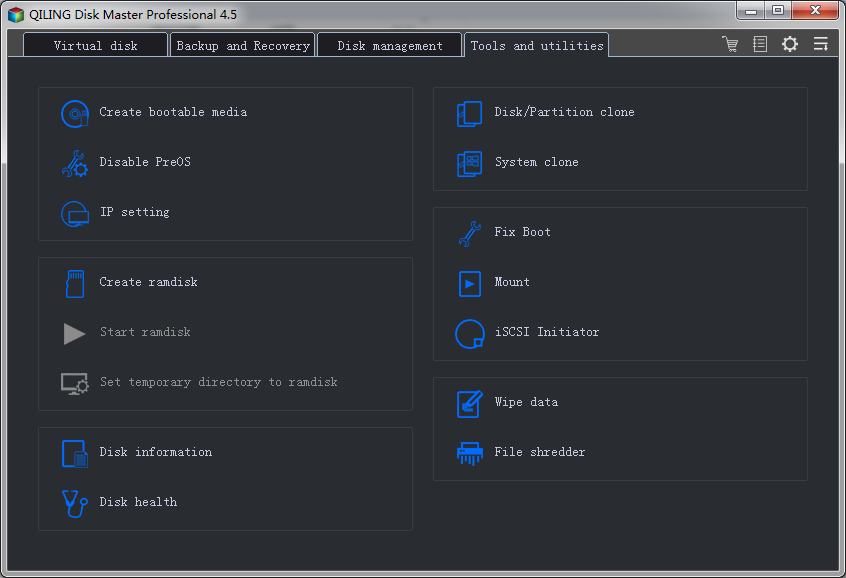
Step 2. Insert a blank USB drive and create the bootable password reset disk.
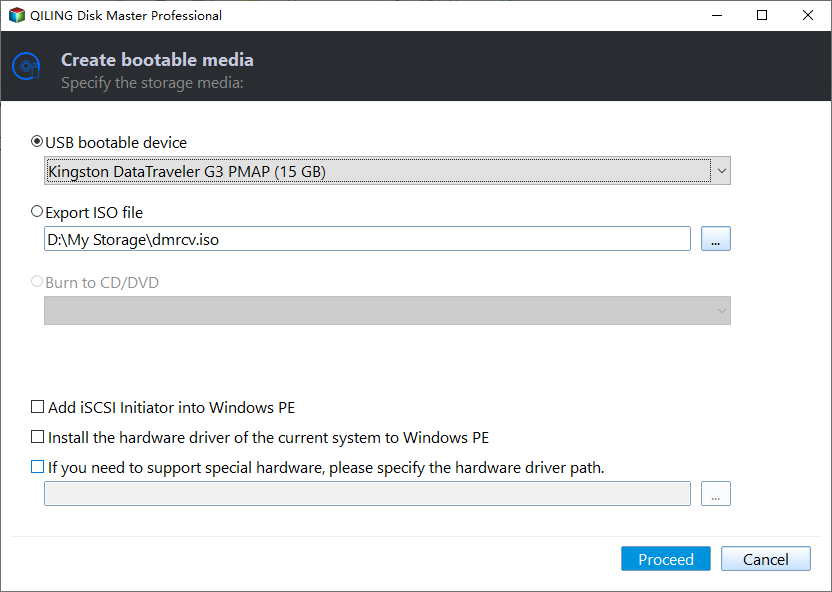
Step 3. Boot the locked Windows computer from the USB drive.
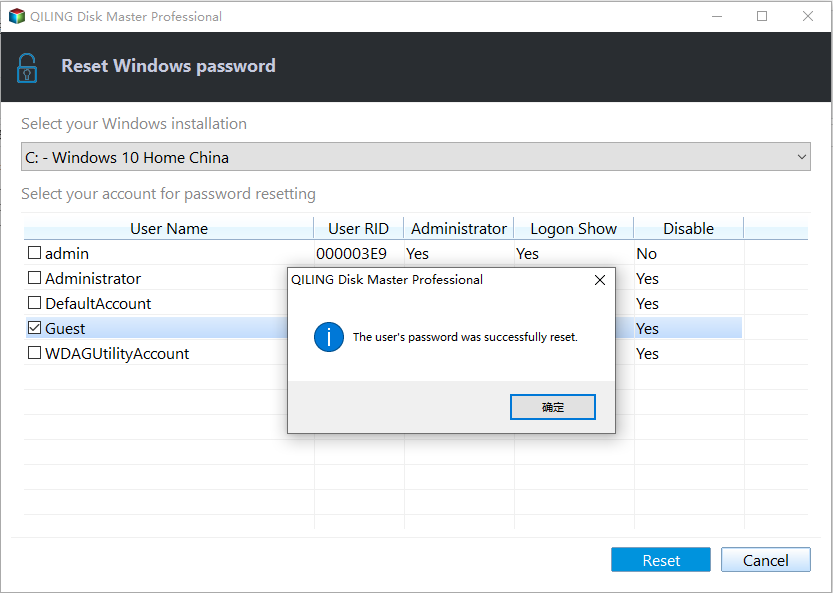
Step 4. Choose the Windows installation and the local user account that needs a new password.

Step 5. Click Reset button, and confirm the change, remove the USB drive, and restart Windows. Sign in with the new password.
Recover Files Before Resetting Windows
If password reset fails and you plan to reset Windows, protect user files first when possible. Qiling Deep Data Recovery can help recover files from a removed drive before a full reset.
Step 1. Launch Deep Data Recovery. Select the file types you need and click Fast Scan to begin.

Step 2. Choose the Windows system drive or user partition that contains the locked account files.

Step 3. Preview the found files and select Desktop, Documents, Pictures, and other important folders.

Step 4. Save recovered files to another healthy disk. After files are safe, continue with Windows password reset, Reset this PC, or reinstall.
Conclusion
A password reset USB should be used for legitimate account recovery. Try official account recovery first, and protect files before reset or reinstall actions.
Related Articles
Products
Articles & Tutorials
- Data Recovery
- Data Backup
- File Recovery
- File Backup
- System Backup and Restore
- Disk and Partition Clone
- Technical articles
- Mobile articles
- Disk Master Help
- Windows Data Recovery Tutorials
- Windows Secure Delete Tutorials
- Windows Partition Management Tutorials
- Windows File Backup and Restore Tutorials
- Windows System Backup and Restore Tutorials
- Windows Disk Backup and Restore Tutorials
- Windows Clone Tutorials