How to Create/Recover EFI Partition on Windows 11
Create/recover EFI partition on Windows 11
Having a computer with no boot partition can prevent your system from rebooting, as there is nothing to boot from. To resolve this issue, you can create a new EFI (Extensible Firmware Interface) system partition through your Windows 11 device, or recover an existing EFI partition using a third-party recovery software, which can save time and energy.
An EFI system partition is necessary for Windows 11 to boot from an internal hard drive. However, if you're booting from an external hard drive, an EFI partition isn't required. If your EFI boot partition is accidentally deleted, you can recover it or recreate it manually using a step-by-step process. This allows you to restore your boot partition or create a new one.
What will happen if Windows 11 boot partition is missing?
If you're experiencing issues with your Windows 11 computer and have tried troubleshooting without success, you may need to use the recovery options to restore a deleted partition. This can be done manually or with the help of a third-party software that can handle the process for you.
Follow these steps to recover a deleted partition.
Step 1. Go to the Start menu and type "Command Prompt" into the search bar.
Step 2. In the open "Command Prompt" box, type in "bootrec /fixmbr" to repair the Master Boot Record if it's been corrupted or damaged, then hit the "Enter" key.
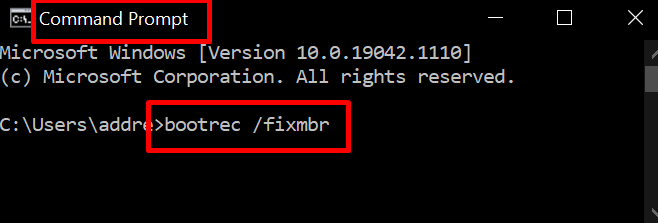
Step 3. You will then need to type two more commands hitting the "Enter" key after each. The commands are:
'bootrec /fixboot'
'bootrec /rebuildbcd'
Step 4. You can now Reboot your PC and the deleted partition should be restored to its original format.
Use Qiling Partition Master to Recover EFI boot partition
If you're not comfortable manually resolving a deleted or damaged EFI partition on your Windows computer, you can rely on Qiling Partition Master to automatically recover lost partitions for you. Simply download and install the software, and follow a few easy steps to restore a damaged or lost EFI partition.
Qiling Partition Master Qiling Partition Master offers a range of features to assist users, including securely wiping data from a hard drive, resizing, moving, merging, creating, formatting, and deleting partitions. This tool helps users manage disk space, improve partition organization, and fix errors or damages, making it a reliable and trustworthy partition master.
To recover the EFI boot partition using Qiling Partition Master, follow these simple steps: follow the steps below.
Open Qiling Partition Master and select 'Partition Recovery'.
Step 1. Run Qiling Partition Recovery on your PC.
To recover lost partitions, select the disk or device where the partitions were lost, and then click "Scan" to initiate the scanning process. This will allow the software to detect and identify the lost partitions.
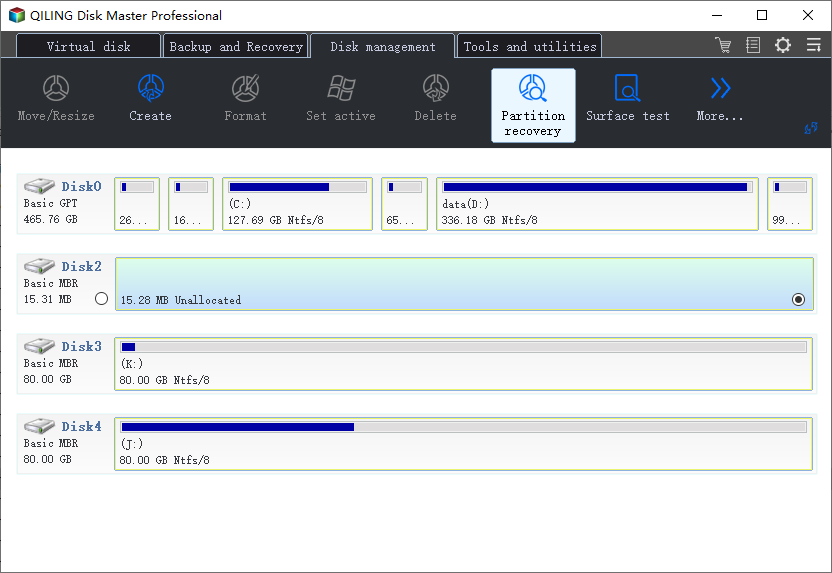
Step 2. Wait for the scanning process to complete.
Let the program scan the selected disk and find the lost partition(s).
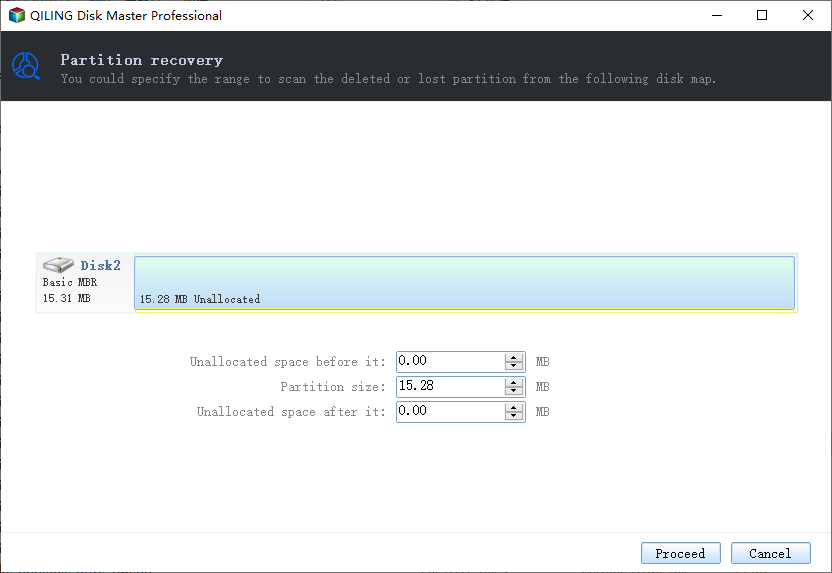
Step 3. Preview and restore the lost partition(s).
Double-click on the partition which is marked as "Lost" with "Good" recoverability.
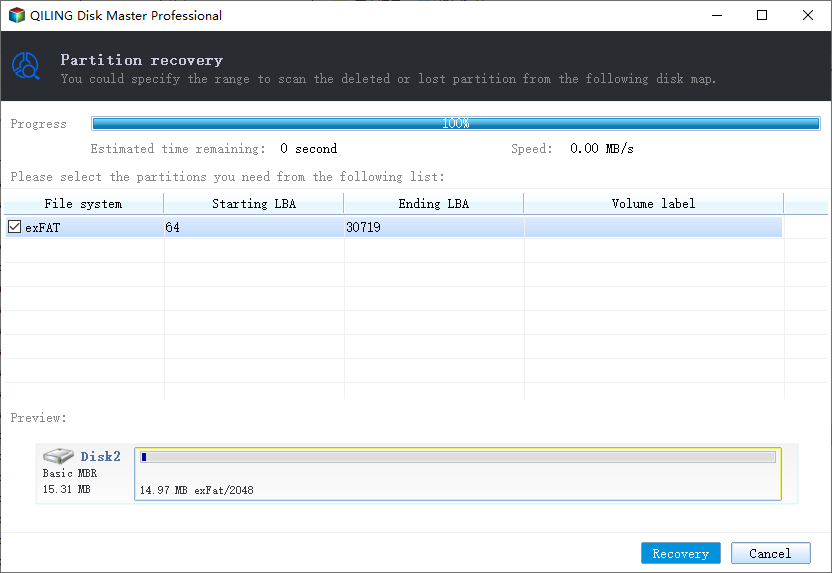
Click on the "Preview" button to see the content of the lost partition. If the preview looks correct, click "OK" and then click "Proceed" to start restoring the lost partition.
Step 4. Click "Recover" to finish the partition recovery process.
To resolve the conflict, back up any essential data from the listed partition to an external hard drive first. Once the backup is complete, execute the final operation to restore your lost partition, which should resolve the conflict and allow the program to proceed.
How to use CMD to create an EFI partition
Knowing how to create an EFI partition command can be really useful, especially if you find yourself with a missing or damaged partition. To create an EFI partition manually using the Command Prompt (CMD), follow these steps: follow the steps below. This guide will show you exactly how to create an EFI partition, making it a valuable resource for anyone who needs to perform this task.
Step 1. On your Windows 11/10/8/7 computer, in the taskbar search box type 'Command Prompt' and hit 'Enter' to open.
Step 2: Run the following list of commands, hitting 'Enter' after each one.
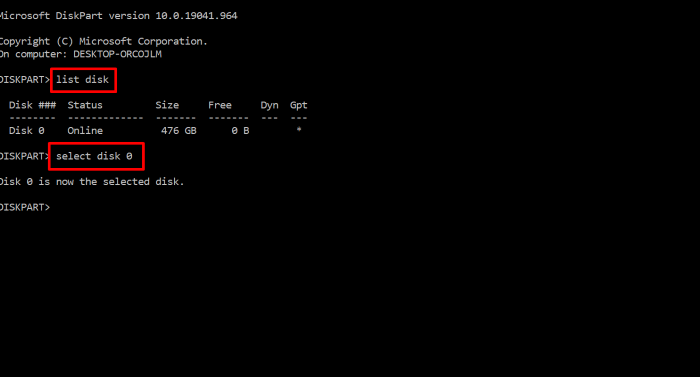
Diskpart Select 'Yes' on the pop-up asking to make changes to your PC.
List disk
Select disk (Select the disk from the options available)
List partition
Create partition efi
Format quick fs=fat32
List partition
List volume (The volume letter where the Windows OS is installed)
Exit
bcdboot X:/windows , D:, etc.)?
Step 3: Restart your PC and the newly created EFI partition should now be available to use.
Conclusion
If your Windows 11 computer is missing its EFI boot partition, you can create or recover the boot partition by running manual commands or using a third-party recovery software like Qiling Partition Master, which can provide a simpler solution for repairing or creating a boot partition.
We hope that the solutions provided were beneficial to you and improved your computer. Get started using Qiling Partition Master today to save yourself time and worry.
Related Articles
- 3 Simple Ways to Assign a Drive Letter in Windows 10/8/7
- 3 Most Effective Ways to Upgrade My PC | Easy PC Upgrade Guide
- [Solved] Antimalware Service Executable High Disk Usage Windows 11/10 2022
- How to Format iXpand Flash Drive [SanDisk] in Windows 10/8/7
- How to Find What Is Taking Up Space on My SSD [Effective Ways]
Discover quick steps to identify large files on your SSD. Uncover what is taking up space on my SSD with our 2024 tutorial and optimize your storage efficiently. - Windows 10 Booting From Wrong Drive - Fix Easily
This guide is designed to help fix the issue of Windows 10 booting from the wrong drive and explore the potential causes behind it. If you're experiencing the same problem, this guide is for you, and by following it, you can resolve the issue and get your system up and running smoothly.
Products
Articles & Tutorials
- Data Recovery
- Data Backup
- File Recovery
- File Backup
- System Backup and Restore
- Disk and Partition Clone
- Technical articles
- Mobile articles
- Disk Master Help
- Windows Data Recovery Tutorials
- Windows Secure Delete Tutorials
- Windows Partition Management Tutorials
- Windows File Backup and Restore Tutorials
- Windows System Backup and Restore Tutorials
- Windows Disk Backup and Restore Tutorials
- Windows Clone Tutorials