Dell Inaccessible Boot Device: Fix Windows Boot Error
The Inaccessible Boot Device error means Windows cannot read the disk or partition it needs to start. On a Dell computer, this may happen after a BIOS update, storage driver change, Windows update, clone, or disk mode change.
Quick Checks on a Dell PC
- Restart and enter BIOS to confirm the system disk is detected.
- Check whether the boot mode changed between UEFI and Legacy.
- Make sure the correct disk is first in the boot order.
- Disconnect extra external drives while testing startup.
BIOS and Hardware Settings to Review
On many Dell PCs, storage mode, boot sequence, Secure Boot, and UEFI/Legacy mode affect whether Windows can find the boot disk. If the error appears after a BIOS update, compare the current settings with the previous setup. A Windows installation created in UEFI mode usually needs UEFI boot, while an older Legacy installation may not start correctly after switching modes.
For desktops, also check the SATA/NVMe cable, power cable, and SSD slot. For laptops, reseat the SSD only if you are comfortable opening the device; otherwise, test with Dell diagnostics or a technician first.
Use Windows Startup Repair
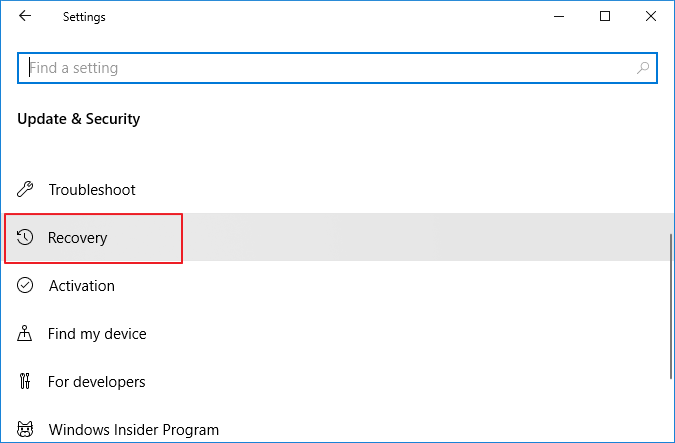
Boot into Windows Recovery Environment, open Troubleshoot, choose Advanced options, and run Startup Repair. If repair fails, protect data before using reset or reinstall options.
Back Up or Clone the Disk Before Deeper Repair
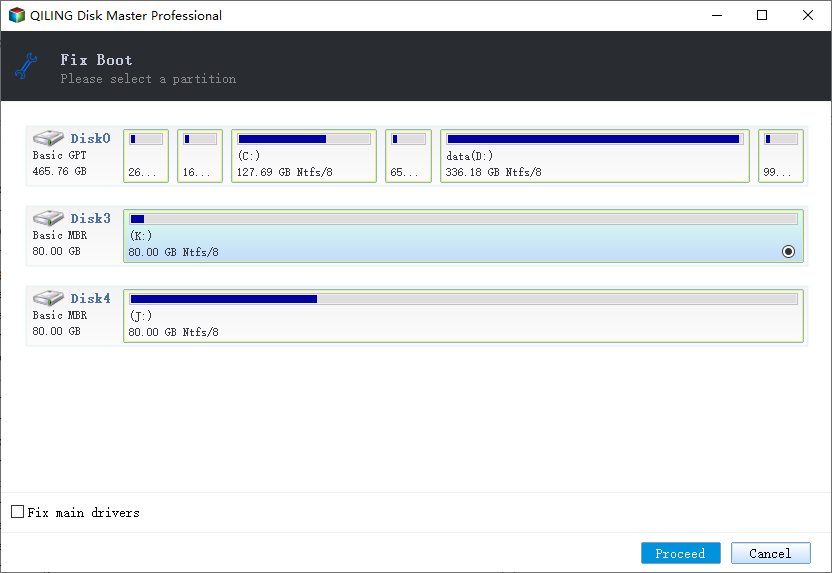
If the Dell disk is failing or Windows cannot boot, create a backup or clone before making partition and boot changes. Qiling Disk Master can clone the disk or create a bootable tool for repair tasks.
Step 1. Open Qiling Disk Master on a working PC or bootable environment and choose the clone or boot repair tool.

Step 2. Select the Dell system disk as the source and choose another disk as the destination if you are cloning.

Step 3. Preview the operation and click Proceed to start.
Conclusion
Dell Inaccessible Boot Device often comes from boot mode, driver, or disk layout changes. Check BIOS first, try Startup Repair, and protect the disk before advanced repair.
Related Articles
Products
Articles & Tutorials
- Data Recovery
- Data Backup
- File Recovery
- File Backup
- System Backup and Restore
- Disk and Partition Clone
- Technical articles
- Mobile articles
- Disk Master Help
- Windows Data Recovery Tutorials
- Windows Secure Delete Tutorials
- Windows Partition Management Tutorials
- Windows File Backup and Restore Tutorials
- Windows System Backup and Restore Tutorials
- Windows Disk Backup and Restore Tutorials
- Windows Clone Tutorials