DiskPart Error 0x80070032: The Request Is Not Supported
Quick Navigation:
- What 0x80070032 Means
- When Windows Refuses the Request
- Restart the Service and Rescan
- Do the Same Job in Qiling Disk Master
- Frequently Asked Questions
DiskPart returns "The request is not supported" with 0x80070032 in the middle of an operation that looked routine. The command was typed correctly, so retyping it changes nothing. The error comes from below the command: the disk, its driver, or the storage service declined the request because the operation is not valid for that object in its current state. This guide explains which conditions produce it, what to restart, and how to finish the same job in a tool that shows the disk before it writes to it.
What 0x80070032 Means
0x80070032 is the Windows status for a request that the component does not support. In DiskPart it appears when the selected disk cannot perform the operation, not when the command name is misspelled; a typo produces a different message entirely. The storage stack checks the disk type, its partition style, its bus, and its protection state before it executes anything at all.
That is why the same command succeeds on one disk and fails on another. Cleaning a data disk is routine, while cleaning the disk that holds the running system is refused. Converting a basic disk is routine, while converting a dynamic disk or one with a protected volume is refused. A USB enclosure whose bridge blocks the command is refused for a third reason.
Read the error as a statement about the target rather than about the command. Identify the target first, note its type and its connection, and only then choose a route. Changing the command rarely helps; changing the disk state, the connection, or the tool is what moves the job forward. A target that refuses one operation often accepts another, and the map shows which one is valid.
DiskPart is a Microsoft command-line tool and is not part of Qiling Disk Master. It is discussed here only to explain the code. Nothing in the product steps below depends on it, and every operation for this product is performed in its own graphical interface. The declaration matters because the command line and the product solve different parts of the same problem.
When Windows Refuses the Request
Cleaning the system disk is the most common case. Windows protects the disk that holds the running installation, and the request is rejected instead of being queued. The same job has to run from bootable media, where the system disk is not in use, so the protection no longer applies to it. That route also removes the running installation from the list of blockers.
Dynamic disks produce a second family of refusals. A dynamic disk cannot be converted to basic while any of its volumes are in use, and a disk in a foreign or invalid state may need its volumes removed first. A read-only attribute, set by firmware or by a write-protect switch on an adapter, blocks writes in exactly the same way.
USB bridge enclosures are the third case. Many low-cost adapters translate basic read and write requests but do not pass through the commands used for cleaning or converting. The disk opens in File Explorer and fails in DiskPart, which makes the enclosure look innocent when it is the actual cause of the refusal. Test the disk on a direct connection before you blame the drive itself.
Restart the Service and Rescan
The Virtual Disk Service is the component that carries these requests, and a stuck instance keeps returning the same error after the disk has changed. Restart the service, then rescan the disks so the tool reads the current state instead of a cached one. Close any window that holds a handle on the disk, then reopen the list and confirm the state the tool now reports.
If the disk still refuses, check its state in the graphical disk tool: online or offline, basic or dynamic, read-only or writable. A disk that shows offline has to be brought online first, and one that shows read-only needs that attribute cleared before any write operation can succeed on it. The same screen shows whether a volume is mounted, which also blocks the operation.
When the disk sits in an enclosure, move it to a direct SATA or M.2 connection for the operation. That single change resolves the bridge case, and it also tells you whether the disk is healthy or whether the adapter was hiding a problem that will return later. A direct connection is also the only way to read the disk's real health.
Do the Same Job in Qiling Disk Master
Qiling Disk Master performs the same deletions and conversions through a graphical map, and it places the pending change in a preview before anything is applied. The image comes first, because a delete or a conversion that turns out wrong is only recoverable when a copy of the disk exists. The preview comes last, so you see the result before the table is rewritten.
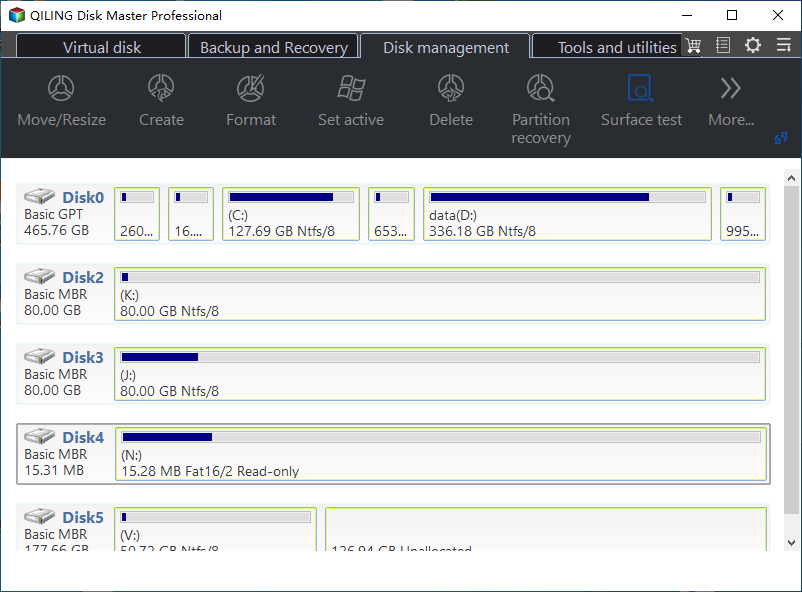
Step 1. Read the Disk State
Open the Disk Management tab and read the map. Confirm whether the target is basic or dynamic, online or offline, and whether it carries the running system. That last point decides whether the job can run from Windows at all or needs bootable media instead. Read it before any edit, because the map is the only place the state is visible without a command.
Step 2. Back Up the Disk
On the Backup and Recovery tab, open Disk/Partition Backup, tick the whole disk, and choose a destination on a different physical drive. Review the task in the preview, click Proceed, and wait for the finished message before returning to the disk map for the edit. The copy must be complete before the map is opened again, or the preview will describe the wrong disk.
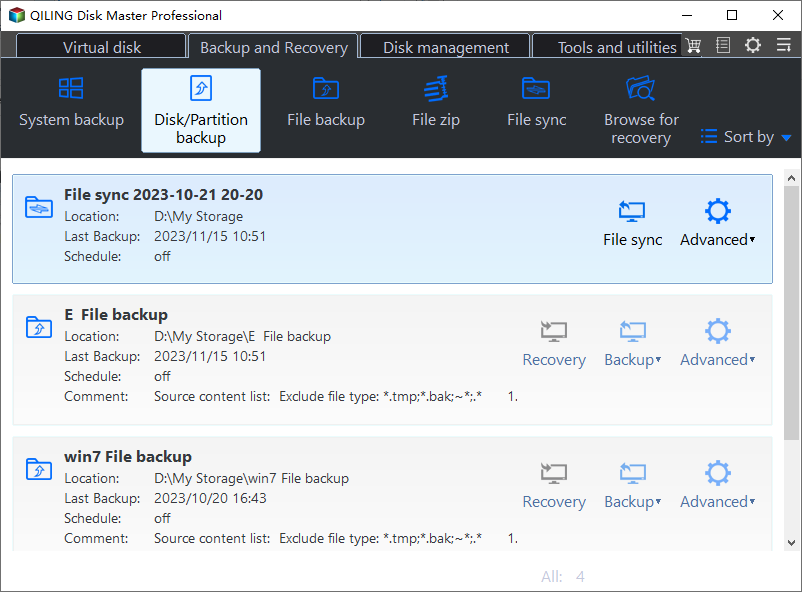
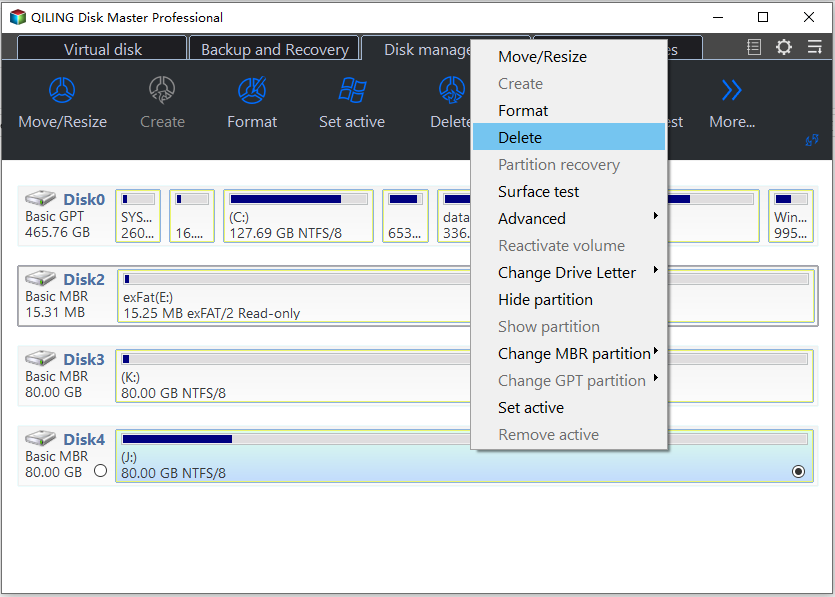
Step 3. Delete or Convert, Then Apply
Right-click the partition to delete it, or right-click the disk to convert its style. Read the preview, confirm the affected disk and the resulting layout, then click Proceed. When the operation completes, rescan or restart so the new state is visible to Windows and to any tool still holding the old one. That refresh makes the change visible to every other tool.
Frequently Asked Questions
Why does the same command work on another disk?
Because the refusal is about the target, not the syntax. The system disk, a dynamic disk, a read-only disk, and a disk behind a USB bridge each reject operations that a plain data disk accepts without comment.
Can I clean the system disk from within Windows?
No. Windows protects the disk it is running from, and the request is refused rather than queued. Use bootable media so the disk is not in use, and keep a current image in case the machine needs to be restored afterwards.
Do I need DiskPart for any of this?
No. The graphical tool covers the deletion, the conversion, and the backup in one interface, and it previews the change before applying it, which is the part a command line never shows you.
Related Articles
- Create a Volume With DiskPart
- Create a New Partition on a GPT Disk in Windows 10
- Convert a Dynamic Disk to a Basic Disk
- Basic Disk vs Dynamic Disk: What Changes
- Disk Shows Current Read-Only State: Yes
Products
Articles & Tutorials
- Data Recovery
- Data Backup
- File Recovery
- File Backup
- System Backup and Restore
- Disk and Partition Clone
- Technical articles
- Mobile articles
- Disk Master Help
- Windows Data Recovery Tutorials
- Windows Secure Delete Tutorials
- Windows Partition Management Tutorials
- Windows File Backup and Restore Tutorials
- Windows System Backup and Restore Tutorials
- Windows Disk Backup and Restore Tutorials
- Windows Clone Tutorials