Portable Partition Manager for Windows: What Is Actually Portable?
A 'portable partition manager' may mean a Windows program that runs without installation, or a separate bootable recovery environment. Those are not interchangeable. Verify the publisher, license, and media type before relying on a USB tool to repair a PC.
Check Portable Claims Before Downloading
The referenced EaseUS article describes a portable zip edition, but its availability and license should be verified on EaseUS's current official site. Do not assume any third-party zip labeled 'portable' is authentic or safe. A copied application folder may omit drivers, licensing components, or a boot environment.
Qiling Disk Master can create bootable recovery media, but that is not the same claim as a no-install Windows portable edition. A bootable environment is useful when the installed Windows will not start or when a system partition cannot be changed while in use. Check that your license permits the operation in that environment.
Create Qiling Bootable Media
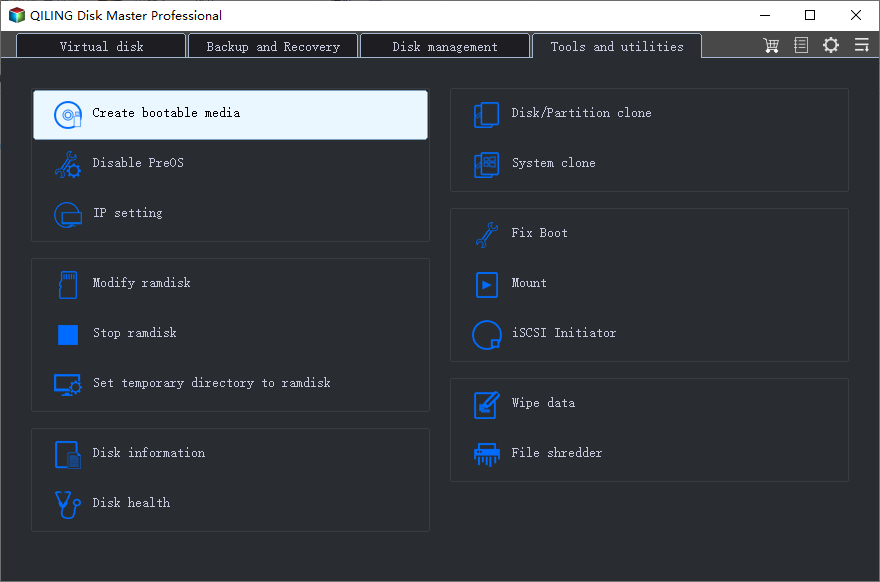
Step 1. On a healthy Windows PC, open Qiling Disk Master and choose Tools and utilities > Create bootable media. Connect a disposable USB drive and move its existing files elsewhere because media creation overwrites it.
Step 2. Select USB bootable device and confirm the exact USB model and capacity. If you prefer an ISO for later use, select Export ISO file instead; that ISO alone is not a backup of Windows files.
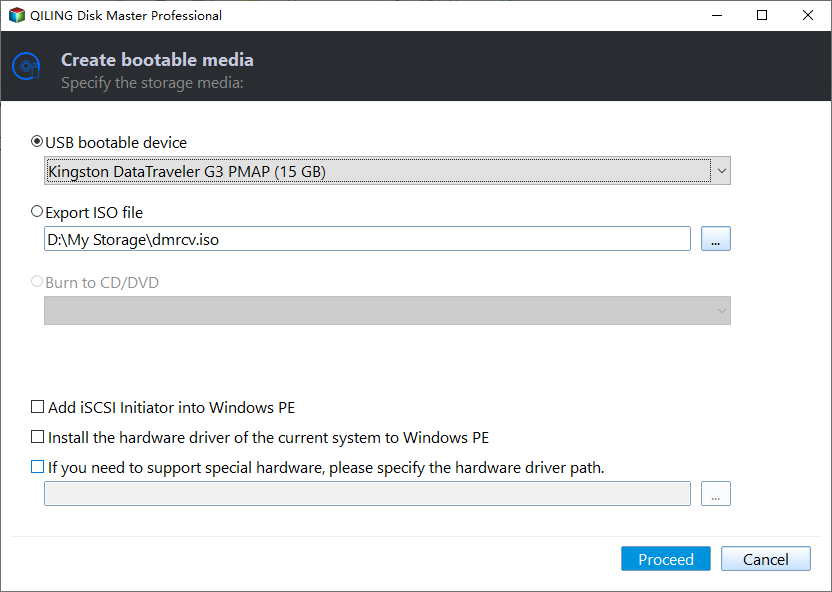
Step 3. Add only necessary verified storage or network drivers if the target PC needs them, click Proceed, and wait for successful completion. Do not unplug the drive while the media is being built.
Step 4. Use the target PC's one-time boot menu to start from the USB. Confirm that the keyboard, internal disks, and external backup location are visible before attempting a repair.
Inspect Before Editing a Partition
In Disk management, compare disk numbers, capacity, partition style, and labels with your written notes. A small EFI or recovery partition should not be resized or deleted solely because it has no letter. Back up the disk and test recovery media first. For a data volume, Qiling's Move/Resize dialog can show proposed space changes before you click Proceed.
Do not queue unrelated operations in a crisis. Perform one clearly scoped operation, wait for success, reboot if requested, and check that Windows and files still work. Some resize operations take a long time while moving data; interrupting them can corrupt the volume.
When a Portable Tool Is Not Enough
A bootable partition manager cannot repair a mechanically failing SSD or decrypt BitLocker without the authorized key. If the firmware cannot see a disk, troubleshoot hardware first. For Windows boot errors, distinguish a partition-resize problem from EFI boot files or MBR boot mode. Keep a verified backup and a Windows recovery USB available independently of the Qiling media.
Conclusion
Verify what 'portable' means, use official media, test boot and disk visibility, and make only a backed-up, clearly identified partition change.
Related Articles
- Qiling Partition Master Portable Guide
Review Qiling bootable-environment steps. - ISO Image Software for Windows
Distinguish boot media from backup images.
Products
Articles & Tutorials
- Data Recovery
- Data Backup
- File Recovery
- File Backup
- System Backup and Restore
- Disk and Partition Clone
- Technical articles
- Mobile articles
- Disk Master Help
- Windows Data Recovery Tutorials
- Windows Secure Delete Tutorials
- Windows Partition Management Tutorials
- Windows File Backup and Restore Tutorials
- Windows System Backup and Restore Tutorials
- Windows Disk Backup and Restore Tutorials
- Windows Clone Tutorials