Error Loading Operating System: Windows Boot Diagnosis
The message 'Error Loading Operating System' often appears before Windows fully starts. It can result from a wrong boot device, a legacy MBR boot problem, a partition error, or an unreadable disk. Confirm the boot method before choosing a repair tool.
Confirm the Drive and Firmware Mode
Disconnect installation media and extra USB drives, then inspect the firmware's storage list. If the Windows drive is absent, check power, cable, slot, and drive health. Do not edit partition tables to repair a drive the firmware cannot see.
If the machine previously used UEFI/GPT, select Windows Boot Manager for the correct drive. If it used legacy BIOS/MBR, confirm the intended disk is first in the disk boot order. Changing UEFI to legacy or vice versa without matching the installation can itself cause this error. Record the original settings before making changes.
Try Windows Recovery First
Step 1. Boot official Windows recovery or installation media in the same firmware mode as the installed system. On the setup screen choose Repair your computer > Troubleshoot > Advanced options.
Step 2. Run Startup Repair once. If it fixes the issue, boot Windows, inspect Event Viewer for storage errors, and make a fresh backup.
Step 3. If it fails, open Command Prompt and use diskpart, list disk, and list volume to confirm the disk and volume layout. Record the Windows volume letter because it may differ in recovery. Type exit when finished; do not use clean or delete anything.
Step 4. If the disk has read errors or strange noises, stop writing repair data and copy important files or seek recovery. A repaired boot record will not cure failing hardware.
Legacy MBR Repair with Qiling, Only If Applicable
Rebuild MBR is a disk-level action for a confirmed legacy BIOS/MBR Windows layout. It is not an EFI repair for UEFI/GPT and is separate from Qiling's Fix Boot partition-level function.
Step 1. Boot Qiling recovery media or connect the disk to a working Windows PC. In Disk management, select the correct MBR disk by number, capacity, and partition layout.
Step 2. Open the disk's Advanced > Rebuild MBR option. Select the matching Windows MBR type if prompted. Confirm that no other disk is selected, then apply the repair and wait for a success result.
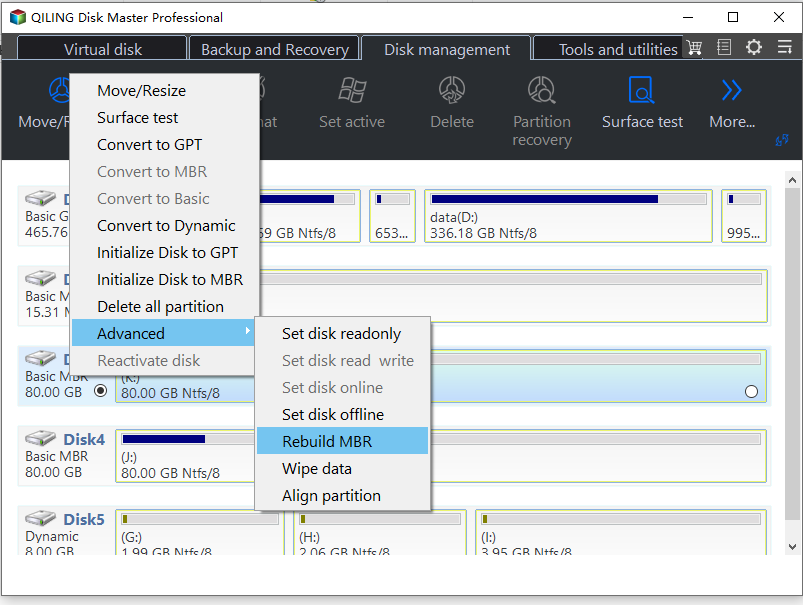
Step 3. Restore the original firmware boot order and test Windows. If it still fails, do not repeatedly rebuild the MBR; verify the active partition and boot files with a model-specific Windows recovery procedure or restore a known-good image.
UEFI/GPT and Other Causes
On UEFI/GPT systems, focus on the EFI System Partition, Windows Boot Manager entry, and Windows Startup Repair. A missing or corrupt EFI partition needs a different supported procedure. If the disk is healthy but Windows is badly damaged, back up files and consider a clean installation. If the disk is failing, replace it before installing again.
Conclusion
Confirm physical detection and firmware mode, use Windows Startup Repair, and reserve MBR-specific tools for the legacy layout they can actually repair.
Related Articles
- Invalid or Damaged Bootable Partition
Compare UEFI and legacy boot paths. - GPT Disk with Legacy Boot
Fix a firmware-mode mismatch.
Products
Articles & Tutorials
- Data Recovery
- Data Backup
- File Recovery
- File Backup
- System Backup and Restore
- Disk and Partition Clone
- Technical articles
- Mobile articles
- Disk Master Help
- Windows Data Recovery Tutorials
- Windows Secure Delete Tutorials
- Windows Partition Management Tutorials
- Windows File Backup and Restore Tutorials
- Windows System Backup and Restore Tutorials
- Windows Disk Backup and Restore Tutorials
- Windows Clone Tutorials