Invalid or Damaged Bootable Partition: Find the Real Cause
An 'invalid or damaged bootable partition' message does not identify a single broken file. It can appear when firmware points to the wrong disk, a partition table is inconsistent, or the Windows boot files are missing. The fix depends on whether the machine starts through UEFI/GPT or legacy BIOS/MBR.
Identify the Boot Layout
Disconnect nonessential USB media and check that the internal drive appears in firmware. In the boot menu, a UEFI Windows installation normally uses a Windows Boot Manager entry. A legacy installation may instead start from the disk itself. If a drive is absent, troubleshoot hardware before editing boot records.
Boot Windows recovery media and open Command Prompt. Run diskpart, list disk, and list volume to identify disks, the Windows partition, and any small EFI system partition. Record sizes and letters before exiting. Do not use clean, delete a partition, or mark an arbitrary partition active. If BitLocker is enabled, unlock only with your authorized recovery key.
Try the Reversible Recovery Steps
Step 1. In Windows Recovery select Troubleshoot > Advanced options > Startup Repair. Let it finish once, then test booting.
Step 2. If it fails, check that the firmware boot mode matches the installed disk's layout. Switching UEFI to legacy or vice versa without a matching installation usually makes the problem worse. Revert any recent firmware changes before more invasive work.
Step 3. Inspect disk health. If there are read errors, copy important data or make a verified backup before additional writes. A repair that appears successful on a failing drive may not last.
Choose Qiling Fix Boot or Rebuild MBR
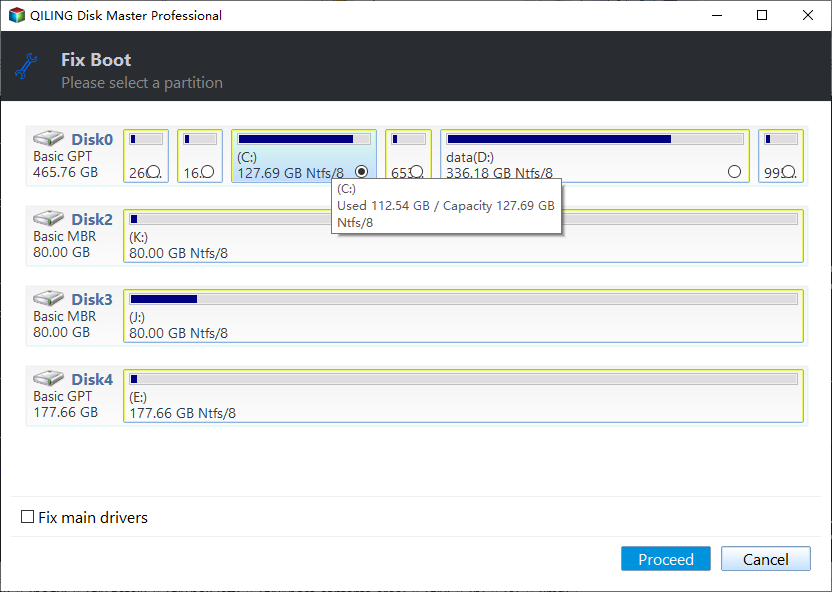
These are different functions and should not be chained automatically. For a detected, readable Windows partition with a boot-entry problem, Qiling Fix Boot can be tried from bootable Qiling media: open Tools and utilities > Fix Boot, select the correct Windows partition, and click Proceed.
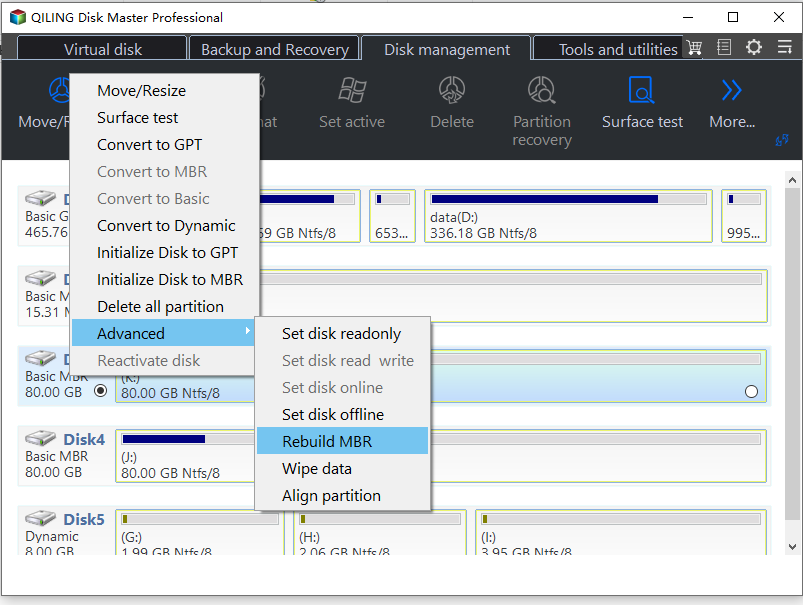
Only on a verified legacy BIOS/MBR installation should you consider Rebuild MBR. In Disk management, select the correct disk, open its Advanced > Rebuild MBR action, choose the matching Windows MBR type if prompted, and confirm. This does not repair an EFI System Partition on a UEFI/GPT disk.
Restart after one appropriate repair and record the result. If a Windows boot entry is still missing on UEFI/GPT, use Microsoft's recovery procedure for EFI boot files or restore a known-good image rather than repeatedly applying MBR tools.
When to Reinstall or Replace the Drive
If partitions are missing, the disk makes noises, or errors recur, preserve the source and seek recovery before installing Windows. If the hardware is healthy but the installation is irreparably damaged, back up files and perform a clean installation to the intended disk. A fresh install overwrites selected partitions; verify the target before continuing.
Conclusion
Verify hardware and boot mode first, try Windows Startup Repair, and use only the repair operation that matches the actual disk layout.
Related Articles
- GPT Disk and Legacy Boot Are Not Compatible
Understand firmware and partition-style mismatch. - Windows 11 Repair Tool Options
Choose the appropriate recovery path.
Products
Articles & Tutorials
- Data Recovery
- Data Backup
- File Recovery
- File Backup
- System Backup and Restore
- Disk and Partition Clone
- Technical articles
- Mobile articles
- Disk Master Help
- Windows Data Recovery Tutorials
- Windows Secure Delete Tutorials
- Windows Partition Management Tutorials
- Windows File Backup and Restore Tutorials
- Windows System Backup and Restore Tutorials
- Windows Disk Backup and Restore Tutorials
- Windows Clone Tutorials