Fix Windows Cannot Be Installed to This Disk: MBR Partition Table
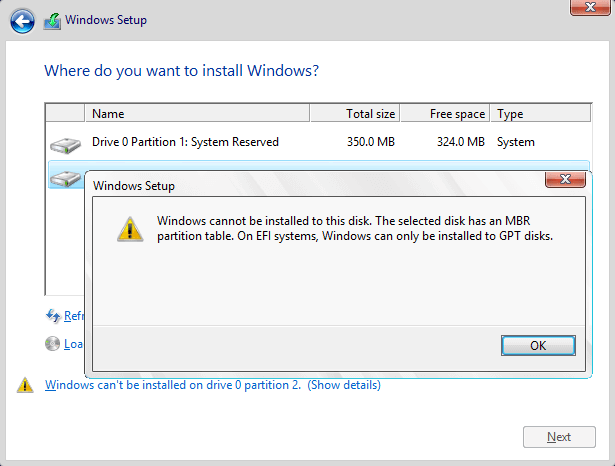
This error appears when Windows Setup is booted in UEFI mode but the target disk uses MBR.
You can fix it by booting the installer in Legacy mode or converting the disk to GPT, depending on the PC and data risk.
PAGE CONTENT
- What This Problem Means
- Before You Start
- Use Windows Built-in Tools First
- Use the Qiling Product Workflow
- Check the Result
- FAQs
What This Problem Means
UEFI installation normally requires GPT. Legacy BIOS installation normally uses MBR.
- DiskPart clean erases the disk.
- Changing boot mode may be enough on older PCs.
- Windows 11 normally requires UEFI and GPT.
- Back up data before conversion.
- Important
- Do not use DiskPart clean on a disk that contains files you need.
Before You Start
Confirm UEFI support, Windows version, and whether the disk contains data.
- Confirm the exact disk, partition, USB drive, SD card, or Windows installation you are changing.
- Copy irreplaceable files to another drive if the device is still readable.
- Check whether BitLocker, Secure Boot, UEFI/Legacy mode, or a vendor recovery partition is involved.
- Avoid formatting, deleting, wiping, or running DiskPart clean until you know whether data must be recovered first.
Use Windows Built-in Tools First
Windows Setup shows this error because the installer boot mode and the target disk partition style do not match. Handle the fix by scenario. Do not convert or clean the disk until you know whether files on that disk must be kept.
Function 1: Confirm the Boot Mode and Disk Style
Step 1. On the Windows Setup error screen, note the disk number and partition where the error appears.
Step 2. Restart the computer and open the boot menu. Common keys include F12, F11, Esc, F8, or Del, depending on the PC brand.
Step 3. Check whether the USB installer is listed twice, such as UEFI: USB and USB. The UEFI entry expects a GPT disk. The non-UEFI or Legacy entry can install to an MBR disk.
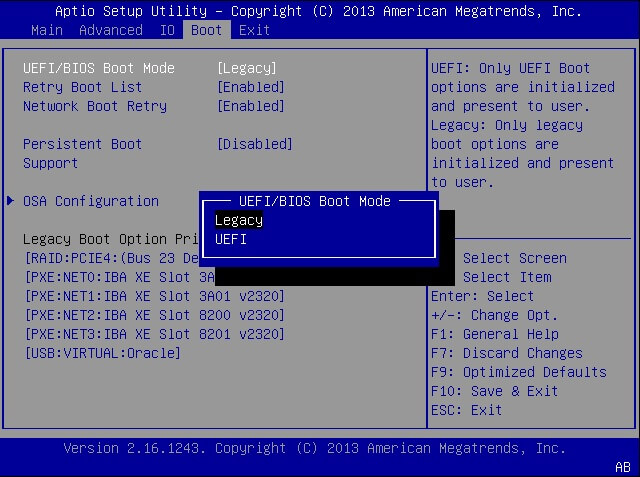
Step 4. If the target disk contains important files, stop here and back up or clone the disk before changing partition style.
Function 2: Keep MBR and Install in Legacy Mode
Step 1. Use this option only for Windows 10 or older Windows versions on a PC that supports Legacy BIOS/CSM. Do not use it for Windows 11 installation.
Step 2. Enter BIOS/UEFI settings and enable Legacy or CSM boot if it is available.
Step 3. In the boot menu, choose the USB entry that does not start with UEFI.
Step 4. Return to Windows Setup, select the MBR disk partition again, and continue installation if the warning disappears.
Function 3: Convert MBR to GPT with DiskPart When Data Is Not Needed
Step 1. Use this method only when the target disk has no files you need, or after you have already backed up the disk. The clean command deletes all partitions on the selected disk.
Step 2. On the Windows Setup screen, press Shift + F10 to open Command Prompt.
Step 3. Type diskpart and press Enter. Then run list disk.
Step 4. Run select disk X, replacing X with the target disk number. Confirm the disk by capacity.
Step 5. Run clean, then run convert gpt.
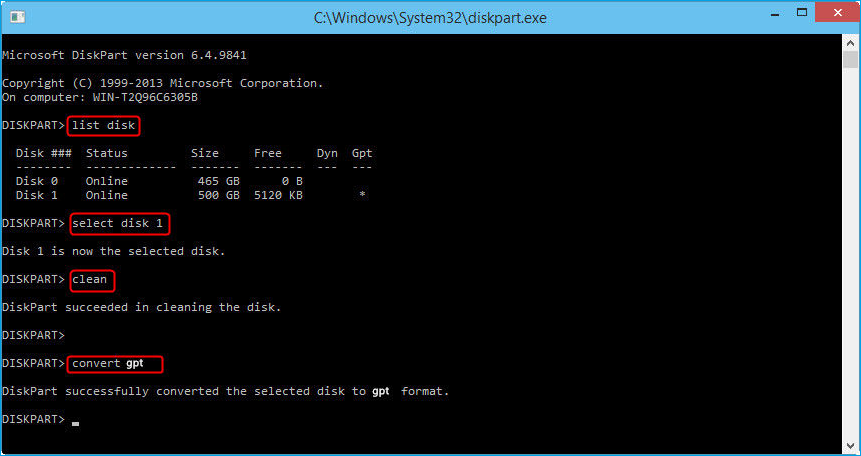
Step 6. Close Command Prompt, click Refresh in Windows Setup, select the unallocated space, and continue installing Windows.
Detailed Qiling Disk Master Workflow
Use Qiling Disk Master if the disk contains data and you want to convert MBR to GPT without using DiskPart clean. This method is for a working Windows environment or a bootable Qiling environment before reinstalling Windows.
Function 1: Back Up or Confirm the Target Disk
Step 1. Open Qiling Disk Master and locate the disk that Windows Setup reported as MBR.
Step 2. Confirm the disk by capacity, partition list, and drive letters. Do not select an external backup disk or another internal data disk.
Step 3. If the disk contains important files, create a backup first. Converting partition style is safer than DiskPart clean, but any partition operation still needs a recovery plan.
Function 2: Convert the Disk from MBR to GPT
Step 1. Select the target MBR disk, not just one partition on that disk.
Step 2. Choose the disk conversion option for converting MBR to GPT.
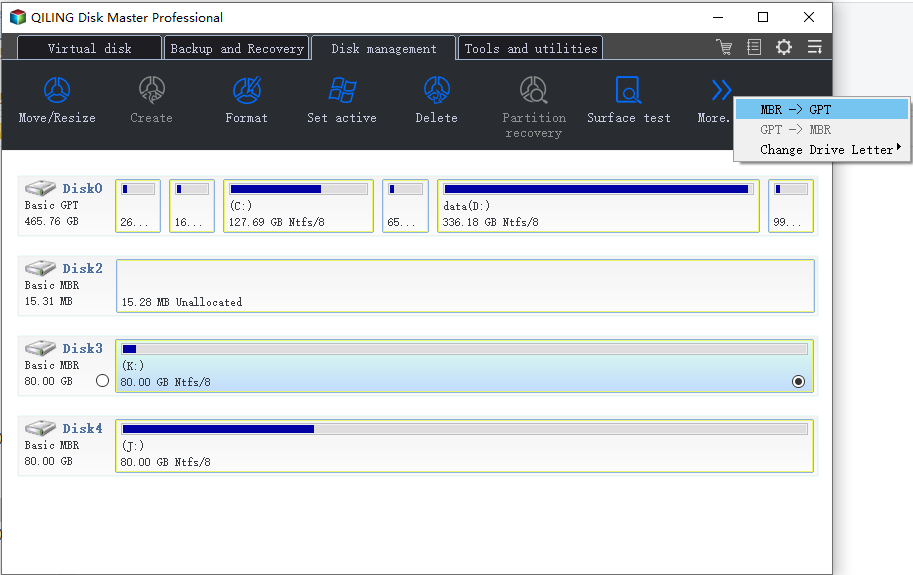
Step 3. Read the prompt carefully. The disk should remain with its existing partitions after conversion, but Windows must boot in UEFI mode after the change.
Step 4. Preview the pending operation list. Confirm that the task is disk conversion, not format, delete, or wipe.
Step 5. Click Proceed and wait for the conversion to finish. Keep the computer powered on.
Function 3: Boot the Windows Installer in UEFI Mode
Step 1. Restart the PC and enter BIOS/UEFI settings.
Step 2. Set boot mode to UEFI. Disable Legacy/CSM if Windows 11 is the target system.
Step 3. Boot from the UEFI: USB Windows installation entry.
Step 4. In Windows Setup, refresh the disk list and select the GPT disk or its unallocated space.
Step 5. Continue installation. If Setup still reports a partition-style error, recheck that the installer is booted in UEFI mode.
Check the Result
Refresh the disk list in Setup, select unallocated space, and continue installation.
- Restart Windows and confirm the drive, partition, backup task, or cloned disk appears as expected.
- Open several files instead of only checking that a drive letter exists.
- Keep one recent backup on an external drive before making another high-risk change.
- If the same error returns, check hardware health, cable quality, firmware, and Event Viewer before repeating the same operation.
FAQs
Can I fix it without data loss?
Yes, use a non-destructive MBR to GPT conversion tool, but back up first.
Should I use UEFI or Legacy?
Use UEFI and GPT for modern PCs and Windows 11.
Why does Setup show this error?
The installer mode and disk partition style do not match.
Conclusion
The MBR partition table error is a boot-mode mismatch. Match the installer mode or convert the disk safely before installing Windows.
Related Articles
- Best Free Partition Manager Software of 2026
- How to Clone HDD to SSD in Windows 10/11/7
- Windows System Backup and Restore Tutorials
- Windows Data Recovery Tutorials
Products
Articles & Tutorials
- Data Recovery
- Data Backup
- File Recovery
- File Backup
- System Backup and Restore
- Disk and Partition Clone
- Technical articles
- Mobile articles
- Disk Master Help
- Windows Data Recovery Tutorials
- Windows Secure Delete Tutorials
- Windows Partition Management Tutorials
- Windows File Backup and Restore Tutorials
- Windows System Backup and Restore Tutorials
- Windows Disk Backup and Restore Tutorials
- Windows Clone Tutorials