Forgot the Windows 10 Administrator Password: Recovery Paths
Losing the administrator password can prevent software installation and system changes, but first identify whether the account is Microsoft, local, or managed by an organization. An administrator label alone does not tell you which password-recovery method will work.
Identify the Account Type and Try Windows Options
If the sign-in name is an email address, recover the Microsoft account through its official identity-verification flow. If a PIN still works, sign in and use Settings > Accounts > Sign-in options to repair password or PIN settings. A Windows Hello PIN is tied to the PC and is not the account password.
For a local account, use configured security questions or a password-reset disk created before the lockout. If another administrator account belongs to you, sign in there and use Windows account management to reset the local account. This may affect access to account-bound encrypted material, so back up data first. For a work or school device, contact the administrator rather than bypassing policy.
Prepare a Recovery USB and Encryption Key
Find the BitLocker or Device Encryption recovery key before external boot or firmware changes. Keep a separate backup of important files if you can access them from another authorized account. A password tool cannot decrypt a locked volume without the recovery key, and a Windows factory reset may remove applications or files.
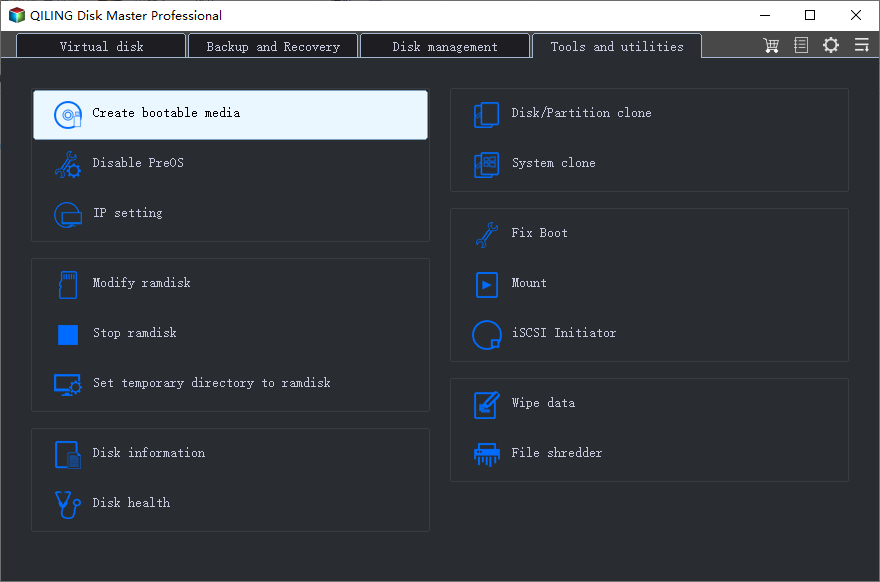
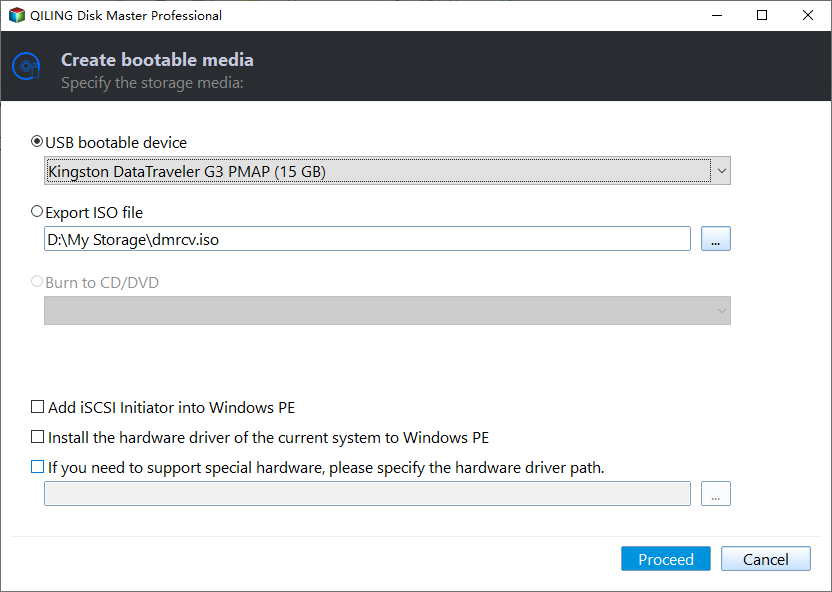
To prepare Qiling media on a working PC, open Tools and utilities > Create bootable media, select a USB drive you can erase, and click Proceed. Verify the created USB boots to Qiling on compatible hardware before relying on it.
Reset an Authorized Local Administrator Account
Step 1. Boot the locked Windows 10 PC from the prepared Qiling USB using its one-time boot menu. Confirm that the Windows disk is present and, if encrypted, legitimately unlocked.
Step 2. Select Tools and utilities > Reset Windows password. Choose the correct Windows installation by disk and version.
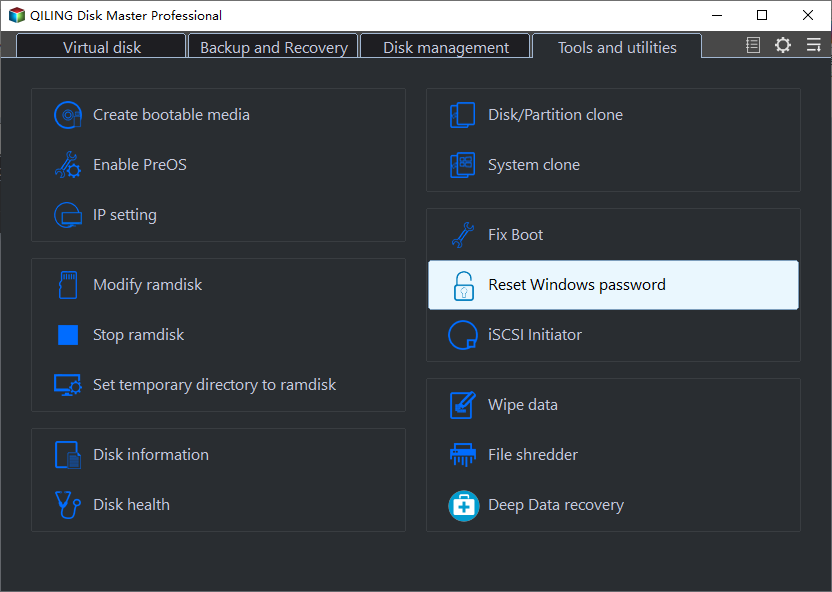
Step 3. Select only the local administrator account you own or administer. Check its name and installation again, then click Reset.

Step 4. Wait for the success message, remove the USB, restart, and set a new strong password. Test access to files, apps, and any encryption-protected content. This does not reset a Microsoft account online.
If the Account Is Managed or Recovery Fails
Do not repeatedly change firmware settings or use unverified 'administrator bypass' downloads. Check the official account-recovery route, a tested system image, or Windows Reset this PC only after reading its data-loss summary. Keep the old disk unchanged until data recovery is complete.
Conclusion
Use the account's supported recovery method first. Reserve a bootable local-password reset for an owned and accessible Windows installation, with the encryption key and backup ready.
Related Articles
- Forgot an HP Windows 10 Password?
Compare device and account recovery options. - Reset a Windows 10 PIN
Keep PIN recovery separate from password reset.
Products
Articles & Tutorials
- Data Recovery
- Data Backup
- File Recovery
- File Backup
- System Backup and Restore
- Disk and Partition Clone
- Technical articles
- Mobile articles
- Disk Master Help
- Windows Data Recovery Tutorials
- Windows Secure Delete Tutorials
- Windows Partition Management Tutorials
- Windows File Backup and Restore Tutorials
- Windows System Backup and Restore Tutorials
- Windows Disk Backup and Restore Tutorials
- Windows Clone Tutorials