How to Reset a Windows 10 PIN Safely
A Windows Hello PIN is a device-specific sign-in method, not the same secret as your Microsoft account password. Resetting a local Windows password with a disk tool does not directly reset the PIN; start with the sign-in methods Windows provides.
Reset the PIN from the Sign-In Screen
Step 1. Confirm that the Surface, laptop, or desktop is connected to the internet and that the correct user is selected. Under the PIN box, choose I forgot my PIN if it appears.
Step 2. Complete the Microsoft account identity check and follow the on-screen prompts to set a new PIN. The account may require its password, an authenticator, or another verification method.
Step 3. Sign in with the new PIN. Open Settings > Accounts > Sign-in options > PIN (Windows Hello) to check that the method works. A PIN reset on one device does not change the Microsoft account password or the PIN on another PC.
If I forgot my PIN is absent, choose Sign-in options and use the password icon. Microsoft's reset-PIN link at sign-in is for Microsoft accounts, not local accounts.
If You Also Forgot the Password
For a Microsoft account, use the official I forgot my password process on the sign-in screen or from another device. After the password is updated, connect the PC to the internet, sign in, and set up a new PIN. For a local account, answer the security questions or use a previously created password-reset disk. A work or school account belongs to its administrator's recovery process.
Keep your BitLocker recovery key available before changing firmware, booting external media, or resetting the PC. If device encryption is locked and the key is unavailable, an offline reset cannot promise access to the encrypted files.
Local Account Recovery with Qiling, If Authorized
Only if this is your own or an administered device, Qiling Disk Master's Reset Windows password can be considered for a supported, accessible local account. It does not verify a Microsoft account or fix a PIN directly.
Step 1. From another working PC, prepare and test Qiling bootable media. Boot the locked PC from it without changing the original disk contents.
Step 2. Open Tools and utilities > Reset Windows password. Select the correct Windows installation and local account by name.
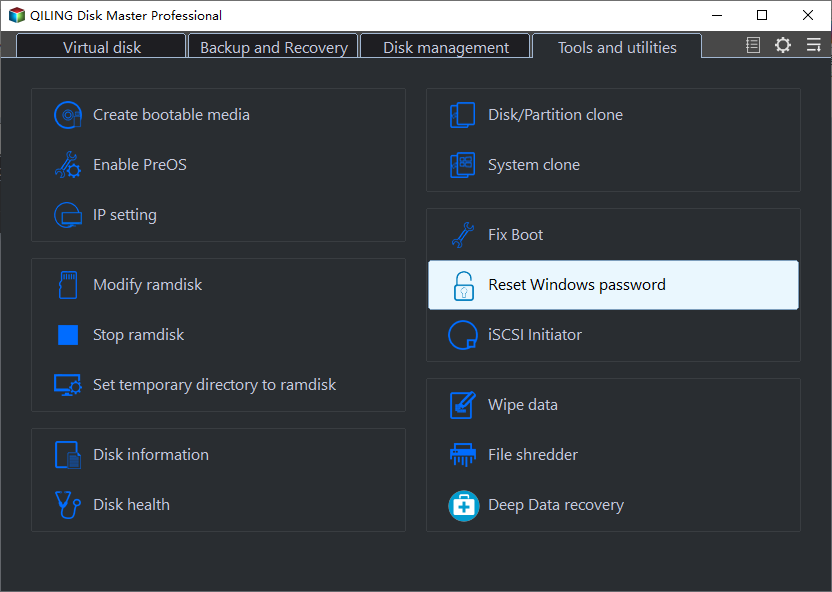

Step 3. Click Reset, confirm the result, remove the media, and sign in. Set a strong new local password and configure a new PIN through Windows settings. Stop if the disk is BitLocker-locked or the account is not a supported local account.
Avoid Losing Data
Reset this PC is a different Windows recovery action. It may remove apps or, depending on the option, personal data. Read the exact confirmation screen and back up first. Do not delete the Windows Hello credential folders manually unless following a supported repair procedure; that can create a second sign-in problem.
Conclusion
Use the built-in Microsoft verification path for a PIN, recover the account password when necessary, and keep any third-party local-password reset distinct from PIN repair.
Related Articles
- Windows Hello PIN Option Unavailable
Troubleshoot a missing or disabled PIN option. - Your PIN Is No Longer Available
Repair a PIN sign-in failure.
Products
Articles & Tutorials
- Data Recovery
- Data Backup
- File Recovery
- File Backup
- System Backup and Restore
- Disk and Partition Clone
- Technical articles
- Mobile articles
- Disk Master Help
- Windows Data Recovery Tutorials
- Windows Secure Delete Tutorials
- Windows Partition Management Tutorials
- Windows File Backup and Restore Tutorials
- Windows System Backup and Restore Tutorials
- Windows Disk Backup and Restore Tutorials
- Windows Clone Tutorials