Free Disk Cleaner for Windows: Safe Tools and Steps
A disk cleaner should remove files you no longer need without touching personal data or a recovery path. Windows already includes useful free tools; a third-party utility is optional, not a prerequisite for routine cleanup.
Choose the Right Cleanup Tool
Storage Sense handles temporary files and Recycle Bin rules on the Windows system drive. Cleanup recommendations lets you review large or unused items. Disk Cleanup is useful on older Windows installations and for selected system files. File-size analyzers can identify large folders, but their findings still require human review. Registry-cleaner claims do not replace storage analysis and are not a routine disk-space fix.
For optional third-party tools, compare the task rather than a ranking: Wise Disk Cleaner and BleachBit focus on cleaning selected disposable files; CCleaner has broader maintenance options that should be reviewed individually; TreeSize analyzes where space is used but does not decide what is safe to delete. Download only from each publisher and inspect every proposed deletion. Qiling Disk Master is useful for backup and partition management, not a substitute for a junk-file cleaner.
Before cleaning, note your free space in File Explorer > This PC and make a backup of irreplaceable files. If a disk reports read errors or SMART warnings, prioritize the backup over repeated scans. If you need to roll back a Windows upgrade, keep the previous Windows installation until the rollback window and your testing are complete.
Clean with Windows Settings
Step 1. Open Settings > System > Storage. Select the drive you want to inspect and wait for Windows to calculate categories. Storage Sense mainly manages the system drive; use the other-drive view for D: or an external drive.
Step 2. Open Cleanup recommendations or Temporary files. Review each category. Leave Downloads and Recycle Bin unchecked if they contain anything you still need.
Step 3. Select only verified disposable items and click the cleanup command. Recheck free space in File Explorer, then open your documents and recently used apps to confirm nothing needed was removed.
Step 4. To automate future cleanup, open Storage Sense, choose the run frequency, and review Recycle Bin and cloud-content policies before switching it on. Its default behavior should not be assumed to match your retention needs.
Use Disk Cleanup Where Appropriate
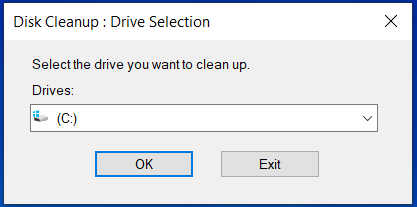
Search Start for Disk Cleanup, choose the drive, and inspect the categories. For system files, click Clean up system files and select the drive again. Read the description of each category; deleting previous Windows installation files can remove a convenient rollback route. Confirm only when you understand what will be removed.
When Cleaning Is Not Enough
Qiling Disk Master does not need to be presented as a junk-file cleaner. Its relevant role is to back up data and manage partitions. If C: is nearly full while the same disk has adjacent unallocated space, a partition resize may help; back up first and inspect the disk map carefully. If the physical disk itself is full, resizing cannot create capacity. Move large files or install a larger drive instead.
Never use a file shredder or whole-disk wipe merely to reclaim ordinary space: those features are for irreversible deletion and can remove the wrong data. Avoid deleting unknown folders under Windows, Program Files, or AppData by hand.
Conclusion
Start with Windows' built-in reviewable cleanup, verify what you remove, and use backup or storage expansion when the problem is capacity rather than temporary files.
Related Articles
- How to Free Up Space on an SSD
Compare cleanup, moving files, and drive upgrades. - Disk Cleanup Not Working
Troubleshoot the built-in cleanup process.
Products
Articles & Tutorials
- Data Recovery
- Data Backup
- File Recovery
- File Backup
- System Backup and Restore
- Disk and Partition Clone
- Technical articles
- Mobile articles
- Disk Master Help
- Windows Data Recovery Tutorials
- Windows Secure Delete Tutorials
- Windows Partition Management Tutorials
- Windows File Backup and Restore Tutorials
- Windows System Backup and Restore Tutorials
- Windows Disk Backup and Restore Tutorials
- Windows Clone Tutorials