HAL_INITIALIZATION_FAILED in Windows: Diagnosis and Recovery
HAL_INITIALIZATION_FAILED is a Windows stop error during hardware-abstraction initialization. It can follow a driver, firmware, virtualization, or hardware change. A single occurrence does not prove the disk is bad; repeated failures need a staged diagnosis.
Record the circumstances and secure files
Note when the stop screen appears: immediately at power-on, after a Windows update, or only after adding hardware. Disconnect nonessential external devices. If the storage drive is making unusual noises, disappears from firmware, or reports errors, stop repeated boot tests and protect files with a verified backup.
Use Windows recovery options
Step 1. From the recovery screen choose Advanced options > Troubleshoot. If necessary, boot official Windows installation media and select Repair your computer.
Step 2. Try Startup Repair once and record the result. If the failure followed an update, use Uninstall Updates; start with the latest quality update.
Step 3. Try System Restore when an earlier restore point exists. Restore points can undo system changes but do not replace a personal-file backup.
Step 4. Use Startup Settings to attempt Safe Mode. If it starts, remove or roll back a recently installed driver or utility that correlates with the first failure.
Check recent hardware or firmware changes
If RAM was added, reseat it according to the PC service manual and test the original configuration. Run Windows Memory Diagnostic or a reputable memory test if the PC can boot it. Check the storage drive's health and cables. Restore firmware defaults only after recording any custom boot, RAID, or encryption settings; changing storage-controller mode can prevent Windows from booting.
Where Qiling Disk Master Pro can help
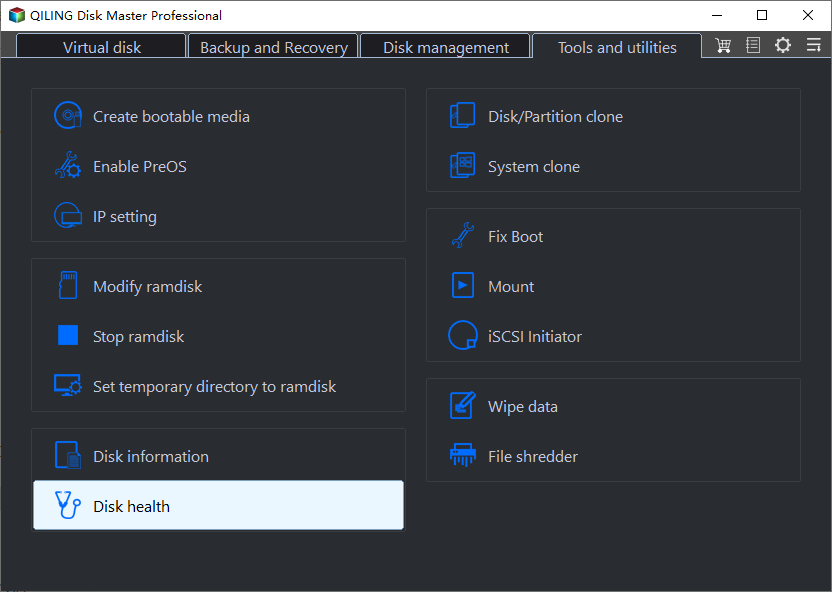
If Windows starts in Safe Mode or the affected drive can be attached to a working PC, Qiling Disk Master Pro's Disk health view can provide available S.M.A.R.T. indicators for that drive. Select the correct model and capacity and back up data immediately if it reports warnings. This is a storage check, not a diagnosis of the HAL stop code; RAM, firmware, drivers, and virtual hardware still need separate investigation.
On a virtual machine, verify that the configured virtual hardware and hypervisor version are supported by the guest Windows version. Roll back one change at a time. Do not apply a physical-PC BIOS recipe indiscriminately to a VM.
Escalate after isolating the cause
If Windows remains unbootable, use recovery media to back up files and check for hardware errors. A clean installation is reasonable only after data is secured and the drive is stable. If the stop code recurs on a fresh installation, investigate RAM, motherboard, firmware, and storage hardware rather than repeating software repairs.
Related Articles
- Automatic Repair Failure
Use a staged Windows recovery sequence. - Windows Will Not Boot
Plan backup and recovery before reinstalling.
Products
Articles & Tutorials
- Data Recovery
- Data Backup
- File Recovery
- File Backup
- System Backup and Restore
- Disk and Partition Clone
- Technical articles
- Mobile articles
- Disk Master Help
- Windows Data Recovery Tutorials
- Windows Secure Delete Tutorials
- Windows Partition Management Tutorials
- Windows File Backup and Restore Tutorials
- Windows System Backup and Restore Tutorials
- Windows Disk Backup and Restore Tutorials
- Windows Clone Tutorials