Hard Drive Cleaner for Windows
A hard drive cleaner can mean removing junk files, formatting a partition, or securely wiping data before selling a drive.
This guide explains which method to use and how to avoid deleting the wrong files.
PAGE CONTENT
- What This Problem Means
- Before You Start
- Use Windows Built-in Tools First
- Use the Qiling Product Workflow
- Check the Result
- FAQs
What This Problem Means
Cleaning should match your goal. Freeing space is reversible in many cases, while secure wiping is intentionally permanent.
- Disk Cleanup and Storage Sense remove temporary files.
- Formatting prepares a partition but may leave recoverable data.
- Secure wipe overwrites data to prevent recovery.
- Cleaning a system drive requires extra caution.
- 顦?/i> Important
- Do not use secure wipe on a drive that contains files you may need later.
Before You Start
Decide whether you want more free space, an empty reusable partition, or irreversible data removal.
- Confirm the exact disk, partition, USB drive, SD card, or Windows installation you are changing.
- Copy irreplaceable files to another drive if the device is still readable.
- Check whether BitLocker, Secure Boot, UEFI/Legacy mode, or a vendor recovery partition is involved.
- Avoid formatting, deleting, wiping, or running DiskPart clean until you know whether data must be recovered first.
Use Windows Built-in Tools First
Use Windows tools first for normal cleanup.
Step 1. Open Settings > System > Storage and review large categories.
Step 2. Run Disk Cleanup or Cleanup recommendations.
Step 3. Uninstall unused apps from Settings > Apps.
Step 4. Move personal files to an external drive instead of deleting them immediately.
Step 5. If preparing a drive for sale, back up needed files and use secure wipe.
Clean or Wipe with Qiling Disk Master
Use normal cleanup when you only need free space. Use secure wipe only before selling, recycling, or repurposing a drive because it is designed to prevent recovery.
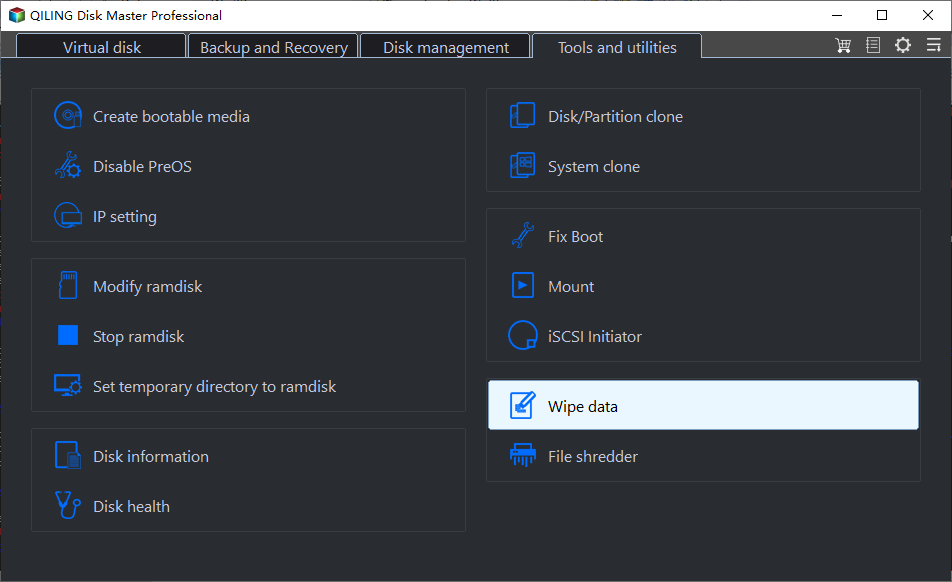
Step 1. Open Qiling Disk Master, go to Tools and utilities, and choose Wipe data.
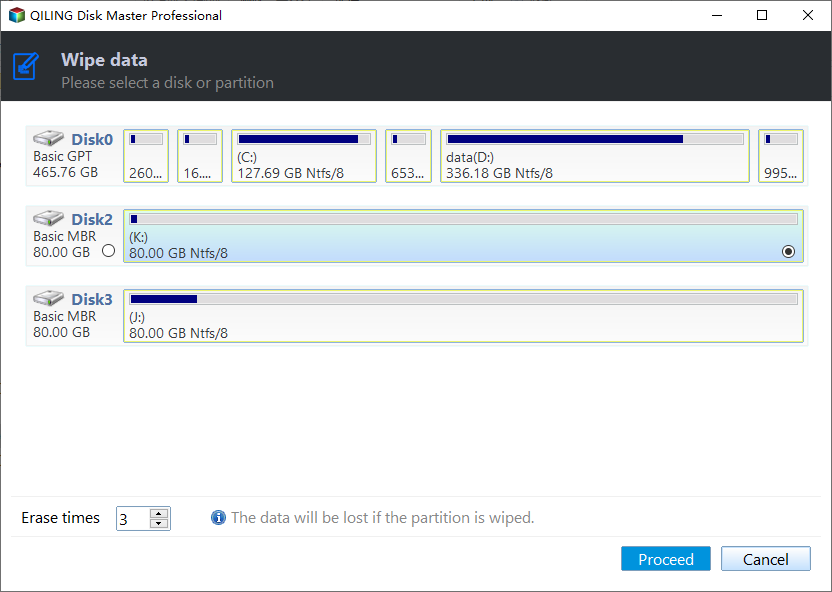
Step 2. Select the target disk or partition by capacity and drive letter. Set the erase times, then click Proceed.
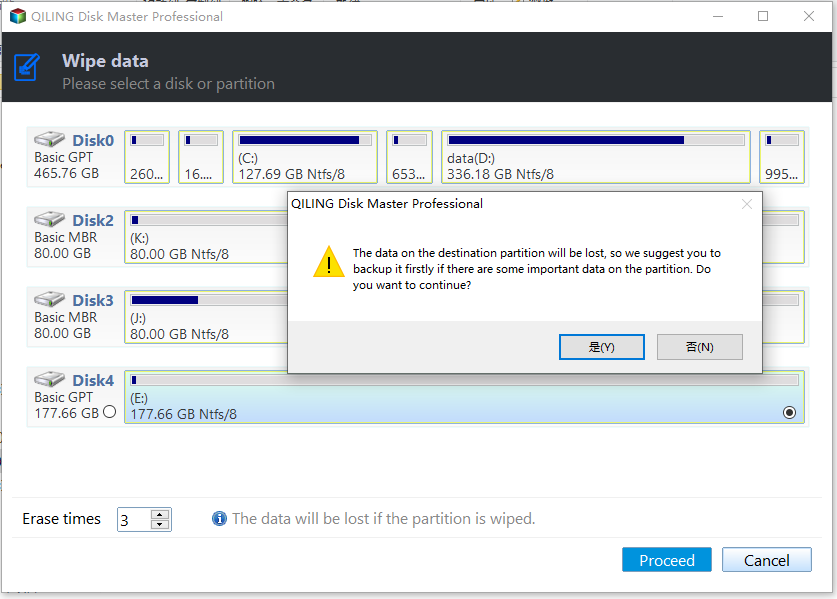
Step 3. Read the warning carefully. Confirm only when the selected disk or partition is correct and the needed files have been backed up.
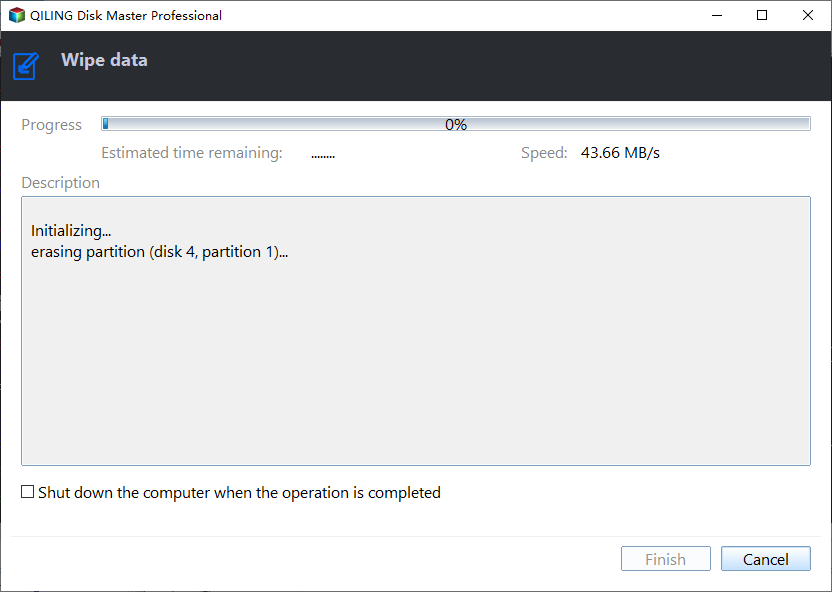
Step 4. Wait while Qiling Disk Master wipes the selected disk or partition. Do not interrupt the computer during the process.
Step 5. After wiping, initialize and format the disk again if you want to reuse it.
Check the Result
Restart Windows, check free space, and confirm important folders still contain expected files.
- Restart Windows and confirm the drive, partition, backup task, or cloned disk appears as expected.
- Open several files instead of only checking that a drive letter exists.
- Keep one recent backup on an external drive before making another high-risk change.
- If the same error returns, check hardware health, cable quality, firmware, and Event Viewer before repeating the same operation.
FAQs
Is cleaner the same as wipe tool?
No. Cleaner removes junk; wipe overwrites data to prevent recovery.
Does quick format permanently erase data?
No, data may still be recoverable.
Can cleaning improve performance?
It can help when the drive is nearly full, but failing drives may need replacement.
Conclusion
Choose Storage Sense for junk files, formatting for reuse, and secure wipe for privacy. Qiling Disk Master provides a clearer workflow for disk-level cleaning.
Related Articles
- Best Free Partition Manager Software of 2026
- How to Clone HDD to SSD in Windows 10/11/7
- Windows System Backup and Restore Tutorials
- Windows Data Recovery Tutorials
Products
Articles & Tutorials
- Data Recovery
- Data Backup
- File Recovery
- File Backup
- System Backup and Restore
- Disk and Partition Clone
- Technical articles
- Mobile articles
- Disk Master Help
- Windows Data Recovery Tutorials
- Windows Secure Delete Tutorials
- Windows Partition Management Tutorials
- Windows File Backup and Restore Tutorials
- Windows System Backup and Restore Tutorials
- Windows Disk Backup and Restore Tutorials
- Windows Clone Tutorials