How to Test HDD Read and Write Speed in Windows
A hard drive's advertised interface speed is not its real file-transfer speed. Read and write results change with file size, platter location, fragmentation, USB bridge, cache, and background activity. Test under controlled conditions and protect data first if the disk is already unstable.
Decide Whether It Is Safe to Benchmark
If the HDD clicks, disconnects, reports pending or reallocated sectors, or contains the only copy of important data, back up first and avoid sustained benchmarks. A performance test reads and often writes substantial data; it cannot repair bad sectors. For an external drive, check cable, power, port speed, and enclosure before blaming the disk mechanism.
Record the drive model, capacity, connection, free space, and temperature. Close games, downloads, backups, and antivirus scans for a repeatable result. Use the same test settings when comparing before and after a change.
Use a Dedicated Read/Write Benchmark
Step 1. Install a reputable benchmark from its publisher's official site. Select the intended HDD volume by model and drive letter; do not test a nearly full system volume without headroom.
Step 2. Choose a moderate test size and run a sequential read/write test. This approximates large-file transfers. Record the units (MB/s), file size, and whether the disk is internal SATA or connected over USB.
Step 3. Run a smaller random-I/O test if the tool offers one. Random numbers will be much lower than sequential throughput on a mechanical HDD; that difference is expected.
Step 4. Let the disk cool, repeat once, and compare consistent runs. If results vary widely, check background processes in Task Manager and Windows Event Viewer for disk or controller errors before changing hardware.
Cross-Check with Windows Tools
Windows Task Manager > Performance > Disk shows live active time and transfer rate, not a controlled benchmark. Use it to identify competing workloads. An elevated winsat disk -seq -read -drive D can provide a built-in sequential read measurement for the chosen drive letter on supported Windows builds; replace D with the confirmed volume. A write test may create temporary data, so keep free space and a backup. Do not interpret one score without its test conditions.
Check Health with Qiling Separately
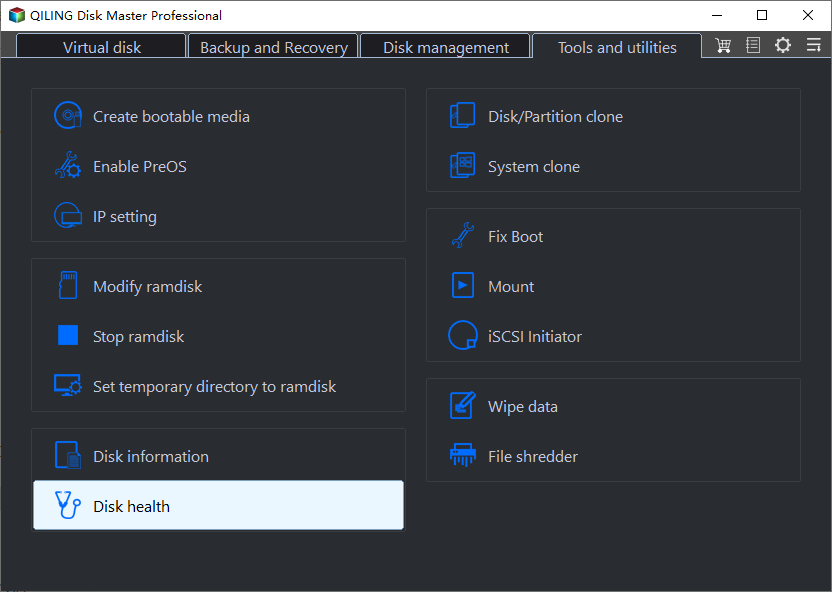
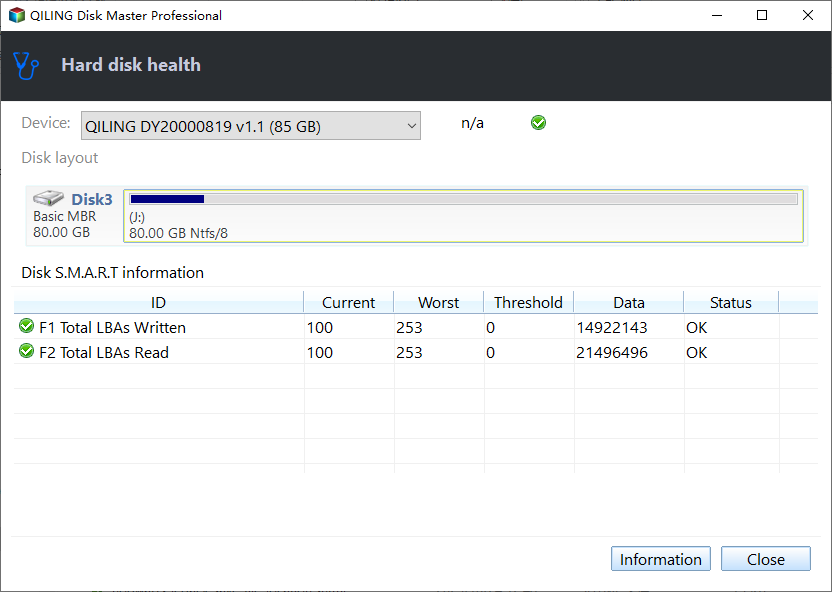
Qiling Disk Master's Disk health reads SMART information; it is not a speed test. Open Tools and utilities > Disk health, choose the HDD by model, and inspect health attributes and status. Reallocated or pending sectors and recurring read errors are a replacement warning even if one benchmark is fast.
If the drive is healthy but real-world copies are slow, test the other endpoint and connection. A copy from an HDD to a slow USB flash drive is limited by the destination too.
Conclusion
Run repeatable read and write tests only on a stable drive, distinguish benchmark throughput from live activity, and treat health errors as a backup-and-replace issue.
USB transfer rates depend on more than the hard drive itself; use the USB read/write-speed testing guide to compare the port, cable, enclosure, and workload.
Related Articles
- Test M.2 SSD Speed
Compare SSD and HDD benchmark conditions. - Check WD Hard Drive Health
Use SMART and symptoms alongside performance.
Products
Articles & Tutorials
- Data Recovery
- Data Backup
- File Recovery
- File Backup
- System Backup and Restore
- Disk and Partition Clone
- Technical articles
- Mobile articles
- Disk Master Help
- Windows Data Recovery Tutorials
- Windows Secure Delete Tutorials
- Windows Partition Management Tutorials
- Windows File Backup and Restore Tutorials
- Windows System Backup and Restore Tutorials
- Windows Disk Backup and Restore Tutorials
- Windows Clone Tutorials