Remove Write Protection from a SanDisk Cruzer USB Drive
A SanDisk Cruzer that can be read but not changed may be locked by an adapter switch, a Windows read-only attribute, security policy, or a flash controller that has failed into read-only mode. The fix depends on which layer is blocking writes.
Preserve Data and Check Physical Causes
Copy any readable files to another disk first and open several copies. Check whether you are using an SD-to-USB adapter with a lock switch; most Cruzer USB sticks have no such switch, but an adapter can. Try another USB port and computer to separate the stick from one PC's policy. If every computer reports read-only and the device disconnects or reports errors, suspect hardware failure.
Do not format or run diskpart clean while files are needed. If the drive is BitLocker-encrypted, unlock it with the authorized key; removing a read-only attribute is not decryption. If a work PC enforces removable-storage policy, ask its administrator rather than bypassing controls.
Inspect Windows Disk Attributes
Step 1. Open Disk Management and record the Cruzer's model and capacity. In an elevated Command Prompt run diskpart, then list disk. Identify the USB by size and, if possible, model. A wrong disk number can affect the system disk.
Step 2. Run select disk N with the confirmed number, then attributes disk. If it reports Read-only: Yes, run attributes disk clear readonly. Type exit, unplug safely, reconnect, and try writing a small test file.
Step 3. If the disk attribute is clear but one volume remains read-only, inspect that volume separately and check file permissions. Do not assume the whole physical USB and a single volume have the same setting.
Use Qiling's Separate Read-Only Controls
Qiling Disk Master Pro distinguishes disk-level and volume-level attributes. Back up first and select by physical disk number, not only the drive letter.
Step 1. In Disk management, right-click the Cruzer's disk label and choose Advanced > Remove disk readonly if all volumes are read-only.
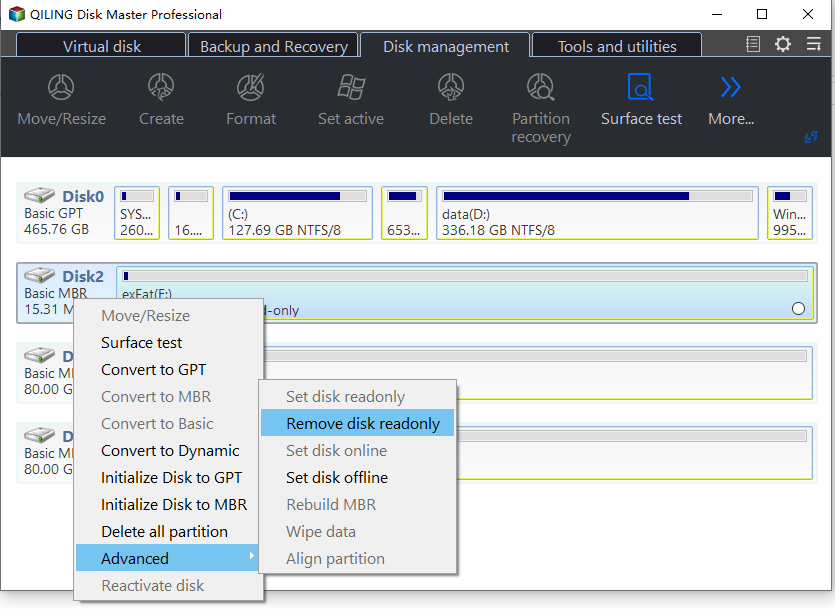
Step 2. If only one volume is affected, select that volume and use Remove volume readonly instead. Confirm the target and result, reconnect the USB, then test a small file. Neither option repairs broken flash cells.
When the USB Stays Read-Only
Check Windows Event Viewer and the device's SMART or diagnostic information if exposed. Some flash controllers permanently block writes after too many errors; a successful read-only recovery of files is then the priority. Formatting might fail and would erase data without repairing the hardware. Replace the stick for future use rather than relying on a device that repeatedly relocks itself.
Conclusion
Back up readable files, check the physical and policy layers, clear only a verified Windows or Qiling read-only attribute, and replace a failing USB drive.
Related Articles
- Remove Write Protection from an External Drive
Compare disk-level and volume-level Qiling controls. - SD Card Full or Not Accessible
Follow a recovery-first path for removable media.
Products
Articles & Tutorials
- Data Recovery
- Data Backup
- File Recovery
- File Backup
- System Backup and Restore
- Disk and Partition Clone
- Technical articles
- Mobile articles
- Disk Master Help
- Windows Data Recovery Tutorials
- Windows Secure Delete Tutorials
- Windows Partition Management Tutorials
- Windows File Backup and Restore Tutorials
- Windows System Backup and Restore Tutorials
- Windows Disk Backup and Restore Tutorials
- Windows Clone Tutorials