Convert MBR to GPT Without Deleting Partitions
"Without data loss" describes the intended conversion method, not a guarantee against power loss, disk faults, or boot problems. A data disk and a Windows boot disk need different checks. Windows Disk Management's usual conversion path requires deleting the disk's partitions; do not choose that path when the data must remain.
Identify the disk and make an image
Open Disk Management and record the disk number, model, capacity, current partition style, and whether it contains the running Windows installation. Save a separate backup of important files and, for a boot disk, a full system image plus rescue media. Save the BitLocker recovery key. Confirm the motherboard supports UEFI boot before changing a Windows boot disk to GPT.
Case 1: A non-boot data disk
Qiling Disk Master exposes Convert to GPT for a selected MBR disk. The screenshot shows the command on an example disk; identify your actual data disk by model and size. Stop if the disk is failing, is part of a special array, or holds the only copy of data.
Step 1. Open Qiling Disk management and select the intended MBR data disk. Recheck its number and capacity.
Step 2. Open the disk action menu and select Convert to GPT. Do not choose Initialize Disk to GPT; initialization addresses a different situation.
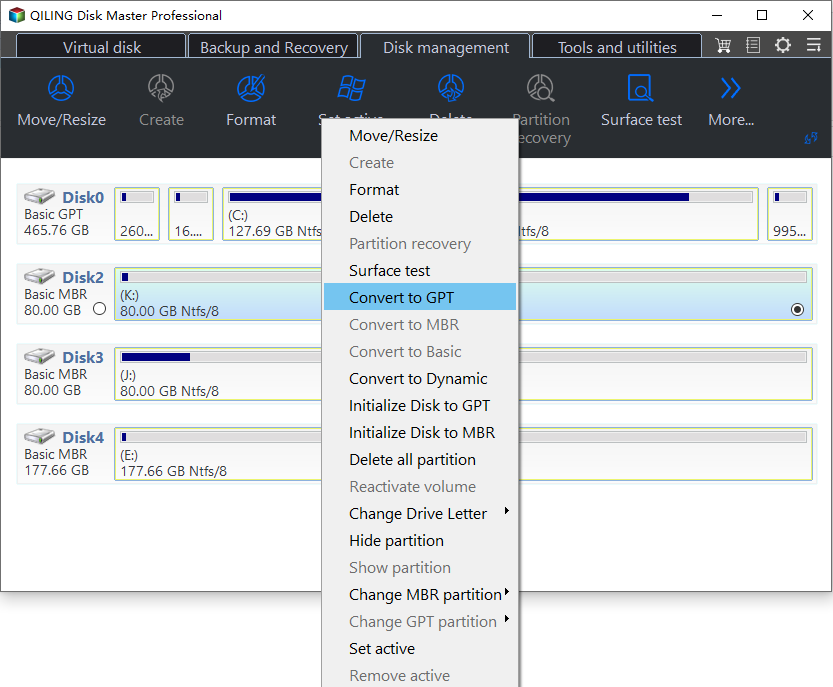
Step 3. Read any warning and confirm the target disk. Run the conversion only if the tool accepts the existing layout. Wait for completion; do not interrupt power or disconnect the drive.
Case 2: The Windows boot disk
Use Microsoft's MBR2GPT when the Windows installation and disk layout satisfy its validation rules. From an elevated Command Prompt, run mbr2gpt /validate /disk:N /allowFullOS, replacing N with the verified system disk number. Only after validation succeeds and the backup is checked, run mbr2gpt /convert /disk:N /allowFullOS. If validation fails, stop and resolve the reported reason instead of forcing a partition-tool conversion.
After conversion, switch firmware boot mode from Legacy/CSM to UEFI before starting Windows. Do not change that setting before a successful conversion. A firmware configuration mistake can make a good Windows installation appear unbootable.
Confirm the result
Check that Disk Management reports GPT, all expected partitions and files are present, and Windows boots in UEFI mode where applicable. Keep the pre-conversion image until you have verified normal startup and a working recovery path. See the MBR-to-GPT conversion overview for other scenarios.
Related Articles
- Windows 11 Partition Layout Checks
Inspect the disk map before changing partitions.
Products
Articles & Tutorials
- Data Recovery
- Data Backup
- File Recovery
- File Backup
- System Backup and Restore
- Disk and Partition Clone
- Technical articles
- Mobile articles
- Disk Master Help
- Windows Data Recovery Tutorials
- Windows Secure Delete Tutorials
- Windows Partition Management Tutorials
- Windows File Backup and Restore Tutorials
- Windows System Backup and Restore Tutorials
- Windows Disk Backup and Restore Tutorials
- Windows Clone Tutorials