Move a Recovery Partition to Extend C: in Windows 11
If the layout is C: | Recovery | Unallocated, Disk Management cannot extend C: through the recovery partition. Moving the partition to the right can make the free space adjacent, but it changes a boot-related disk layout. Back up first, and do not delete the recovery partition merely to save time.
Confirm that moving is actually needed
Open Disk Management and identify the correct disk, C:, the small Recovery partition, and the unallocated area. If there is no unallocated space immediately after Recovery, this particular move does not create room for C:. Check Windows Recovery Environment status with reagentc /info in an elevated Command Prompt and record it. Save the BitLocker key and create a verified system image on another disk.
Move the blocking recovery partition
Qiling Disk Master's Move/Resize can reposition a partition in available unallocated space. The screenshots show the control on an example data volume; use your own disk map, not the example drive letter, to identify the actual Recovery partition.
Step 1. Open Disk management, select the Recovery partition between C: and the unallocated area, and choose Move/Resize.
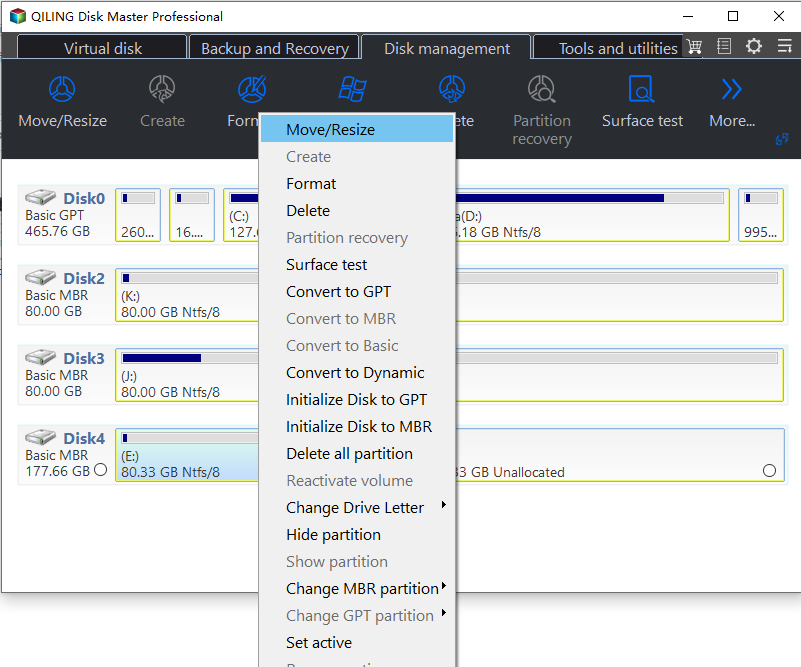
Step 2. Drag the entire partition to the far right of the available unallocated area. Keep its size unchanged. Confirm the resulting order will be C: | Unallocated | Recovery. If the preview differs, cancel.
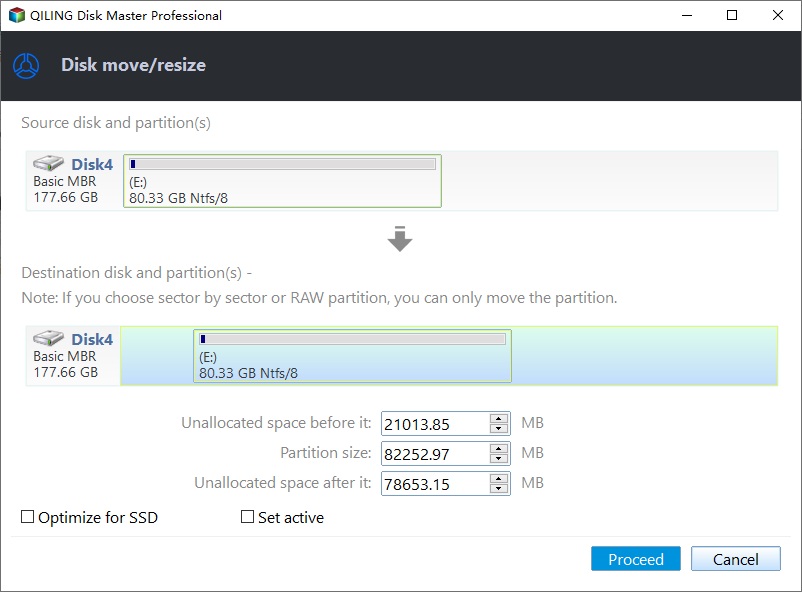
Step 3. Click Proceed to run the move. Wait for completion and any required restart. Do not interrupt the operation.
Extend C: into adjacent space
Step 1. Reopen the disk map and verify that the unallocated space is now immediately to the right of C:. If it is not, stop; do not extend the wrong volume.
Step 2. Select C: and choose Move/Resize. Drag the right edge into the available space while leaving the relocated Recovery partition intact.
Step 3. Review the new C: size, click Proceed, and wait for completion. Do not assume that the earlier move also extended C:.
Check the result
Boot Windows, confirm C: is larger, and run reagentc /info again to check WinRE status. If recovery is disabled or Windows will not boot, use the prepared rescue media and image rather than making more blind partition changes. For an overview, see move Recovery partition to extend C:.
Related Articles
- Extend Volume Greyed Out
Diagnose the partition layout before moving anything.
Products
Articles & Tutorials
- Data Recovery
- Data Backup
- File Recovery
- File Backup
- System Backup and Restore
- Disk and Partition Clone
- Technical articles
- Mobile articles
- Disk Master Help
- Windows Data Recovery Tutorials
- Windows Secure Delete Tutorials
- Windows Partition Management Tutorials
- Windows File Backup and Restore Tutorials
- Windows System Backup and Restore Tutorials
- Windows Disk Backup and Restore Tutorials
- Windows Clone Tutorials