NVMe SSD Visible in BIOS but Not Disk Management
Firmware detecting an NVMe SSD proves that the motherboard sees some hardware, not that Windows has a working driver or can read its partitions. Treat a brand-new blank SSD differently from a drive that previously held Windows or files. Initializing the latter can complicate recovery.
Check every Windows detection layer
Step 1. Record the SSD model and capacity shown in BIOS or UEFI. Note the M.2 slot and whether the firmware uses RAID/VMD or another storage-controller mode.
Step 2. In Windows, open Device Manager. Check Disk drives and Storage controllers for the SSD, an unknown device, or a controller warning.
Step 3. Open Disk Management and choose Action > Rescan Disks. Check the lower pane for an Offline, Unknown, or Unallocated physical disk. Compare size and model rather than relying on a missing drive letter.
Step 4. Run Get-Disk in PowerShell as a read-only cross-check. A disk can exist without a volume or letter.
Choose the correct branch
If the drive appears as unallocated and it is definitely new and empty, Windows can initialize and partition it after you verify the disk number. If it previously contained data, stop: do not initialize, format, or run clean. Check the controller driver and connection, and secure a backup or recovery plan first.
If Device Manager shows a controller problem, obtain the appropriate storage driver from the PC or motherboard manufacturer. Changing firmware storage mode without preparation can make the current Windows installation unbootable. If the drive is absent from Windows on multiple systems, test the slot and SSD hardware separately.
What Qiling Disk Master Pro can show
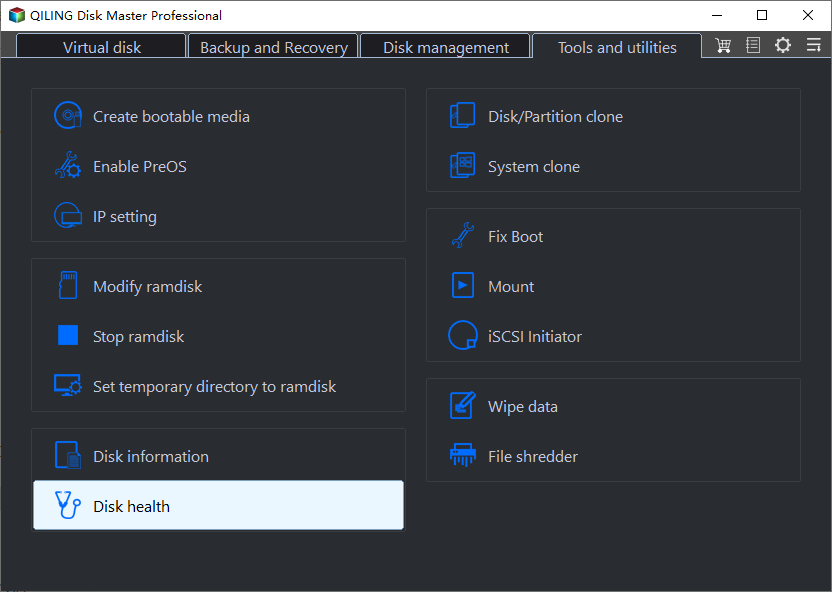
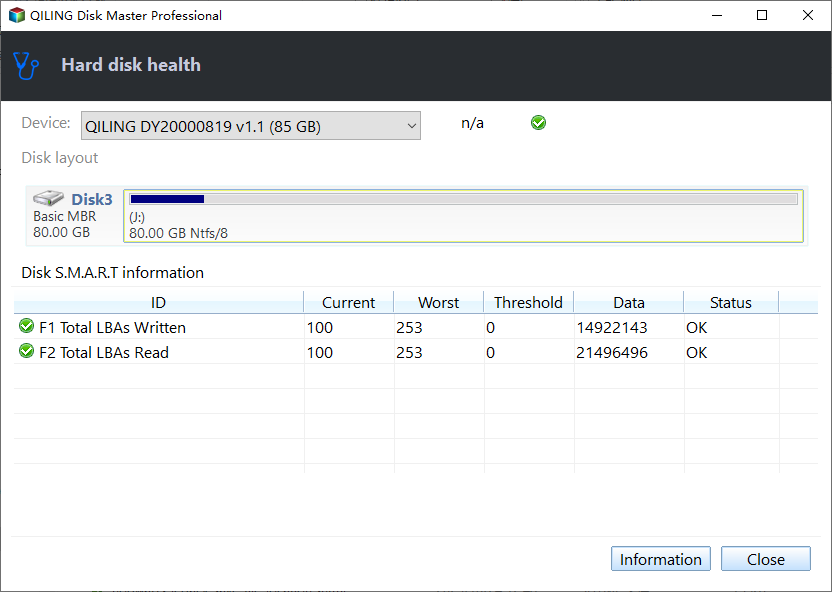
Qiling Disk Master Pro has Disk information and Disk health under Tools and utilities. Once Windows can enumerate the SSD, use those views to confirm model, capacity, partition layout, and available S.M.A.R.T. indicators. The application cannot bypass a missing controller driver or read a disk that Windows itself cannot enumerate.
Confirm normal operation
When the disk appears, compare its reported capacity with the vendor's specification. For a data drive, verify that expected files open before making layout changes. For a new empty drive, confirm it is not your boot or backup disk before creating partitions. If the SSD repeatedly vanishes, prioritize data protection over formatting attempts.
Related Articles
- List Windows Disks
Map physical disks to partitions and letters. - NVMe Enclosure Detection
Check a different connection path.
Products
Articles & Tutorials
- Data Recovery
- Data Backup
- File Recovery
- File Backup
- System Backup and Restore
- Disk and Partition Clone
- Technical articles
- Mobile articles
- Disk Master Help
- Windows Data Recovery Tutorials
- Windows Secure Delete Tutorials
- Windows Partition Management Tutorials
- Windows File Backup and Restore Tutorials
- Windows System Backup and Restore Tutorials
- Windows Disk Backup and Restore Tutorials
- Windows Clone Tutorials