Partition Table Damaged: Repair MBR and GPT Without Losing Data
Quick Navigation:
- Why the Table Breaks and How It Shows Up
- Back Up Before Anything Writes to the Disk
- Read the Disk State With Built-in Tools
- Rebuild the Table With Qiling Disk Master
- Frequently Asked Questions
Windows shows "You need to format the disk in drive X before you can use it", Disk Management labels the drive "Not Initialized", and a dialog offers to initialize it. In most of these cases the disk itself is healthy. The structure that records where each partition starts and ends can no longer be read, so Windows sees empty space where your volumes used to be. Accepting the initialize prompt writes a new table over the old one. This guide explains what damages the table, how to protect the data before any write, and how to rebuild the layout with Qiling Disk Master.
Why the Table Breaks and How It Shows Up
On an MBR disk the whole map lives in the first 512-byte sector: boot code, four 16-byte partition entries, and a two-byte signature. One unreadable sector at the start of the disk removes all four entries at once, which is why an MBR disk usually loses every volume together rather than one at a time. A GPT disk stores a protective MBR, a primary header, an entry array, and a second copy of the header and array at the end of the disk. The duplicate is meant to save you, but a tool that writes to the wrong offset, a power loss during partition work, or an enclosure that shifts sector addresses can damage both copies.
The symptoms follow the same pattern. The drive still appears in the BIOS and in Disk Management with its correct capacity, but the volumes are gone, the space is marked unallocated, and drive letters have disappeared. Windows may also offer to format a volume it can see but cannot read, or report that the disk is not initialized. Data is still on the platters in these cases; only the index that points to it is missing.
Capacity tells you which fault you have. A disk that reports its full size but no volumes points to a table problem, and that is the case this guide covers. A disk that reports zero bytes, an unknown size, or that clicks and drops offline points to a hardware or enclosure fault, and no partition tool will fix it. Settle that question first, because the two failures need completely different responses.
Back Up Before Anything Writes to the Disk
Every write to a disk with a damaged table lowers the chance of getting the old layout back. Stop using the drive, do not save new files to it, and do not let Windows "repair" it at boot. If any volume still mounts, copy the folders you cannot lose to another drive before you go further. Copy them out rather than moving them, and copy the most important files first, because a failing drive can drop offline in the middle of a large transfer.
Then make an image of the whole disk, not just the readable files. A sector-by-sector copy stores every sector exactly as it is today, including the damaged table, so the image can be re-read later if a repair makes things worse. A file-level backup is useful for documents but useless for rebuilding a partition layout, because it never captures the structure you are trying to recover.
While the image is being made, change nothing else. Do not initialize the disk, do not create a partition in the unallocated space, do not convert the disk between MBR and GPT, and do not run a "fix" utility you have not used before. Each of those actions can overwrite the entries a recovery scan needs. The image is your fallback; the repair comes after it, never before.
Read the Disk State With Built-in Tools
Disk Management, DiskPart, and chkdsk are Microsoft's built-in tools that ship with Windows. They are not part of Qiling Disk Master, and this section uses them only to read the state of the disk before any repair. Disk Management shows the partition style, the capacity, and whether the disk is marked as not initialized, offline, or read-only. That single screen usually separates a table fault from a hardware fault. DiskPart reports the same facts from a command line, and chkdsk reports file-system errors on a volume that still mounts.
Read the results before you act on them. A disk marked not initialized with the correct size is the classic table case. A volume that mounts but reports errors may still be readable, and the error log names the volume, which helps when several volumes were affected. A disk that shows as read-only is being protected by something else, and no repair will succeed until that flag is cleared.
Be aware that some entries in these tools write rather than read. Initialize disk, clean, and convert all change the structure on the disk. Run chkdsk with repair only after the image from the previous section is finished, because a repair can rewrite file-system metadata on a volume that was partly readable. When in doubt, close the tool and take another image.
Rebuild the Table With Qiling Disk Master
Qiling Disk Master covers the three jobs that make this repair safe: copying the disk before anything changes, finding partitions that the table no longer lists, and rebuilding the boot record of an MBR disk. They are separate tools, not one wizard. The copy comes first because every later operation writes to the disk, and the boot record comes last because it only matters when the partition entries have already been restored.
Operation 1: Copy the Disk Before Any Repair
This operation applies to every damaged disk that Windows still detects with its correct capacity. It reads the disk and writes to a different one, so it is safe to run first.
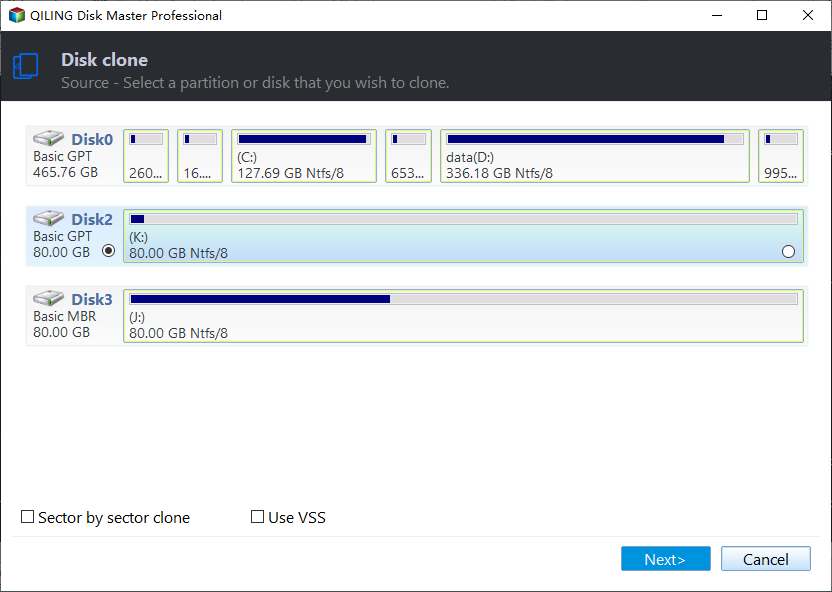
Step 1. Choose the damaged disk as the source. Open Disk Clone, select the disk that lost its partitions, and confirm that the size matches what the firmware reports. Cloning copies the current layout, damaged table included, which is exactly what you want here.
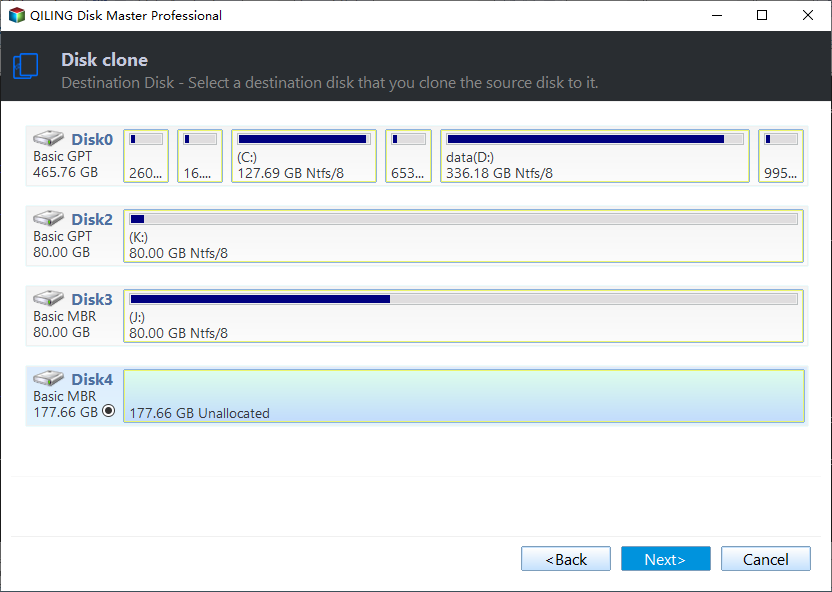
Step 2. Pick the destination disk. The destination must be at least as large as the source and must not hold the only copy of anything else. Compare its disk number and capacity with the labels on the drives, because the destination loses its current partitions when the copy starts.
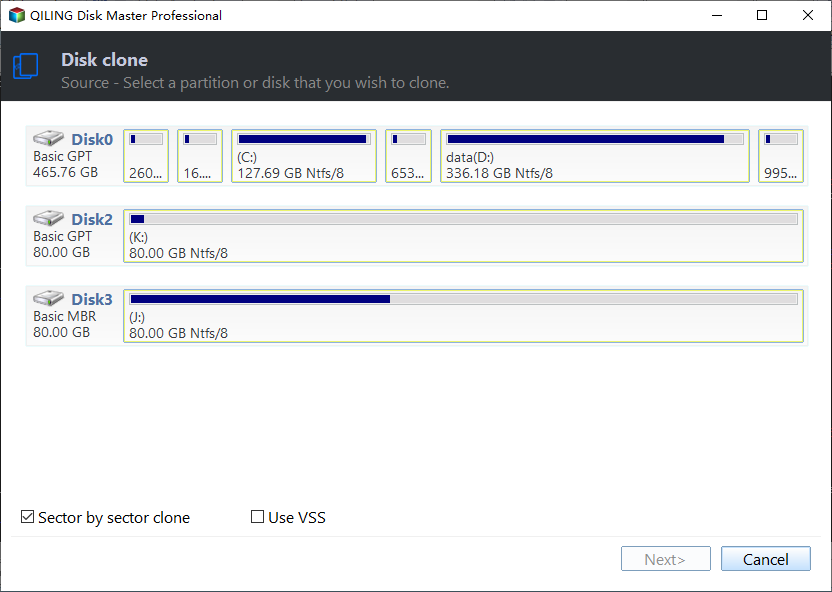
Step 3. Tick Sector by sector. Sector by sector copies the raw structure instead of the file system, so the clone keeps the damaged table exactly as it is, which is the evidence a later recovery scan needs. Leave it off only when the table is known to be sound.
Step 4. Preview the task and click Proceed. Check that the source and destination are the disks you expect, then start the copy and let it finish without interruption. Keep the clone until the repair is complete and the volumes have been read back.
Operation 2: Recover the Partitions the Table No Longer Lists
This operation applies when the disk is detected and the old space now shows as unallocated, but the files were there before the fault. Run it only after Operation 1 has finished.
Step 1. Right-click the disk and choose Partition recovery. The wizard reads the disk for partition records rather than for files, so it can find volumes whose entries were overwritten. Opening the wizard changes nothing until you confirm a step.
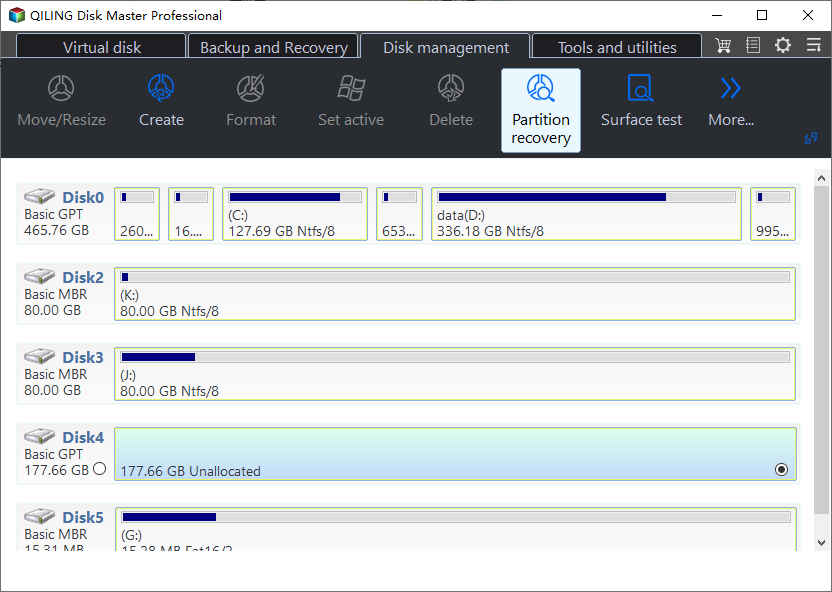
Step 2. Set the search range and run the scan. A full scan covers the whole disk and takes longer; a range limited to the unallocated area is faster when you know roughly where the volumes sat. Start with the full scan on a disk that lost every partition.
Step 3. Tick the matching partitions, preview the result, and click Proceed. Match each found partition against the size and file system you remember, and leave out anything you cannot identify. Recovering a wrong candidate writes a new entry in the table, so a careful selection matters more than a fast one.
Operation 3: Rebuild the MBR on a Legacy Disk
This operation applies only to an MBR disk that boots in Legacy mode and still fails to start after the partitions are back. A GPT disk on a UEFI machine needs its EFI partition repaired instead, and Rebuild MBR is not the tool for it.
Step 1. Right-click the disk, open Advanced, and choose Rebuild MBR. The entry sits in the disk menu, not in the partition menu, because the boot record belongs to the whole disk. Nothing is written until you confirm in the next window.
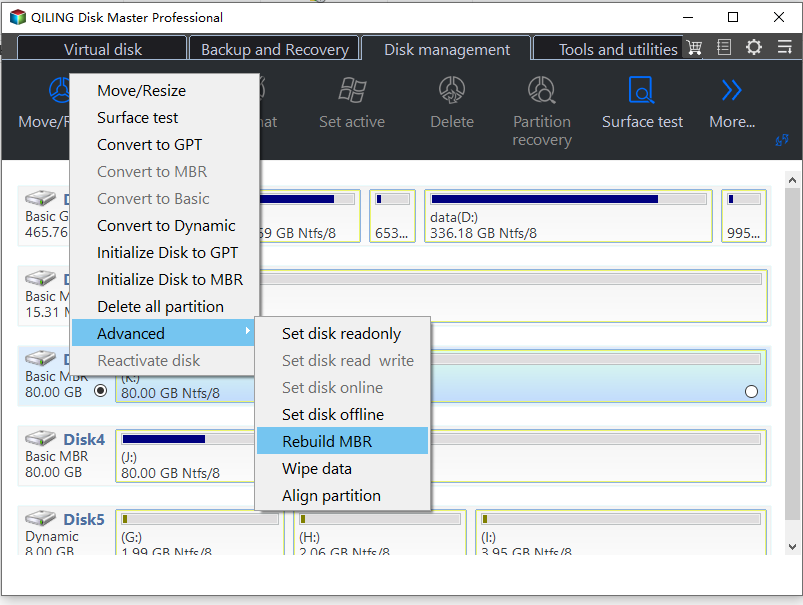
Step 2. Select the MBR type for your Windows version and click Proceed. Pick the Windows 7/8/10/11 entry for a modern system, then review the summary and click Proceed. Rebuild MBR writes boot code and does not create or delete partitions, so the volumes you recovered in Operation 2 stay where they are.
Frequently Asked Questions
Will initializing the disk erase my files?
It writes a new signature and a new partition table, and that can overwrite the entries a recovery scan needs. The files themselves are usually still on the disk, but the index that points to them is gone. Never accept the initialize prompt before the disk has been copied.
Can a GPT disk lose its partition table too?
Yes. GPT keeps a backup header and entry array at the end of the disk, which saves many cases, but a tool writing to the wrong offset or a power loss during partition work can damage both copies. The symptoms look the same: correct capacity, no volumes, and a prompt to initialize.
Is the data gone once the table is damaged?
Usually not. Files stay on the platters until something overwrites those sectors. Every write, format, or new partition reduces the chance of a full recovery, which is why the copy in Operation 1 comes before any repair attempt.
Related Articles
- Cannot Initialize a Disk in Windows
- Convert MBR to GPT Without Reinstalling Windows
- Best Partition Recovery Software for Windows
- Bootmgr Is Missing on Windows 11
- Convert GPT to MBR in Windows 11
Products
Articles & Tutorials
- Data Recovery
- Data Backup
- File Recovery
- File Backup
- System Backup and Restore
- Disk and Partition Clone
- Technical articles
- Mobile articles
- Disk Master Help
- Windows Data Recovery Tutorials
- Windows Secure Delete Tutorials
- Windows Partition Management Tutorials
- Windows File Backup and Restore Tutorials
- Windows System Backup and Restore Tutorials
- Windows Disk Backup and Restore Tutorials
- Windows Clone Tutorials