Remove Partition from SSD in Windows Safely
You may want to remove a partition from an SSD to clean a drive, merge space into C drive, or prepare the SSD for reuse. Before deleting anything, confirm what the partition stores and whether you still need the files.
What to Check Before Deleting
- Back up files from the partition you plan to remove.
- Do not delete EFI, MSR, recovery, or boot partitions unless you know their purpose.
- Check whether BitLocker is enabled and unlock the partition first.
- If the partition disappeared by mistake, recover files before creating a new volume.
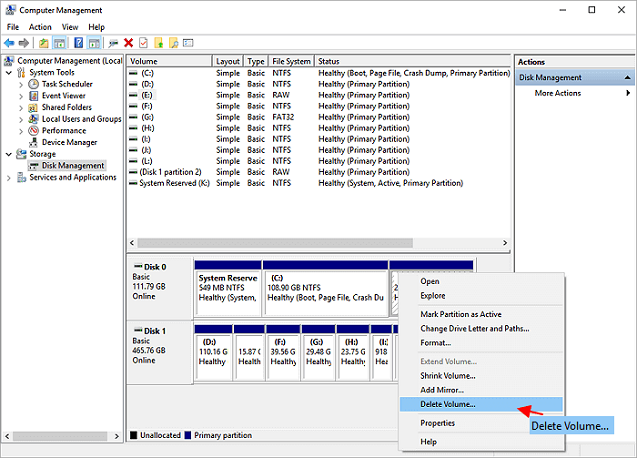
Remove a Data Partition with Disk Management
- Right-click Start and choose Disk Management.
- Find the SSD and verify the partition size, label, and drive letter.
- Right-click the partition and choose Delete Volume.
- The space becomes unallocated. You can create a new volume or extend a nearby partition.
- If Delete Volume is unavailable, the partition may be protected or system-related.
Remove or Merge Partitions with Qiling Disk Master
Use Qiling Disk Master when Windows cannot move unallocated space, when a recovery partition blocks expansion, or when you want to preview layout changes before applying them.
Step 1. Open Qiling Disk Master and select the SSD partition you want to remove.

Step 2. Delete, resize, or move partitions according to the final layout you need.
Step 3. Preview the pending operations carefully.

Step 4. Click Proceed and restart if required.
Conclusion
Removing an SSD partition is simple, but deleting the wrong partition can stop Windows from booting. Back up data and use a partition tool when Windows cannot adjust the layout directly.
Related Articles
Products
Articles & Tutorials
- Data Recovery
- Data Backup
- File Recovery
- File Backup
- System Backup and Restore
- Disk and Partition Clone
- Technical articles
- Mobile articles
- Disk Master Help
- Windows Data Recovery Tutorials
- Windows Secure Delete Tutorials
- Windows Partition Management Tutorials
- Windows File Backup and Restore Tutorials
- Windows System Backup and Restore Tutorials
- Windows Disk Backup and Restore Tutorials
- Windows Clone Tutorials