Reset a Forgotten Windows 11 Password Without Losing Files
A forgotten Windows 11 password is not one problem with one universal button. Microsoft accounts, work accounts, local accounts, and Windows Hello PINs have different recovery routes. Start with the method that matches the account and protects the files.
Try the Official Account Route
At the sign-in screen, check whether the selected account shows an email address. For a Microsoft account, choose I forgot my password and complete the identity check on the device or another trusted device. Reconnect the PC to the internet and sign in with the recovered password. If only the PIN failed, select Sign-in options and try the password; the PIN is device-specific.
For a local account, use the configured security questions or a password-reset disk made before the lockout. If another administrator account belongs to you, it may be able to help manage the local user. For a company or school PC, contact the organization's administrator; do not bypass management policies.
Protect Encrypted Data
Before external boot media or a Windows reset, retrieve the BitLocker or Device Encryption recovery key from the account or organization that owns the PC. A changed boot environment may trigger a recovery prompt. No offline utility can guarantee file access without the required encryption key. Do not upload the key to an unknown website or share it with a supposed remote repair service.
Qiling Local Account Reset, If Applicable
This route is only for an owned or administered Windows installation with an accessible local account and supported boot configuration. It does not reset a Microsoft account password or replace its identity verification.
Step 1. On a working PC, create Qiling bootable media. Boot the locked machine from it and verify that the Windows disk is visible and, if encrypted, legitimately unlocked.
Step 2. Open Tools and utilities > Reset Windows password. The function is separate from Windows Hello PIN recovery.
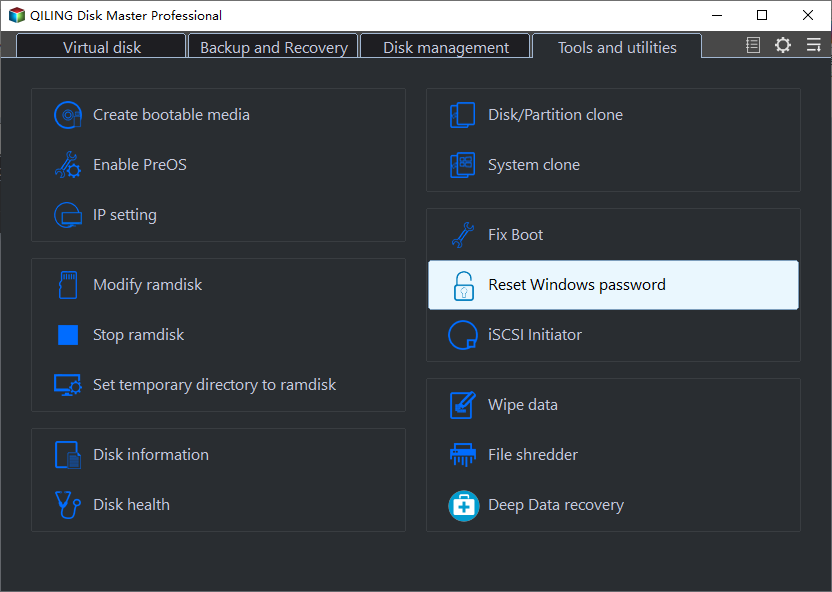
Step 3. Select the correct Windows installation in the list, then the local account you are authorized to administer. Double-check the username before clicking Reset.

Step 4. Wait for the reported result, remove boot media, restart, and sign in. Set a new strong password and restore account protections immediately. If the account does not appear or the disk is locked, stop and use the official account or encryption recovery path.
Last-Resort Windows Reset
If recovery is impossible and you own the machine, Windows Recovery can offer Reset this PC. A keep-files option may retain personal files but removes applications and changes settings; it is not a backup. Read the exact summary on your PC before confirming, and recover or copy important data first where possible. A full wipe is appropriate only when loss of the remaining data is acceptable.
Conclusion
Identify the account type, use supported password recovery first, preserve the BitLocker key, and reserve local reset or Windows reset for the cases they actually support.
Related Articles
- Reset a Windows PIN
Keep PIN and account-password recovery distinct. - Reset a Windows Password with Qiling
Understand the local-account reset interface.
Products
Articles & Tutorials
- Data Recovery
- Data Backup
- File Recovery
- File Backup
- System Backup and Restore
- Disk and Partition Clone
- Technical articles
- Mobile articles
- Disk Master Help
- Windows Data Recovery Tutorials
- Windows Secure Delete Tutorials
- Windows Partition Management Tutorials
- Windows File Backup and Restore Tutorials
- Windows System Backup and Restore Tutorials
- Windows Disk Backup and Restore Tutorials
- Windows Clone Tutorials