Rundll Error on Startup in Windows: How to Fix It
A RunDLL error usually means Windows is trying to load a DLL file that is missing, damaged, or left behind by removed software. The message often appears right after sign-in.
Common Causes
- An app was uninstalled but its startup task remained.
- Malware or adware left a broken DLL reference.
- A driver utility loads too early during startup.
- System files are damaged after an update or forced shutdown.
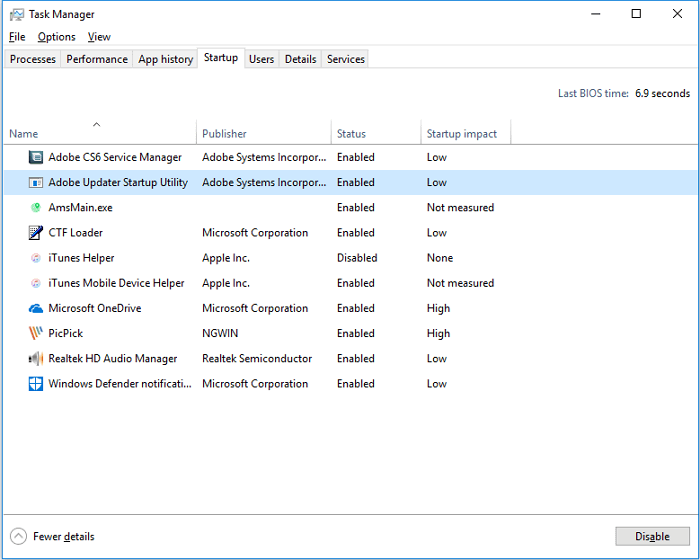
Fix RunDLL Startup Errors
- Write down the DLL name shown in the error message.
- Open Task Manager > Startup and disable suspicious or outdated entries.
- Open Task Scheduler and check tasks from removed programs.
- Run Windows Security or another trusted antivirus scan.
- Open Command Prompt as administrator and run sfc /scannow.
Create a Backup Before Registry Cleanup
Some guides suggest deleting registry entries. Before doing that, create a backup so you can recover if the wrong startup item is removed.
Step 1. Open Qiling Backup and choose System Backup.

Step 2. Save the backup to an external drive.
Step 3. Review the backup task before editing startup or registry entries.

Step 4. Click Proceed. After the backup completes, continue with startup cleanup.
Conclusion
RunDLL startup errors are often leftover startup references. Disable the related entry, scan for malware, repair system files, and back up Windows before registry edits.
Related Articles
Products
Articles & Tutorials
- Data Recovery
- Data Backup
- File Recovery
- File Backup
- System Backup and Restore
- Disk and Partition Clone
- Technical articles
- Mobile articles
- Disk Master Help
- Windows Data Recovery Tutorials
- Windows Secure Delete Tutorials
- Windows Partition Management Tutorials
- Windows File Backup and Restore Tutorials
- Windows System Backup and Restore Tutorials
- Windows Disk Backup and Restore Tutorials
- Windows Clone Tutorials