Selected Disk Has an MBR Partition Table: Windows Setup Fix
Windows Setup shows 'The selected disk has an MBR partition table' when the installer was started in UEFI mode but the selected disk uses MBR. The mismatch is between boot mode and partition style; it is not evidence that every file on the disk is damaged.
Check the Target Before Changing Anything
At the Windows Setup disk list, identify the intended physical drive by capacity and any known partition layout. If multiple disks are connected, disconnect nonessential ones to reduce the chance of installing to the wrong drive. Record whether the disk holds an existing Windows installation or data you need to keep.
UEFI Windows installation normally expects GPT, while a legacy BIOS boot can use MBR. Merely restarting the USB installer in a different mode may change the error, but it must match the computer's supported firmware and your installation goal. Modern Windows 11 installations require UEFI and Secure Boot capability; do not use a legacy-mode workaround for that target.
If You Need to Preserve Existing Windows and Data
Use a verified full backup and obtain your BitLocker recovery key before converting a system disk. Microsoft's MBR2GPT can convert an eligible existing Windows system disk without deleting its data, but validation may fail when layout requirements are not met. This is not a general-purpose fix for any arbitrary data disk.
Step 1. Boot the existing Windows installation or an appropriate Windows recovery environment. Run diskpart and list disk to identify the exact system disk number, then exit Diskpart. Check the firmware supports UEFI and that no unsupported partition arrangement blocks conversion.
Step 2. From an elevated Command Prompt, run mbr2gpt /validate /disk:N /allowFullOS when running inside the full Windows installation, replacing N with the confirmed disk number. In Windows PE, omit /allowFullOS. Do not proceed if validation fails; read the log and resolve the reason first.
Step 3. If validation succeeds, compare the disk layout and the Microsoft MBR2GPT documentation with your recovery plan before authorizing conversion. This article does not provide the irreversible execution command while the exact device and backup state are unknown.
Step 4. After a separately approved conversion, switch firmware to UEFI before booting the converted installation and choose its Windows Boot Manager entry. Verify startup, disk layout, encryption, and your files. If the system does not boot, use the prepared recovery plan rather than repeatedly changing firmware settings.
If a Clean Installation Is Intended
A clean installation can create a GPT layout on a truly disposable target disk, but deleting or reinitializing partitions permanently removes the selected drive's data. First confirm the backup and identify the disk by capacity and model. Use the official Windows Setup instructions for your version and read every erase confirmation carefully. Do not erase a recovery or data partition merely to make the message disappear.
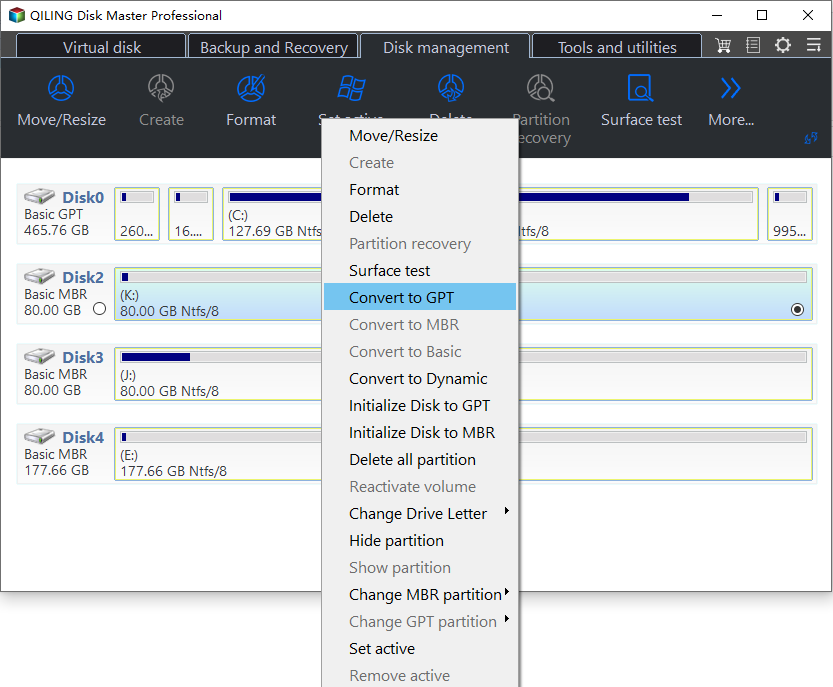
Qiling Disk Master's Convert to GPT menu exists for disk management, but the screenshot below shows a data disk, not a proven system-disk conversion. Do not treat a generic data-disk conversion as a substitute for Microsoft's boot-aware MBR2GPT workflow on an installed Windows system.
If Validation Fails
Common blockers include too many MBR primary partitions, no space for an EFI system partition, unsupported disk layout, or inability to locate the active Windows installation. Do not delete partitions at random. Back up, read the MBR2GPT log, and decide whether a supported repair, a new drive, or a clean installation is appropriate. A disk with read errors needs data protection before conversion.
Conclusion
The error is a UEFI/MBR mismatch. Preserve data, validate before any conversion, and keep Windows boot repair distinct from data-disk partition conversion.
Related Articles
- Fix Windows Cannot Be Installed to This MBR Disk
Compare setup and conversion scenarios. - MBR to GPT Converter
Understand the partition-style change and boot requirements.
Products
Articles & Tutorials
- Data Recovery
- Data Backup
- File Recovery
- File Backup
- System Backup and Restore
- Disk and Partition Clone
- Technical articles
- Mobile articles
- Disk Master Help
- Windows Data Recovery Tutorials
- Windows Secure Delete Tutorials
- Windows Partition Management Tutorials
- Windows File Backup and Restore Tutorials
- Windows System Backup and Restore Tutorials
- Windows Disk Backup and Restore Tutorials
- Windows Clone Tutorials