How to Undelete Windows 11 Partitions [Solved]
When managing partitions, it's not uncommon to accidentally remove one you didn't intend to, resulting in data loss. However, Windows offers a built-in tool called Disk Management that allows users to manage partitions, but inexperienced users may end up losing all their data when using it.
If you're looking to recover a lost Windows 11 partition, this post can help you not only restore the partition but also recover data from it. To undelete the partition, follow the guide provided.
Causes of Partition Lost
Apart from accidental deletion of a partition, other reasons that can cause partition loss include software corruption, hardware failure, virus attacks, and physical damage to the storage device.
Windows 11 partition deletion can occur due to various reasons, including hard drive corruption, virus attacks, malware activities, improper system shutdown, power surge, improper format, partition table damage, accidental drop of laptops, power failure, and hard disk damage.
You need to be sure to have a backup of all important data before it's lost, but not everyone does that. This guide offers ways to recover a deleted partition and also set up a backup system in place, allowing you to recover the deleted partition and even the data from the deleted drive, even if all data is lost.
How to Undelete Windows 11 Partitions Easily
When a portion of a partition is deleted, it is not completely removed from the hard disk until a new partition is created. Instead, the deleted partition is only removed from the access of a general user and the operating system. The information of the deleted partition remains available on the hard disk, and can be recovered using partition recovery software, such as Qiling Partition Master.
If your first goal is to save files before rebuilding the partition, follow this data-first guide to recover a deleted partition in Windows 11.
The software offers more than simple disk management, making it a professional application. It's easy to use, features an interface that prevents accidental deletions, and assists in recovering lost partitions.
- To resize a partition, you can use the slider to adjust its size to a larger or smaller one. This allows you to expand or shrink the partition as needed, making it easier to manage your disk space and optimize your system's performance.
- To merge partitions into a larger one without any loss of data, you would need to follow these steps: First, ensure that the partition you want to merge into has enough free space to accommodate the entire data from the other partition. Then, create a new partition that encompasses the entire disk, making sure it's large enough to hold all the data.
- Organize and optimize your hard disk performance.
- Clone and migrate partition to the unallocated space.
- Resize/extend/shrink/create dynamic volume easily.
- Recover Lost partition.
The software scans the connected hard drive and lists all partitions, with the "Good" partition indicating an existing partition and the "Lost" partition indicating a deleted partition.
Step 1. Open Qiling Partition Master and click "Partition Recovery" on the top menu. Select the desired disk to start searching for lost partition(s) and click "Scan" to begin the process.
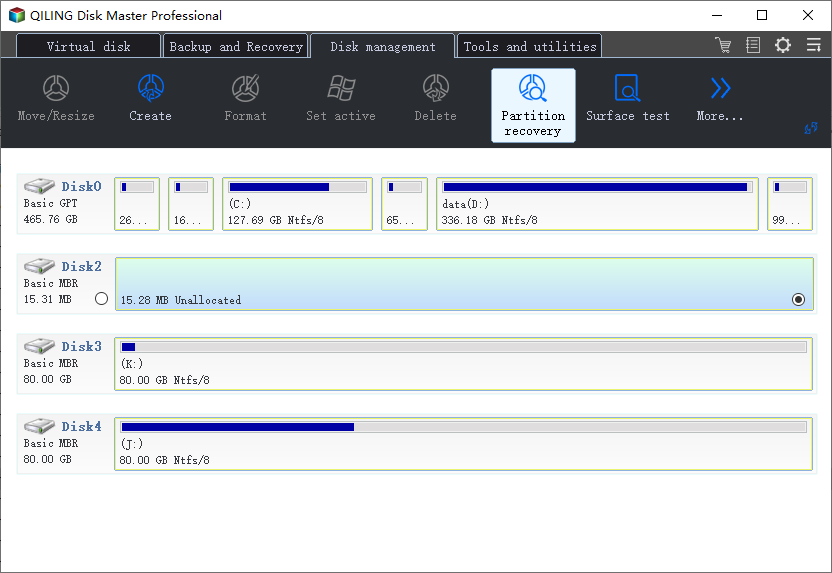
Step 2. A quick scan will immediately start, allowing you to pause the scanning process at any time by clicking "Proceed" when the lost partition shows up, at which point you can start your data recovery.
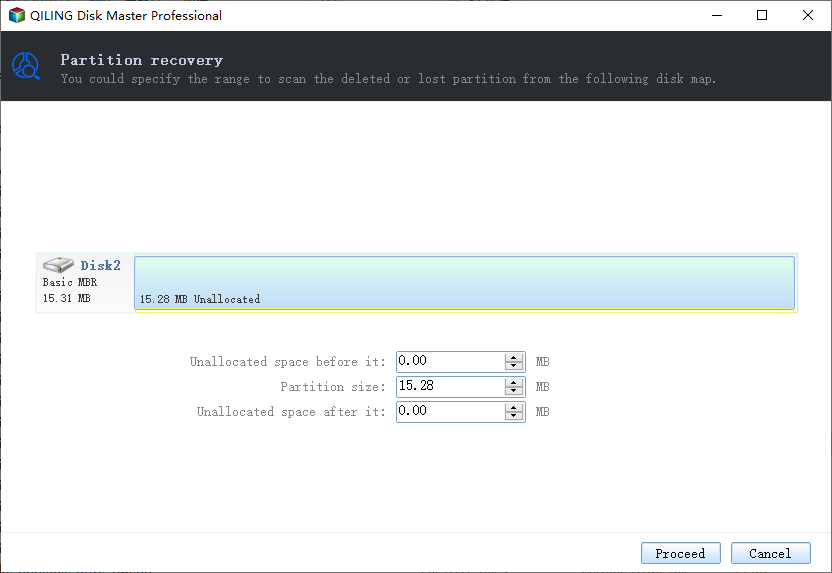
You can double-click on the partition you're looking for to preview its content.
Step 3. Once the lost partition and data have been found, click "Recover" to start the recovery process.
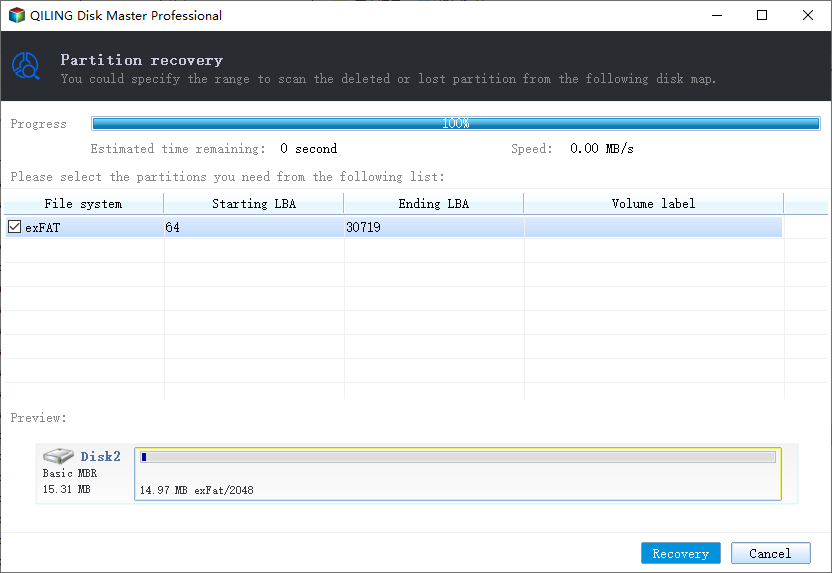
Step 4. After the recovery process, click "Finish". Your lost partition should reappear in your drive.
If Windows 11 restoration is in conflict, the software will suggest recovering crucial data and then recovering. However, this should be the last option when it comes to Windows 11 partition recovery.
Bonus Tip - How to Protect Your Partitions
In the event of a disaster, having a backup plan in place can save time and ensure a smooth recovery.
Having a backup will allow you to recreate the partition and restore data from it, making the process faster and smoother compared to partition recovery. This is a significant advantage of taking regular backups, as it will save you time and effort in the event of a problem.
- Avoiding data loss
- Avoiding data overwriting
- Improved performance
- Reliable data and Improved reliability.
The Backup Recovery Feature in Windows creates a System Image for all connected drives, allowing for system restoration using the Windows Advanced Recovery method. This feature also enables the restoration of cloned partitions, but the overall recovery process is time-consuming and cumbersome.
Using professional software like Qiling Backup is always a good idea, especially for those who frequently work with disk partitions. It allows for automatic backups, which can prevent partition loss or data loss issues. This is particularly useful for those who regularly create disk partitions.
Step 1.To initiate a disk backup in Open Qiling, navigate to the Backup and recovery page and select the "Disk Backup" option.

Step 2.Qiling Backup allows you to back up a whole disk or a specific partition, giving you flexibility in your backup needs.

Step 3.You can choose to save the disk to a local drive or to NAS.

Step 4.After the backup process is completed, click "Proceed". You can then click on any of the tasks to further manage your backup, such as recovering it, creating an incremental backup, etc.
Qiling Backup Features:
- Schedule and automatically take your backup.
- Restore your system and data
- Different Types of Backup
- Backup Status Reporting.
The system will be available for use again shortly, with the recovery time varying depending on the number of files needing to be restored.
Conclusion
Recovering lost partitions in Windows 11 is only possible through professional software, as the operating system itself does not offer a solution. If you don't have a backup, recovering the partition is not feasible. However, software like Qiling Partition Master can help recover lost partitions, offering an intuitive user interface and a complete recovery solution, minimizing the risk of accidental deletions.
Related Articles
- Download the Best Free Transcend Format Tool for USB/Memory Card
- How to Delete EFI Partition in Windows 11| What Is EFI Partition Windows 11
- NTFS or exFAT for External Hard Drive: Which Format is Better for External Hard Drive
- Is 8GB RAM Enough? Get the Answers Here!
- Solved: The Selected Disk is of the GPT Partition Style in Windows
Why "The selected disk is of the GPT partition style" happens? This post will explain and show you how to fix it in two simple way. - What to Do When Shrink Volume Greyed Out in Windows 7/8/10?
When using Disk Management to shrink a volume in Windows 10/8/7, you may find shrink volume greyed out. In such case, what to do? This article provides different solutions.
Products
Articles & Tutorials
- Data Recovery
- Data Backup
- File Recovery
- File Backup
- System Backup and Restore
- Disk and Partition Clone
- Technical articles
- Mobile articles
- Disk Master Help
- Windows Data Recovery Tutorials
- Windows Secure Delete Tutorials
- Windows Partition Management Tutorials
- Windows File Backup and Restore Tutorials
- Windows System Backup and Restore Tutorials
- Windows Disk Backup and Restore Tutorials
- Windows Clone Tutorials