Unlock Your Surface Without a Password: Authorized Recovery
Being locked out of a Surface can mean a forgotten Microsoft account password, a broken PIN, or a local-account password problem. These have different recovery routes. Use the account and device owner's authorized options first; no tool can legitimately promise to recover encrypted data without its recovery key.
Identify the Sign-In Method
If the sign-in screen shows an email address, treat it as a Microsoft account. Use the official Forgot password flow on another device, complete the identity checks, and reconnect the Surface to the internet before signing in. If only the PIN is unavailable, choose I forgot my PIN or Sign-in options and use the account password where offered. A Windows Hello PIN is tied to that device; it is not the Microsoft account password.
For a local account, try the security questions or a previously created password-reset disk if available. For that disk, attach it at the sign-in screen, choose Reset password after an unsuccessful attempt, select the disk in the wizard, and set a new password and hint. A reset disk cannot be created after you are already locked out. Check keyboard layout, Caps Lock, and whether you are signing into the intended user.
If a second administrator account on the Surface belongs to you, sign in to that account and use Windows account-management controls to help restore access to the local user. Back up the user's files before changing account settings; some encrypted or account-bound data may not be accessible merely because another administrator changes the password. On a work or school Surface, contact the organization's administrator instead of changing managed security settings yourself.
Protect Data Before a Reset
Surface devices commonly use Device Encryption or BitLocker. Save the recovery key from the owner's Microsoft account or organization before booting external recovery media or changing firmware settings. If you cannot obtain it, do not assume an offline password reset will make the encrypted files accessible.
Whenever another administrator account is available, sign in with it, back up personal files to another physical device, and create a second account if needed. Avoid downloading unknown 'password unlock' utilities that ask you to disable security features or upload recovery keys.
Optional Qiling Route for an Owned Local Account
Qiling Disk Master's Reset Windows password function is for a supported, accessible local Windows installation, not a way to bypass Microsoft account verification or BitLocker. Use it only on a device you own or administer and only when you can lawfully access its disk. If the Surface cannot boot supported external media, skip this route.
Step 1. On another Windows PC, create Qiling bootable media and test that the Surface can start from it under its supported firmware configuration. Keep the original firmware settings recorded.
Step 2. In the Qiling environment, open Tools and utilities > Reset Windows password.
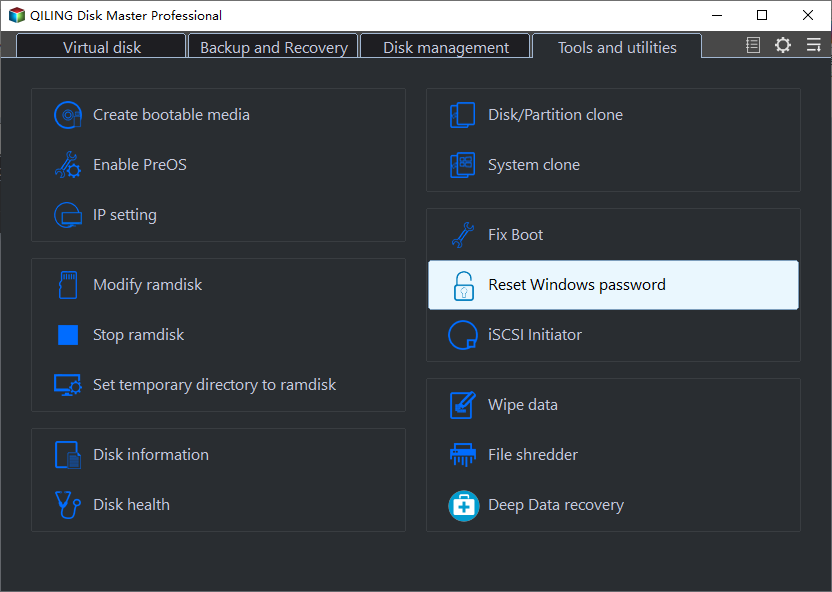
Step 3. Select the correct Windows installation and local user account by name. Check the selection before clicking Reset; do not choose a different person's account.

Step 4. Confirm the reported result, remove the media, and restart. Set a new strong password and verify access to personal files and encrypted content. If the disk cannot be unlocked, stop and use the official recovery-key process.
If Access Still Cannot Be Restored
Windows Recovery offers Reset this PC with a keep-files option on some installations, but applications and settings can still be removed and encrypted data may require a recovery key. Read the on-screen summary before confirming. A full wipe is a last resort only after files are backed up or declared expendable. For managed or second-hand devices, ask the owner or administrator for supported recovery.
Conclusion
Match the recovery path to Microsoft account, PIN, or local account, secure the BitLocker key, and use any reset tool only on an authorized device.
Related Articles
- Reset a Forgotten Laptop Password
Compare account, recovery, and local reset options. - Windows Hello PIN Unavailable
Repair a PIN sign-in issue without confusing it with the account password.
Products
Articles & Tutorials
- Data Recovery
- Data Backup
- File Recovery
- File Backup
- System Backup and Restore
- Disk and Partition Clone
- Technical articles
- Mobile articles
- Disk Master Help
- Windows Data Recovery Tutorials
- Windows Secure Delete Tutorials
- Windows Partition Management Tutorials
- Windows File Backup and Restore Tutorials
- Windows System Backup and Restore Tutorials
- Windows Disk Backup and Restore Tutorials
- Windows Clone Tutorials